Valid D-VXR-OE-23 Dumps shared by ExamDiscuss.com for Helping Passing D-VXR-OE-23 Exam! ExamDiscuss.com now offer the newest D-VXR-OE-23 exam dumps, the ExamDiscuss.com D-VXR-OE-23 exam questions have been updated and answers have been corrected get the newest ExamDiscuss.com D-VXR-OE-23 dumps with Test Engine here:
Access D-VXR-OE-23 Dumps Premium Version
(49 Q&As Dumps, 35%OFF Special Discount Code: freecram)
<< Prev Question Next Question >>
Question 95/98
A VxRail administrator is planning a maintenance activity. The customer has a 2 hour maintenance window and wants to avoid unnecessary vSAN re-synchronization during this time.
Use the simulator to prepare the system for maintenance mode.
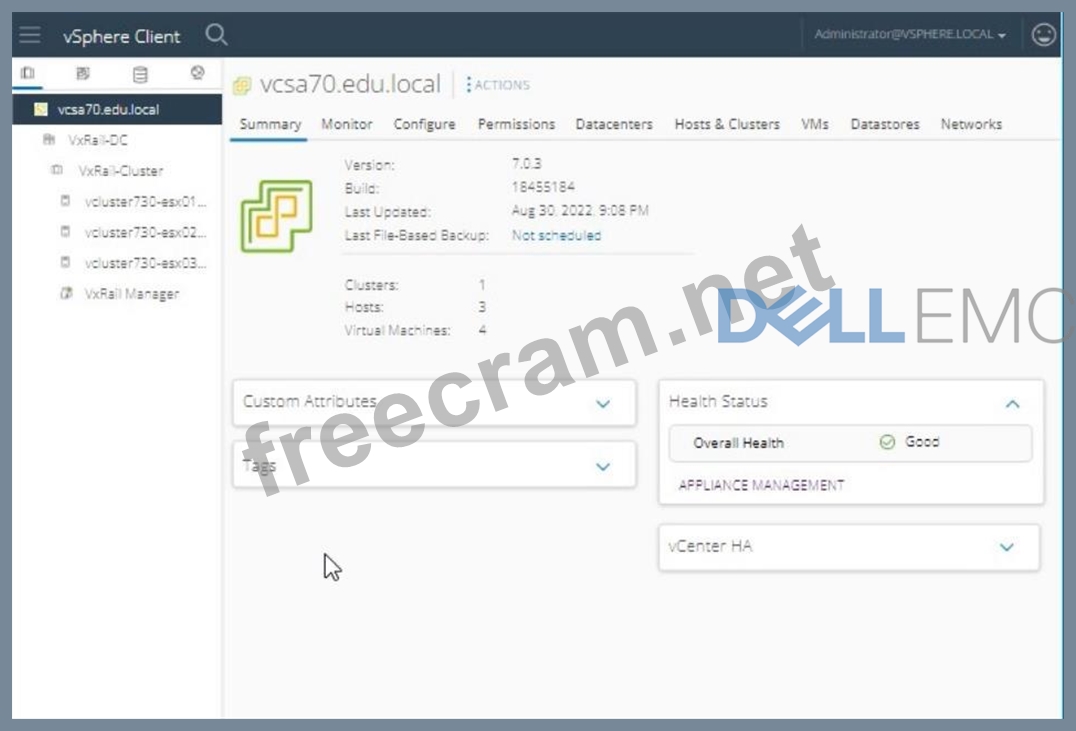
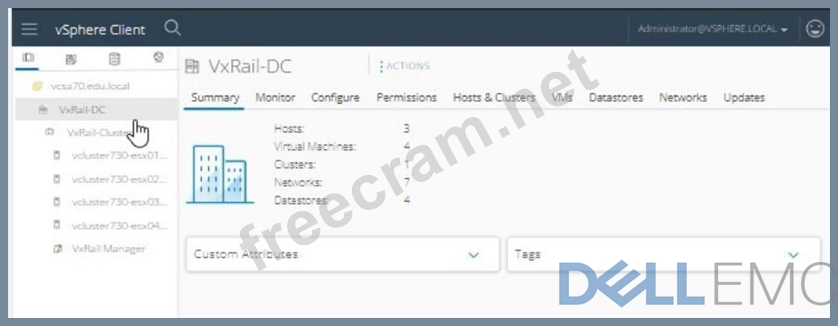

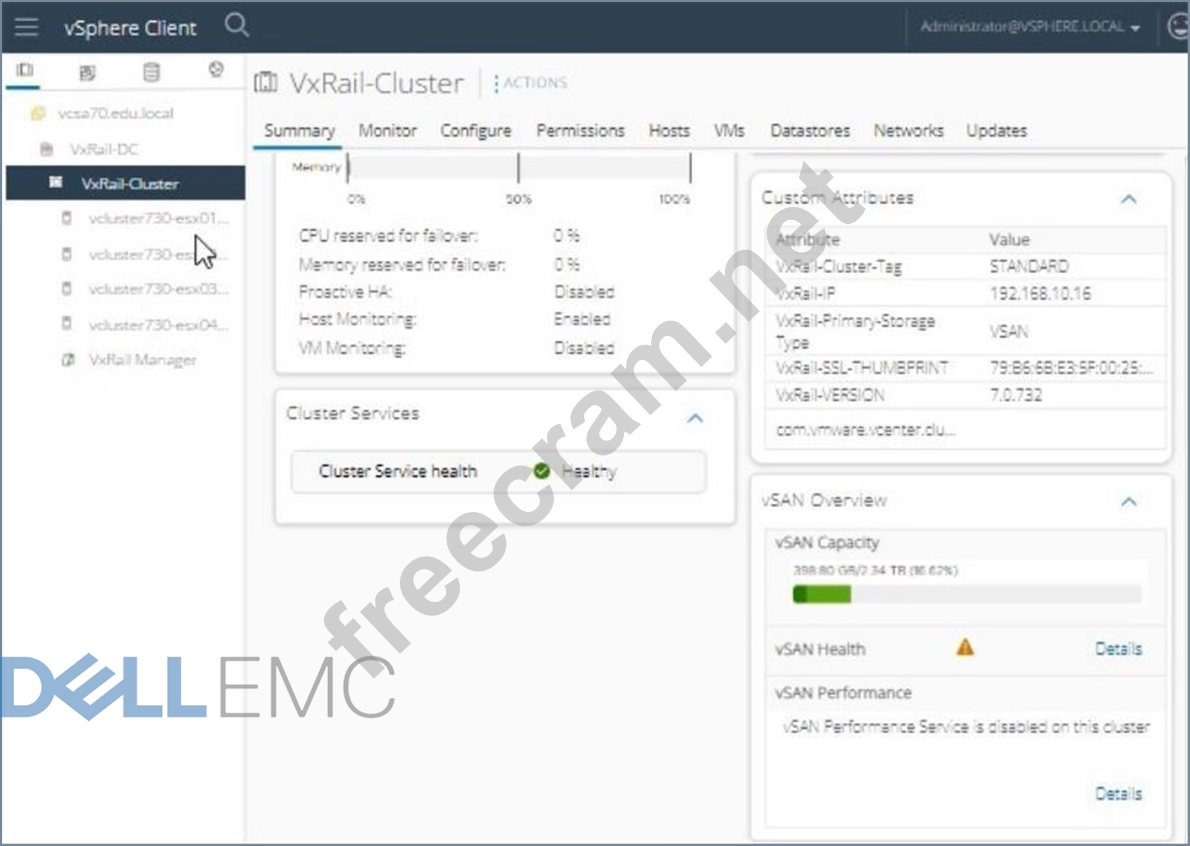
Use the simulator to prepare the system for maintenance mode.
Correct Answer:
To prepare the system for maintenance mode and avoid unnecessary vSAN re-synchronization, follow these steps:
* Log in to vSphere Client:
* Open the vSphere Client.
* Enter the username:[email protected].
* Enter the password:VMw@r3!123.
* ClickLogin.
* Navigate to the Host:
* In the vSphere Client interface, navigate toHosts and Clusters.
* Expand theVxRail-DCand then theVxRail-Cluster.
* Select the Host for Maintenance:
* Select the host you plan to put into maintenance mode
(e.g.,vcluster730-esx01.edu.local,vcluster730-esx02.edu.local, etc.).
* Enter Maintenance Mode:
* Right-click on the selected host and selectEnter Maintenance Mode.
* In theEnter Maintenance Modewindow, you will have several options for vSAN data migration.
To avoid unnecessary re-synchronization, chooseEnsure Accessibility.
* Ensure Accessibility: This option makes sure that the data remains accessible during maintenance but does not immediately trigger full data migration. It is the best choice to avoid unnecessary re-synchronization during a short maintenance window.
* Confirm Maintenance Mode:
* ClickOKto confirm the selection and put the host into maintenance mode.
* Verify the Host Status:
* Monitor the status to ensure the host enters maintenance mode without triggering excessive re-synchronization.
Reference:
VMware vSAN Maintenance Mode Options: vSAN Maintenance Mode
=========================
To summarize, selectingEnsure Accessibilitywhen entering maintenance mode helps to avoid unnecessary vSAN re-synchronization during the maintenance window. This method ensures that data remains accessible and minimizes the impact on the cluster's performance and availability during the maintenance activity.
* Log in to vSphere Client:
* Open the vSphere Client.
* Enter the username:[email protected].
* Enter the password:VMw@r3!123.
* ClickLogin.
* Navigate to the Host:
* In the vSphere Client interface, navigate toHosts and Clusters.
* Expand theVxRail-DCand then theVxRail-Cluster.
* Select the Host for Maintenance:
* Select the host you plan to put into maintenance mode
(e.g.,vcluster730-esx01.edu.local,vcluster730-esx02.edu.local, etc.).
* Enter Maintenance Mode:
* Right-click on the selected host and selectEnter Maintenance Mode.
* In theEnter Maintenance Modewindow, you will have several options for vSAN data migration.
To avoid unnecessary re-synchronization, chooseEnsure Accessibility.
* Ensure Accessibility: This option makes sure that the data remains accessible during maintenance but does not immediately trigger full data migration. It is the best choice to avoid unnecessary re-synchronization during a short maintenance window.
* Confirm Maintenance Mode:
* ClickOKto confirm the selection and put the host into maintenance mode.
* Verify the Host Status:
* Monitor the status to ensure the host enters maintenance mode without triggering excessive re-synchronization.
Reference:
VMware vSAN Maintenance Mode Options: vSAN Maintenance Mode
=========================
To summarize, selectingEnsure Accessibilitywhen entering maintenance mode helps to avoid unnecessary vSAN re-synchronization during the maintenance window. This method ensures that data remains accessible and minimizes the impact on the cluster's performance and availability during the maintenance activity.


- Question List (98q)
- Question 1: What is true when scaling out a VxRail cluster?...
- Question 2: A VxRail system administrator has been tasked to add the sup...
- Question 3: A VxRail administrator is concerned that the Integrated NIC ...
- Question 4: A company has bought VxRail V Series appliances with PCle ne...
- Question 5: Which VxRail deployment model is recommended in environments...
- Question 6: An administrator must add an additional network card to an e...
- Question 7: What is the VxRail API path for downloading the log bundle?...
- Question 8: What is a consideration when expanding a vSAN disk group in ...
- Question 9: Which user interface provides remote power control (power on...
- Question 10: What is the sequence of steps to deploy a second VDS for VxR...
- Question 11: What is a feature of vSAN Space efficiency?...
- Question 12: What is the maximum number of disk groups supported by a VxR...
- Question 13: As an administrator, you are asked to view the health of the...
- Question 14: A VxRail administrator has been tasked with configuring stat...
- Question 15: An administrator wants to locate the PSNT for a specific VxR...
- Question 16: What are all the actions that can be performed from the Node...
- Question 17: Using the VxRail Manager, what information can be located un...
- Question 18: What is the VxRail evaluation period for vSphere and vSAN?...
- Question 19: What is the correct sequence of steps to deploy a second VDS...
- Question 20: Which software component is used to collect real-time log ac...
- Question 21: Which feature captures I/O traces from ESXi and generates me...
- Question 22: When using a vSAN storage policy with FTT = 1 and FTM = Mirr...
- Question 23: A company intends to deploy VxRail for their heavy database ...
- Question 24: What is the correct order of steps to create a VM for a new ...
- Question 25: Which system components are managed through a vCenter plug-i...
- Question 26: An application consisting of two VMs must be keep on two sep...
- Question 27: Using VxRail Manager, what information can you find under th...
- Question 28: What is a supported feature when using a vSAN HCI Mesh?...
- Question 29: What is a supported VxRail deployment?...
- Question 30: What is the correct sequence of steps in enabling NIC redund...
- Question 31: What is a consideration when using a VxRail Cluster with vSp...
- Question 32: What is the fault tolerance method provided by the default s...
- Question 33: Which tool is used to deploy VxRail?...
- Question 34: An administrator wants to perform maintenance on a VxRail sy...
- Question 35: In a VxRail G560 node, which integrated NIC port is the Acti...
- Question 36: A VxRail administrator has been asked to configure fault dom...
- Question 37: When needed, the vSAN might also break large objects into mu...
- Question 38: A VxRail cluster needs to be moved to a new rack in the data...
- Question 39: What is the minimum number of nodes needed for self-healing ...
- Question 40: Match each management component with its characteristic. (Ex...
- Question 41: Task An administrator is working with the VxRail Dell Suppor...
- Question 42: What is the Deduplication algorithm used by vSAN?...
- Question 43: Which three processes are performed during a VxRail cluster ...
- Question 44: Where in the VxRail Plugin can log bundles be generated?...
- Question 45: What are all the activities that can be performed from the N...
- Question 46: A VxRail administrator using the vSphere Client wants to man...
- Question 47: VxRail Manager provides a software stack for a software-defi...
- Question 48: What is the recommended vSphere HA response to a Datastore w...
- Question 49: After a successful code upgrade of a VxRail Cluster, the adm...
- Question 50: A customer has a large storage capacity and low I/O performa...
- Question 51: VxRail administrator got the following warning while on node...
- Question 52: An administrator is tasked with remediating the identified s...
- Question 53: A failure occurs while upgrading a VxRail cluster. Which log...
- Question 54: A user of VxRail Manager wants to investigate Storage IOPS f...
- Question 55: An environment has two VxRail Clusters with this configurati...
- Question 56: When vSAN deduplication and compression are enabled on an ex...
- Question 57: VxRail Health Monitoring should be disabled when which actio...
- Question 58: Which SolVe procedures are customer viewable and can be foun...
- Question 59: A VxRail administrator needs to add storage capacity to a 4-...
- Question 60: When is the vSAN performance service typically enabled?...
- Question 61: As a VxRail administrator, you must determine how long the r...
- Question 62: During a maintenance task on a VxRail Appliance, the system ...
- Question 63: In the vSphere Client, where is VxRail Health Monitoring ena...
- Question 64: What is the block size and object level of the vSAN deduplic...
- Question 65: Dell EMC VxRail All-Flash nodes have been deployed in a Stre...
- Question 66: Use what network configuration is considered a best practice...
- Question 67: A VxRail deployment has eight nodes. The VxRail administrato...
- Question 68: Which deployed software component is used to collect real-ti...
- Question 69: What is the default time, in minutes, of the vSAN object rep...
- Question 70: A customer wants to manage multiple VxRail clusters from one...
- Question 71: What are the latency and bandwidth requirements between data...
- Question 72: How many Failures to Tolerate can be configured with vSAN RA...
- Question 73: What is a network consideration for VxRail version 4 5.x?...
- Question 74: You are a VxRail system administrator and have received an e...
- Question 75: A VxRail administrator has configured a VxRail stretch clust...
- Question 76: Which VxRail model supports 25 Gb NICs?...
- Question 77: Which VxRail cluster can tolerate a host failure?...
- Question 78: What is the VxRail API Base URL?...
- Question 79: A VxRail administrator wants to determine how long the rebui...
- Question 80: Which VxRail Manager view displays the storage IOPS, CPU, me...
- Question 81: Which authentication method is used in VxRail API?...
- Question 82: After the initial setup, a customer requested the administra...
- Question 83: You are checking the overall health of the VxRail vSAN envir...
- Question 84: Which resource should an administrator use when beginning a ...
- Question 85: What is a consideration before removing a VxRail node from a...
- Question 86: Which software-defined storage is used by VxRail?...
- Question 87: Which API call asks the VxRail Manager to apply partial modi...
- Question 88: As a VxRail administrator you have been asked to configure v...
- Question 89: Which level of data protection can be configured across site...
- Question 90: An administrator wants to expand a VxRail cluster by one nod...
- Question 91: A VxRail administrator is evaluating vSAN settings in prepar...
- Question 92: A customer is building a private self-service cloud with VxR...
- Question 93: What is a consideration when planning for expansion of an ex...
- Question 94: Where is the VxRail Dashboard located in the vSphere client?...
- Question 95: A VxRail administrator is planning a maintenance activity. T...
- Question 96: What is the component state when vSAN detects a temporary fa...
- Question 97: A VxRail administrator has determined that the stretched clu...
- Question 98: An administrator is trying to monitor vSAN backend IOPS, thr...
