Valid MS-203 Dumps shared by ExamDiscuss.com for Helping Passing MS-203 Exam! ExamDiscuss.com now offer the newest MS-203 exam dumps, the ExamDiscuss.com MS-203 exam questions have been updated and answers have been corrected get the newest ExamDiscuss.com MS-203 dumps with Test Engine here:
Access MS-203 Dumps Premium Version
(396 Q&As Dumps, 35%OFF Special Discount Code: freecram)
<< Prev Question Next Question >>
Question 81/157
Please wait while the virtual machine loads. Once loaded, you may proceed to the lab section. This may take a few minutes, and the wait time will not be deducted from your overall test time.
When the Next button is available, click it to access the lab section. In this section, you will perform a set of tasks in a live environment. While most functionality will be available to you as it would be in a live environment, some functionality (e.g., copy and paste, ability to navigate to external websites) will not be possible by design.
Scoring is based on the outcome of performing the tasks stated in the lab. In other words, it doesn't matter how you accomplish the task, if you successfully perform it, you will earn credit for that task.
Labs are not timed separately, and this exam may have more than one lab that you must complete. You can use as much time as you would like to complete each lab. But, you should manage your time appropriately to ensure that you are able to complete the lab(s) and all other sections of the exam in the time provided.
Please note that once you submit your work by clicking the Next button within a lab, you will NOT be able to return to the lab.
Use the following login credentials as needed:
To enter your username, place your cursor in the Sign in box and click on the username below.
To enter your password, place your cursor in the Enter password box and click on the password below.
Microsoft 365 Username: [email protected]
Microsoft 365 Password: xxxxxx
If the Microsoft 365 portal does not load successfully in the browser, press CTRL-K to reload the portal in a new browser tab.
The following information is for technical support purposes only.
Lab Instance: XXXXXX
You need to prevent email messages that contain attachments that have the .js file extension from being delivered to any recipients in your organization.
To complete this task, sign in to the Microsoft 365 admin center.
When the Next button is available, click it to access the lab section. In this section, you will perform a set of tasks in a live environment. While most functionality will be available to you as it would be in a live environment, some functionality (e.g., copy and paste, ability to navigate to external websites) will not be possible by design.
Scoring is based on the outcome of performing the tasks stated in the lab. In other words, it doesn't matter how you accomplish the task, if you successfully perform it, you will earn credit for that task.
Labs are not timed separately, and this exam may have more than one lab that you must complete. You can use as much time as you would like to complete each lab. But, you should manage your time appropriately to ensure that you are able to complete the lab(s) and all other sections of the exam in the time provided.
Please note that once you submit your work by clicking the Next button within a lab, you will NOT be able to return to the lab.
Use the following login credentials as needed:
To enter your username, place your cursor in the Sign in box and click on the username below.
To enter your password, place your cursor in the Enter password box and click on the password below.
Microsoft 365 Username: [email protected]
Microsoft 365 Password: xxxxxx
If the Microsoft 365 portal does not load successfully in the browser, press CTRL-K to reload the portal in a new browser tab.
The following information is for technical support purposes only.
Lab Instance: XXXXXX
You need to prevent email messages that contain attachments that have the .js file extension from being delivered to any recipients in your organization.
To complete this task, sign in to the Microsoft 365 admin center.
Correct Answer:
See explanation below.
Explanation
Go to Mail flow > Rules.
Create the rule by using one of the following options:
- To create a rule from a template, click
- To copy a rule, select the rule, and then select
- To create a new rule from scratch,
In the New rule dialog box, name the rule, and then select the conditions and actions for this rule:
- In Apply this rule if..., select the condition you want from the list of available conditions:
Some conditions require you to specify values. For example, if you select The sender is... condition, you must specify a sender address. If you're adding a word or phrase, note that trailing spaces are not allowed.
If the condition you want isn't listed, or if you need to add exceptions, select More options. Additional conditions and exceptions will be listed.
If you don't want to specify a condition, and want this rule to apply to every message in your organization, select [Apply to all messages] condition.
- In Do the following..., select the action you want the rule to take on messages matching the criteria from the list of available actions:
Some of the actions will require you to specify values. For example, if you select the Forward the message for approval to... condition, you will need to select a recipient in your organization.
If the condition you want isn't listed, select More options. Additional conditions will be listed.
- Specify how rule match data for this rule is displayed in the Data Loss Prevention (DLP) reports and the Mail protection reports.
- Set the mode for the rule. You can use one of the two test modes to test the rule without impacting mail flow.
In both test modes, when the conditions are met, an entry is added to the message trace:
Enforce: This turns on the rule and it starts processing messages immediately. All actions on the rule will be performed.
Test with Policy Tips: This turns on the rule, and any Policy Tip actions ( Notify the sender with a Policy Tip) will be sent, but no actions related to message delivery will be performed. Data Loss Prevention (DLP) is required in order to use this mode.
Test without Policy Tips: Only the Generate incident report action will be enforced. No actions related to message delivery are performed.
Exchange Online admins can create mail flow rules in the Exchange admin center (EAC) at Mail flow > Rules
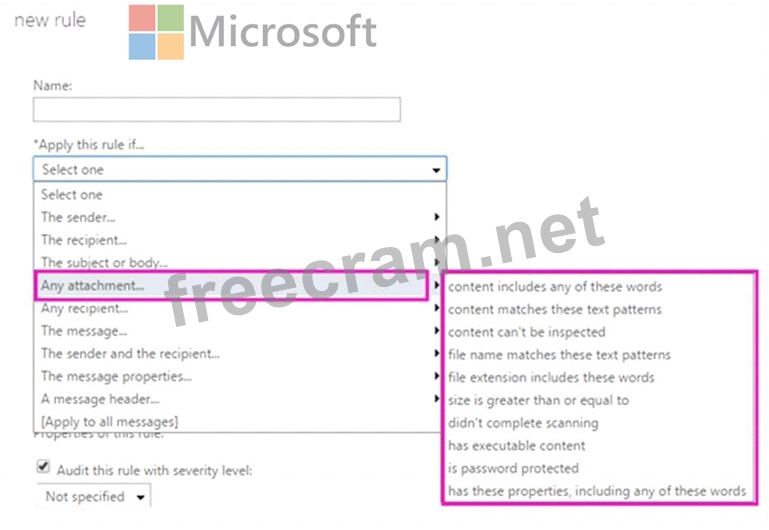
. You need permissions to do this procedure. After you start to create a new rule, you can see the full list of attachment-related conditions by clicking under Apply this rule if. The attachment-related options are shown in the following diagram.
Graphical user interface, application Description automatically generated with medium confidence
Reference:
https://docs.microsoft.com/en-us/exchange/security-and-compliance/mail-flow-rules/manage-mail-flow-rules
https://docs.microsoft.com/en-us/exchange/security-and-compliance/mail-flow-rules/inspect-message-attachmen
Explanation
Go to Mail flow > Rules.
Create the rule by using one of the following options:
- To create a rule from a template, click
- To copy a rule, select the rule, and then select
- To create a new rule from scratch,
In the New rule dialog box, name the rule, and then select the conditions and actions for this rule:
- In Apply this rule if..., select the condition you want from the list of available conditions:
Some conditions require you to specify values. For example, if you select The sender is... condition, you must specify a sender address. If you're adding a word or phrase, note that trailing spaces are not allowed.
If the condition you want isn't listed, or if you need to add exceptions, select More options. Additional conditions and exceptions will be listed.
If you don't want to specify a condition, and want this rule to apply to every message in your organization, select [Apply to all messages] condition.
- In Do the following..., select the action you want the rule to take on messages matching the criteria from the list of available actions:
Some of the actions will require you to specify values. For example, if you select the Forward the message for approval to... condition, you will need to select a recipient in your organization.
If the condition you want isn't listed, select More options. Additional conditions will be listed.
- Specify how rule match data for this rule is displayed in the Data Loss Prevention (DLP) reports and the Mail protection reports.
- Set the mode for the rule. You can use one of the two test modes to test the rule without impacting mail flow.
In both test modes, when the conditions are met, an entry is added to the message trace:
Enforce: This turns on the rule and it starts processing messages immediately. All actions on the rule will be performed.
Test with Policy Tips: This turns on the rule, and any Policy Tip actions ( Notify the sender with a Policy Tip) will be sent, but no actions related to message delivery will be performed. Data Loss Prevention (DLP) is required in order to use this mode.
Test without Policy Tips: Only the Generate incident report action will be enforced. No actions related to message delivery are performed.
Exchange Online admins can create mail flow rules in the Exchange admin center (EAC) at Mail flow > Rules
. You need permissions to do this procedure. After you start to create a new rule, you can see the full list of attachment-related conditions by clicking under Apply this rule if. The attachment-related options are shown in the following diagram.
Graphical user interface, application Description automatically generated with medium confidence
Reference:
https://docs.microsoft.com/en-us/exchange/security-and-compliance/mail-flow-rules/manage-mail-flow-rules
https://docs.microsoft.com/en-us/exchange/security-and-compliance/mail-flow-rules/inspect-message-attachmen


- Question List (157q)
- Question 1: You have a Microsoft Exchange Online tenant. You need to ens...
- Question 2: You have a Microsoft Exchange Online tenant. You plan to use...
- Question 3: You have a Microsoft Exchange Online tenant that contains a ...
- Question 4: You have a Microsoft Exchange Online tenant. All users are a...
- Question 5: Note: This question is part of a series of questions that pr...
- Question 6: Allan Deyoung must perform a message trace of the email mess...
- Question 7: You have a Microsoft Exchange Server 2019 hybrid deployment....
- Question 8: Your company has a Microsoft Exchange Server 2019 organizati...
- Question 9: You have a Microsoft Exchange Server 2019 organization. You ...
- Question 10: You have 1,000 user accounts that are each licensed for Micr...
- Question 11: You have a Microsoft Exchange Server 2019 hybrid deployment....
- Question 12: You have a Microsoft Exchange Online tenant. You need to imp...
- Question 13: You have a hybrid deployment between a Microsoft Exchange On...
- Question 14: You have a Microsoft 365 ES subscription that contains a Mic...
- Question 15: You discover that email messages sent to contoso.com are NOT...
- Question 16: Note: This question is part of a series of questions that pr...
- Question 17: You have a hybrid deployment that contains a Microsoft Excha...
- Question 18: Your company has a Microsoft Exchange Server 2019 hybrid dep...
- Question 19: You have a Microsoft Exchange Online tenant. You need to con...
- Question 20: You have a Microsoft 365 subscription. You need to modify th...
- Question 21: Please wait while the virtual machine loads. Once loaded, yo...
- Question 22: You have a Microsoft Exchange Online tenant that contains a ...
- Question 23: You manage a Microsoft Exchange Server 2019 organization tha...
- Question 24: Note: This question is part of a series of questions that pr...
- Question 25: Your network contains an on-premises Active Directory Forest...
- Question 26: Note: This question is part of a series of questions that pr...
- Question 27: You have a Microsoft Exchange Online tenant. Users report th...
- Question 28: Please wait while the virtual machine loads. Once loaded, yo...
- Question 29: You need to implement a solution to meet the technical requi...
- Question 30: have a Microsoft Exchange Online tenant. All mailboxes ug a ...
- Question 31: You manage a Microsoft Exchange Online subscription. You use...
- Question 32: You have a Microsoft Exchange Online tenant that uses an ema...
- Question 33: You have two servers named EXCH1 and EXCH2 that run Windows ...
- Question 34: You have a Microsoft Exchange Server 2016 hybrid deployment....
- Question 35: Please wait while the virtual machine loads. Once loaded, yo...
- Question 36: You are evaluating the email hygiene configuration of a Micr...
- Question 37: You have a Microsoft Exchange Online tenant that contains th...
- Question 38: You have a Microsoft Exchange Online tenant that contains a ...
- Question 39: Note: This question is part of a series of questions that pr...
- Question 40: You have an on-premises Microsoft Exchange Server 2019 organ...
- Question 41: You have an Exchange Online tenant that contains several hun...
- Question 42: You have a hybrid deployment between a Microsoft Exchange On...
- Question 43: You have a Microsoft Exchange Server 2019 organization and a...
- Question 44: You have a Microsoft Exchange Online tenant. From a computer...
- Question 45: You have a Microsoft Exchange Online tenant that contains a ...
- Question 46: You have a Microsoft Exchange Online tenant. All users use a...
- Question 47: You have a hybrid deployment between a Microsoft Exchange On...
- Question 48: You have a Microsoft Exchange Online tenant. You need to be ...
- Question 49: Note: This question is part of a series of questions that pr...
- Question 50: Note: This question is part of a series of questions that pr...
- Question 51: Your network contains an Active Directory domain and an Azur...
- Question 52: Note: This question is part of a series of questions that pr...
- Question 53: You have a Microsoft Exchange Online tenant and the devices ...
- Question 54: Please wait while the virtual machine loads. Once loaded, yo...
- Question 55: Please wait while the virtual machine loads. Once loaded, yo...
- Question 56: You have a Microsoft Exchange Online tenant. Users use Micro...
- Question 57: You have a Microsoft Exchange Online tenant named contoso.co...
- Question 58: You have a Microsoft Exchange Online tenant that contains an...
- Question 59: Your company named Contoso, Ltd. has a Microsoft Exchange Se...
- Question 60: You have distribution group named Car Parking Distribution G...
- Question 61: You have a Microsoft 365 subscription that has Microsoft Def...
- Question 62: Your network contains an Active Directory domain named conto...
- Question 63: You have a Microsoft Exchange Online tenant that contains tw...
- Question 64: You have a Microsoft Exchange Online tenant. You need to add...
- Question 65: You have a Microsoft 365 subscription that contains the mail...
- Question 66: Please wait while the virtual machine loads. Once loaded, yo...
- Question 67: You have a Microsoft Exchange Server 2019 organization. You ...
- Question 68: You have a Microsoft Exchange Server 2019 hybrid deployment....
- Question 69: You have a Microsoft Exchange Server 2019 organization. You ...
- Question 70: You need to identify the contents of the FabrikamProject pub...
- Question 71: Your company has a Microsoft Exchange Online subscription fo...
- Question 72: You need to identify which users clicked the links in the ph...
- Question 73: You have two mailboxes named Mailbox1 and Mailbox2 that have...
- Question 74: You have a Microsoft Exchange Online tenant. The Exchange or...
- Question 75: Note: This question is part of a series of questions that pr...
- Question 76: You have a Microsoft 365 subscription. Several users report ...
- Question 77: You need to generate a report for the mobile devices that me...
- Question 78: You purchase a Microsoft 365 subscription. You create mailbo...
- Question 79: You recently implemented a hybrid deployment that contains a...
- Question 80: You have a hybrid deployment between a Microsoft Exchange On...
- Question 81: Please wait while the virtual machine loads. Once loaded, yo...
- Question 82: You have a Microsoft Exchange Online tenant that contains 1,...
- Question 83: You have a Microsoft Exchange Online tenant. All users have ...
- Question 84: You have an on-premises Microsoft Exchange Server 2019 organ...
- Question 85: You have a Microsoft Exchange Server 2019 organization. You ...
- Question 86: Your company has a Microsoft Exchange Server 2019 organizati...
- Question 87: Your company has a Microsoft Exchange Server 2019 hybrid dep...
- Question 88: For each of the following statements, select Yes if the stat...
- Question 89: You have a Microsoft Exchange Online tenant named contoso.co...
- Question 90: You have a Microsoft Exchange Server 2019 organization that ...
- Question 91: You have a hybrid deployment between a Microsoft Exchange On...
- Question 92: Your company has an Exchange Server 2019 organization that h...
- Question 93: You need to implement a solution that meets the technical re...
- Question 94: Note: This question is part of a series of questions that pr...
- Question 95: You need to implement a solution to support the planned chan...
- Question 96: You need to configure the environment to support the planned...
- Question 97: Use the drop-down menus to select the answer choice that com...
- Question 98: You have a Microsoft 365 tenant that contains a user named U...
- Question 99: You have a Microsoft Exchange Online tenant. All users are a...
- Question 100: Your network contains an Active Directory domain named corp....
- Question 101: Your company has a partnership with another company named co...
- Question 102: Your company named Contoso, Ltd. has a Microsoft Exchange On...
- Question 103: Your company has a Microsoft Exchange Server 2019 hybrid dep...
- Question 104: Note: This question is part of a series of questions that pr...
- Question 105: You have a Microsoft Exchange Online tenant that contains a ...
- Question 106: You have a Microsoft Exchange Online tenant. The tenant has ...
- Question 107: You run several PowerShell commands as shown in the followin...
- Question 108: All email sent by the users in fabrikam.com to orders@contos...
- Question 109: You have a Microsoft Exchange Online tenant that uses a thir...
- Question 110: You have a Microsoft Exchange Online tenant. You enable hier...
- Question 111: You have a Microsoft Exchange Online tenant that contains a ...
- Question 112: You have a Microsoft Exchange Online tenant. You receive an ...
- Question 113: You have an on-premises Microsoft Exchange Server 2019 organ...
- Question 114: You have a Microsoft Exchange Server 2019 organization. User...
- Question 115: Note: This question is part of a series of questions that pr...
- Question 116: You have a Microsoft Exchange Online tenant that uses a thir...
- Question 117: You have a Microsoft Exchange Online tenant named contoso.co...
- Question 118: You plan to migrate to Microsoft Exchange Online. The soluti...
- Question 119: Your company has a Microsoft Exchange Server 2019 hybrid dep...
- Question 120: How many default policy tags (DPTs), retention policy tags (...
- Question 121: You have a hybrid deployment of Microsoft Exchange Server 20...
- Question 122: You have a Microsoft Exchange Online subscription. You run t...
- Question 123: Please wait while the virtual machine loads. Once loaded, yo...
- Question 124: You have hybrid deployment between a Microsoft Exchange Onli...
- Question 125: You have a Microsoft Exchange Online tenant that contains tw...
- Question 126: You have a hybrid deployment between a Microsoft Exchange On...
- Question 127: You have a Microsoft 365 subscription. A safe attachments po...
- Question 128: You have a Microsoft Exchange Online tenant as shown in the ...
- Question 129: You have a Microsoft Exchange Online tenant that uses Micros...
- Question 130: You need to configure the new smartboard to support the plan...
- Question 131: You have a Microsoft Exchange Online tenant. A user reports ...
- Question 132: You have a Microsoft Exchange Online tenant. You need to cre...
- Question 133: You have a Microsoft Exchange Online tenant that contains 1,...
- Question 134: You have a Microsoft Exchange Online tenant that contains th...
- Question 135: Please wait while the virtual machine loads. Once loaded, yo...
- Question 136: You have a Microsoft Exchange Server 2019 hybrid deployment ...
- Question 137: Your company has an Exchange Online tenant. A partner compan...
- Question 138: You plan to use the Hybrid Agent to integrate your Microsoft...
- Question 139: You have a hybrid deployment of Microsoft Exchange Server 20...
- Question 140: Note: This question is part of a series of questions that pr...
- Question 141: You have a Microsoft Exchange Online tenant that contains a ...
- Question 142: Note: This question is part of a series of questions that pr...
- Question 143: You have hybrid deployment between a Microsoft Exchange Onln...
- Question 144: You have a Microsoft Exchange Server 2019 organization. You ...
- Question 145: You have a Microsoft Exchange Online tenant that contains a ...
- Question 146: You have a Microsoft Exchange Online subscription. You need ...
- Question 147: You have an address book policy named Contoso-US that contai...
- Question 148: You have a Microsoft Exchange Server 2019 organization that ...
- Question 149: Your company has three departments name Dept1, Dept2. and De...
- Question 150: Note: This question is part of a series of questions that pr...
- Question 151: You have a Microsoft Exchange Server 2019 organization named...
- Question 152: You have Microsoft Exchange Online tenant that uses Microsof...
- Question 153: Your company has a department named Deptl. You have a Micros...
- Question 154: You have a Microsoft Exchange Online tenant that contains a ...
- Question 155: You have 1,000 user accounts that are each licensed for Micr...
- Question 156: You need to recommend a solution for the public folders that...
- Question 157: Please wait while the virtual machine loads. Once loaded, yo...
