- Home
- Microsoft
- Configuring and Operating a Hybrid Cloud with Microsoft Azure Stack Hub
- Microsoft.AZ-600.v2023-10-12.q87
- Question 51
Valid AZ-600 Dumps shared by ExamDiscuss.com for Helping Passing AZ-600 Exam! ExamDiscuss.com now offer the newest AZ-600 exam dumps, the ExamDiscuss.com AZ-600 exam questions have been updated and answers have been corrected get the newest ExamDiscuss.com AZ-600 dumps with Test Engine here:
Access AZ-600 Dumps Premium Version
(179 Q&As Dumps, 35%OFF Special Discount Code: freecram)
<< Prev Question Next Question >>
Question 51/87
You have an Azure subscription named sub1 linked to an Azure Active Directory (Azure AD) tenant named contoso.com You have an Azure Stack Hub integrated system that is registered to sub1.
You need to delegate registering the Azure Stack Hub integrated system to an Azure Stack Hub operator. The solution must use the Principle of least privilege.
Which three actions should you perform in sequence? To answer, move the appropriate actions from the list of actions to the answer area and arrange them in correct order.
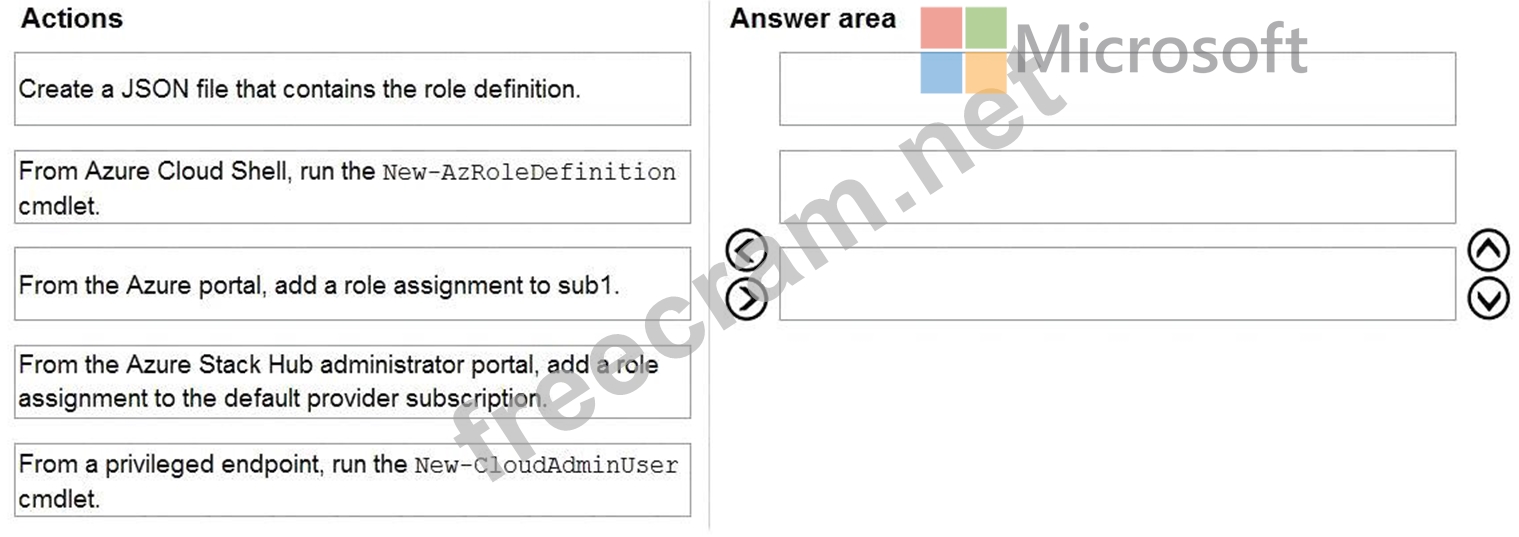
You need to delegate registering the Azure Stack Hub integrated system to an Azure Stack Hub operator. The solution must use the Principle of least privilege.
Which three actions should you perform in sequence? To answer, move the appropriate actions from the list of actions to the answer area and arrange them in correct order.
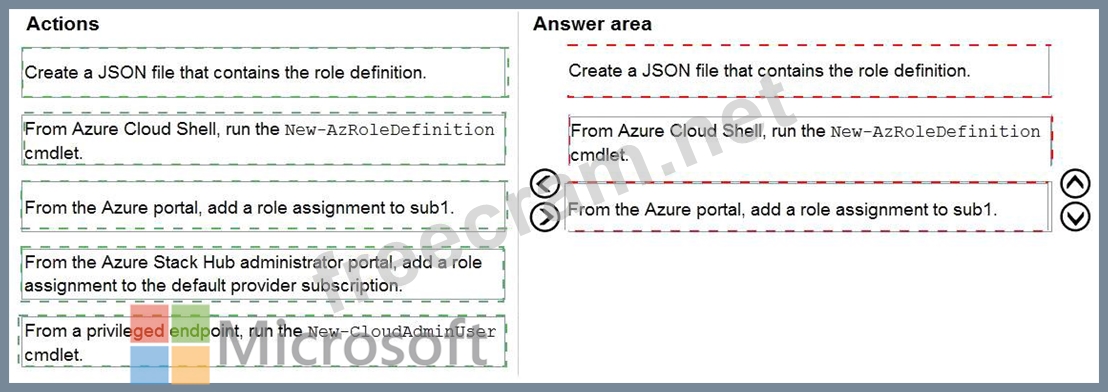
Correct Answer:
Explanation
Graphical user interface, text, application, email Description automatically generated
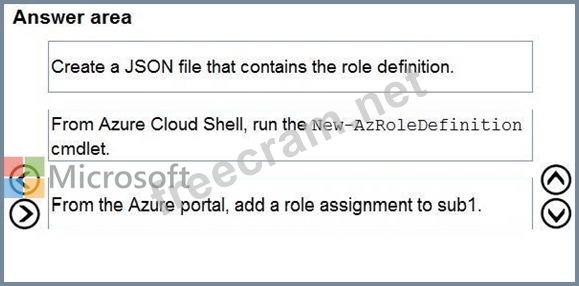
Step 1: Create a JSON file that contains the role definition.
Rather than using an account that has Owner permissions in the Azure subscription, you can create a custom role to assign permissions to a less-privileged user account. This account can then be used to register your Azure Stack Hub.
Create a custom role using PowerShell
Use the following JSON template to simplify creation of the custom role. The template creates a custom role that allows the required read and write access for Azure Stack Hub registration.
1. Create a JSON file. For example, C:\CustomRoles\registrationrole.json.
2. Add the following JSON to the file. Replace <SubscriptionID> with your Azure subscription ID.
{
"Name": "Azure Stack Hub registration role",
"Id": null,
"IsCustom": true,
"Description": "Allows access to register Azure Stack Hub",
"Actions": [
"Microsoft.Resources/subscriptions/resourceGroups/write",
"Microsoft.Resources/subscriptions/resourceGroups/read",
"Microsoft.AzureStack/registrations/*",
"Microsoft.AzureStack/register/action",
"Microsoft.Authorization/roleAssignments/read",
"Microsoft.Authorization/roleAssignments/write",
"Microsoft.Authorization/roleAssignments/delete",
"Microsoft.Authorization/permissions/read",
"Microsoft.Authorization/locks/read",
"Microsoft.Authorization/locks/write"
],
"NotActions": [
],
"AssignableScopes": [
"/subscriptions/<SubscriptionID>"
]
}
3. In PowerShell, connect to Azure to use Azure Resource Manager. When prompted, authenticate using an account with sufficient permissions such as Owner or User Access Administrator.
Connect-AzAccount
4. To create the custom role, use New-AzRoleDefinition specifying the JSON template file.
New-AzRoleDefinition -InputFile "C:\CustomRoles\registrationrole.json"
Step 2: From Azure Cloud shell, run the New-AzRoleDefinition cmdlet.
Step 3: From the Azure portal, add a role assignment to sub1.
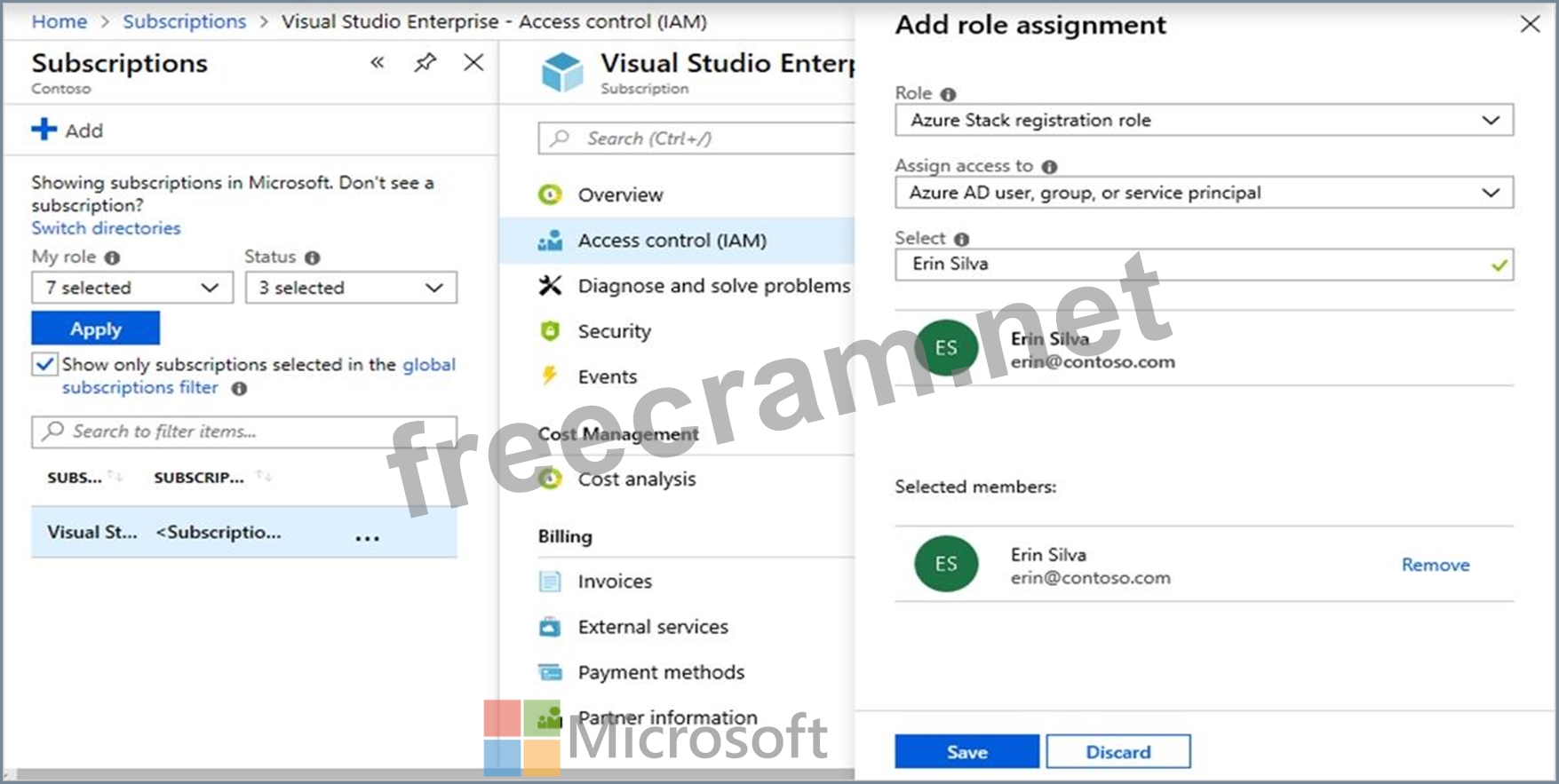
Assign a user to registration role
After the registration custom role is created, assign the role to the user account that will be used for registering Azure Stack Hub.
Sign in with the account with sufficient permission on the Azure subscription to delegate rights - such as Owner or User Access Administrator.
In Subscriptions, select Access control (IAM) > Add role assignment.
In Role, choose the custom role you created: Azure Stack Hub registration role.
Select the users you want to assign to the role.
Select Save to assign the selected users to the role.
Reference: https://learn.microsoft.com/en-us/azure-stack/operator/azure-stack-registration-role


- Question List (87q)
- Question 1: You plan to deploy an Azure Stack Hub integrated system that...
- Question 2: You have an Azure Stack Hub integrated system that has the f...
- Question 3: You provision a new certificate to support the planned chang...
- Question 4: You need to change the int1 region to use the capacity model...
- Question 5: Note: This question is part of a series of questions that pr...
- Question 6: You have an Azure Stack Hub integrated system. The Volumes l...
- Question 7: You have two Azure subscriptions named sub1 and sub2. The su...
- Question 8: You have an Azure Stack Hub integrated system that uses an A...
- Question 9: You have an Azure Stack Hub integrated system that is enable...
- Question 10: You plan to deploy an Azure Stack Hub integrated system that...
- Question 11: You have an Active Directory federation Services {AD FS) dep...
- Question 12: Note: This question is part of a series of questions that pr...
- Question 13: You have an Azure Stack Hub integrated system. You perform i...
- Question 14: You need to create the Linux virtual machine image. The solu...
- Question 15: You plan to deploy an Azure Stack Hub integrated system that...
- Question 16: You have an Azure Stack Hub integrated system that is enable...
- Question 17: You have an Azure Stack Hub integrated system that contains ...
- Question 18: You need to configure the log forwarding. The solution must ...
- Question 19: You have an Azure Stack Hub integrated system. You plan to a...
- Question 20: You have an Azure Stack Hub integrated system that is regist...
- Question 21: You have an Azure Stack Hub Integrated system that has the f...
- Question 22: You need to identify the PEP information for the integrated ...
- Question 23: You have an Azure Stack Hub integrated system that is not ye...
- Question 24: You have an Azure Stack Hub integrated system. You plan to d...
- Question 25: You have an Azure Stack Hub integrated system. You plan to i...
- Question 26: You have an Azure Stack Hub integrated system that uses an A...
- Question 27: You have an Azure Stack Hub Integrated system. Outbound traf...
- Question 28: You have an Azure Stack Hub integrated system that is config...
- Question 29: Which three components are required to configure an Azure St...
- Question 30: You have an Azure Stack Hub integrated system. You plan to e...
- Question 31: Note: This question is part of a series of questions that pr...
- Question 32: You need to update the Azure Stack Hub integrated system reg...
- Question 33: You have an Azure Slack Hub integrated system and a computer...
- Question 34: You have an Azure Stack Hub integrated system that uses an i...
- Question 35: You have an Azure Stack Hub integrated system that contains ...
- Question 36: You are planning the deployment of two Azure Stack Hub integ...
- Question 37: Note: This question is part of a series of questions that pr...
- Question 38: You need to configure name resolution to support the planned...
- Question 39: You have an Azure Stack Hub integrated system that was recen...
- Question 40: Note: This question is part of a series of questions that pr...
- Question 41: You have a disconnected Azure Stack Hub integrated system. Y...
- Question 42: You need to support the planned changes for User1. Which ser...
- Question 43: You remove all the workloads from the int1 region and change...
- Question 44: You have a disconnected Azure Stack Hub integrated system. Y...
- Question 45: You have an Azure Stack Hub integrated system. You are an op...
- Question 46: You plan to deploy an Azure Stack Hub integrated system that...
- Question 47: You need to create the planned changes and meet the business...
- Question 48: You have an Azure Stack Hub integrated system. You need to u...
- Question 49: You have an Azure Stack Hub integrated system that is discon...
- Question 50: In which three situations should you update the registration...
- Question 51: You have an Azure subscription named sub1 linked to an Azure...
- Question 52: Your company is a Cloud Solution Provider (CSP). You plan to...
- Question 53: You have a connected Azure Stack Hub integrated system. You ...
- Question 54: You are troubleshooting an Azure Stack Hub integrated system...
- Question 55: Note: This question is part of a series of questions that pr...
- Question 56: You have a connected Azure Stack Hub integrated system that ...
- Question 57: You have an Azure Stack Hub integrated system that has the A...
- Question 58: You have an Azure Stack Hub integrated system. You unlock th...
- Question 59: You have an Azure Stack Hub integrated system that is linked...
- Question 60: You need to identify the authentication and authorization pr...
- Question 61: You have an Azure Stack Hub integrated system that is enable...
- Question 62: You have a connected Azure Stack Hub integrated system. You ...
- Question 63: You have an Azure Stack Hub integrated system that contains ...
- Question 64: Note: This question is part of a series of questions that pr...
- Question 65: You need to implement disaster recovery for the priv1 region...
- Question 66: You plan to install an update to an Azure Stack Hub integrat...
- Question 67: You have an Azure Stack Hub integrated system that is enable...
- Question 68: You have an Azure Stack Hub integrated system that is enable...
- Question 69: Note: This question is part of a series of questions that pr...
- Question 70: You need to recommend a business continuity and disaster rec...
- Question 71: You have an Azure Stack Hub integrated system. The retention...
- Question 72: Note: This question is part of a series of questions that pr...
- Question 73: Your company is a Cloud Solution Provider (CSP). You are pla...
- Question 74: Note: This question is part of a series of questions that pr...
- Question 75: You have an Azure Stack Hub integrated system. You install t...
- Question 76: You have an Azure Slack Hub integrated system. You receive t...
- Question 77: You start the update of an Azure Stack Hub integrated system...
- Question 78: You have a connected Azure Stack Hub integrated system that ...
- Question 79: You have an Azure Stack Hub integrated system that connects ...
- Question 80: You have a connected Azure Stack Hub integrated system. You ...
- Question 81: You have an Azure Stack Hub integrated system and an offer t...
- Question 82: You have an Azure Stack Hub integrated system that has syslo...
- Question 83: Note: This question is part of a series of questions that pr...
- Question 84: You and a Microsoft Support Engineer are troubleshooting an ...
- Question 85: You have a Windows Server-based certification authority (CA)...
- Question 86: You have an Azure Stack Hub integrated system that is discon...
- Question 87: You need to configure the Azure Stack Hub infrastructure bac...
