Valid 1Y0-301 Dumps shared by ExamDiscuss.com for Helping Passing 1Y0-301 Exam! ExamDiscuss.com now offer the newest 1Y0-301 exam dumps, the ExamDiscuss.com 1Y0-301 exam questions have been updated and answers have been corrected get the newest ExamDiscuss.com 1Y0-301 dumps with Test Engine here:
Access 1Y0-301 Dumps Premium Version
(112 Q&As Dumps, 35%OFF Special Discount Code: freecram)
<< Prev Question Next Question >>
Question 118/139
SIMULATION
Scenario:
A Citrix Engineer must provide students in the Cardiology program at CCH with Windows 8 virtual desktops. These students will use hosted applications through Receiver. Personalization of the Windows 8 virtual desktops is NOT required.
Tasks:
1. Create the appropriate machine catalog and name it XD_POOLED 1.
2. Create 10 virtual desktops for students in the Cardiology program.
3. Ensure each virtual desktop is assigned 2 Virtual CPUs.
4. Set the memory size for the virtual desktops to 8 GB.
5. Use the Network 0 network interface card.
6. Create Active Directory computer accounts for the virtual desktops in the CCH Virtual Desktops organizational unit (OU).
7. Use the following account naming scheme for the virtual desktops:
TrainingDesk001 - TrainingDesk010.
8. Create the virtual desktops from the WDK_8_1 master image.
9. Create the appropriate Delivery Group named CCH_Training_Desktops, and configure it according to the requirements above. Students in the Cardiology program are members of the Training Desktops user group.
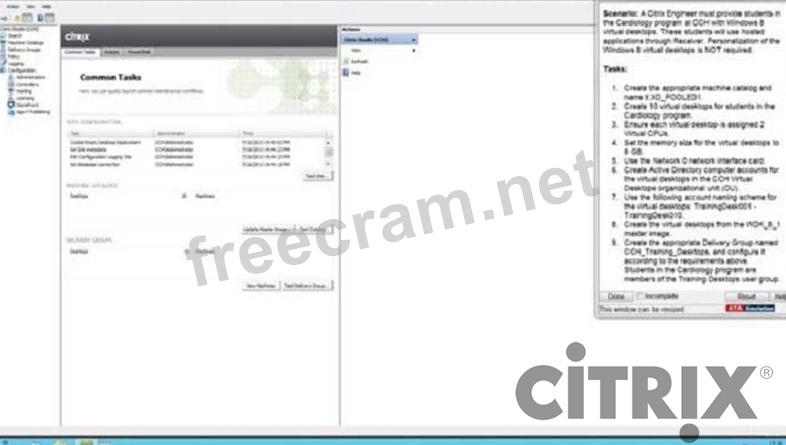
Scenario:
A Citrix Engineer must provide students in the Cardiology program at CCH with Windows 8 virtual desktops. These students will use hosted applications through Receiver. Personalization of the Windows 8 virtual desktops is NOT required.
Tasks:
1. Create the appropriate machine catalog and name it XD_POOLED 1.
2. Create 10 virtual desktops for students in the Cardiology program.
3. Ensure each virtual desktop is assigned 2 Virtual CPUs.
4. Set the memory size for the virtual desktops to 8 GB.
5. Use the Network 0 network interface card.
6. Create Active Directory computer accounts for the virtual desktops in the CCH Virtual Desktops organizational unit (OU).
7. Use the following account naming scheme for the virtual desktops:
TrainingDesk001 - TrainingDesk010.
8. Create the virtual desktops from the WDK_8_1 master image.
9. Create the appropriate Delivery Group named CCH_Training_Desktops, and configure it according to the requirements above. Students in the Cardiology program are members of the Training Desktops user group.
Correct Answer:
See below
Explanation/Reference:
XenDesktop 7 Machine Catalog
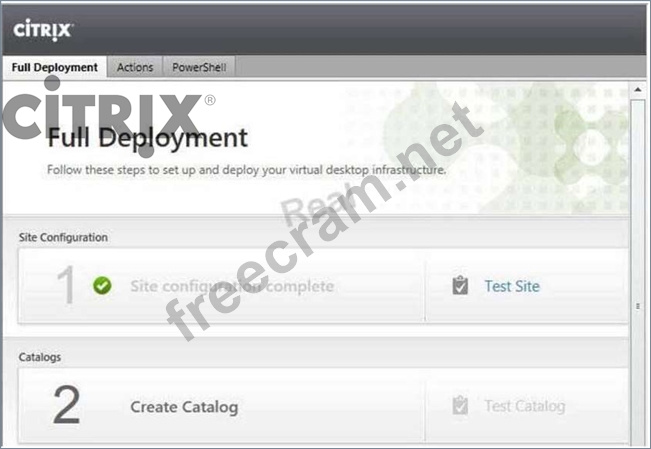
1. In Desktop Studio we want to create a VM catalog,
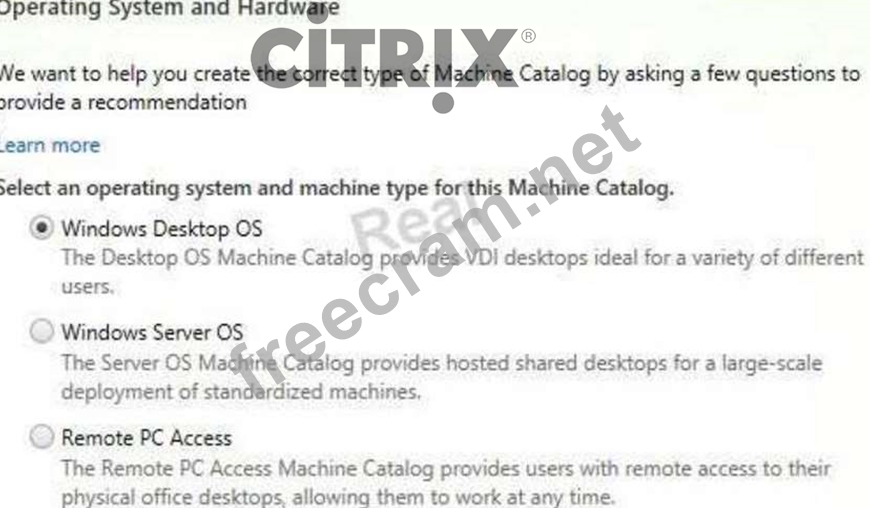
2. Choose the OS type
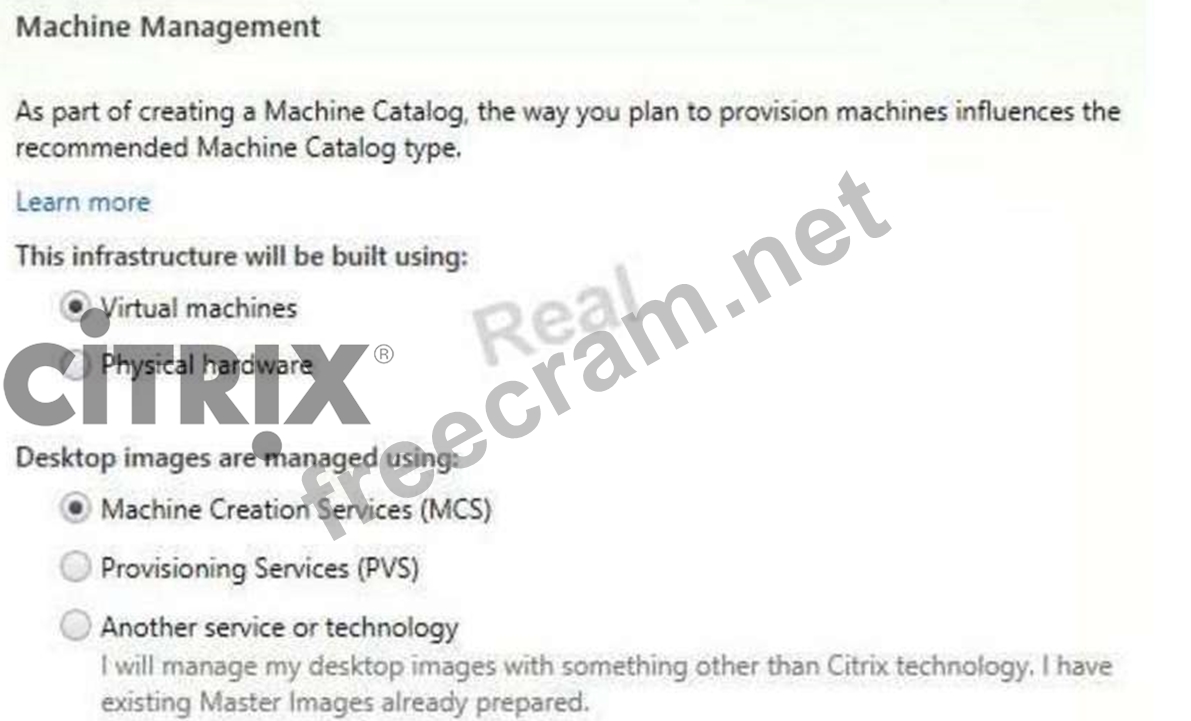
3. We will be using VMs and Citrix Machine Creation Services, so the defaults are fine.
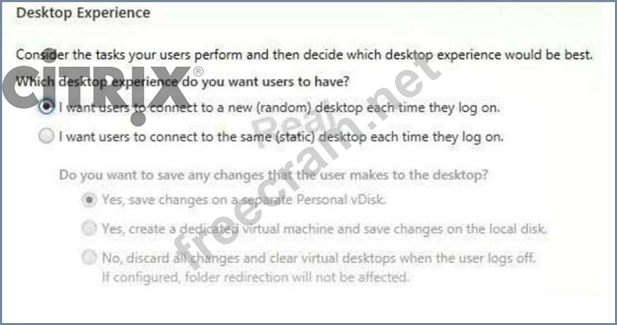
4. Use the default:
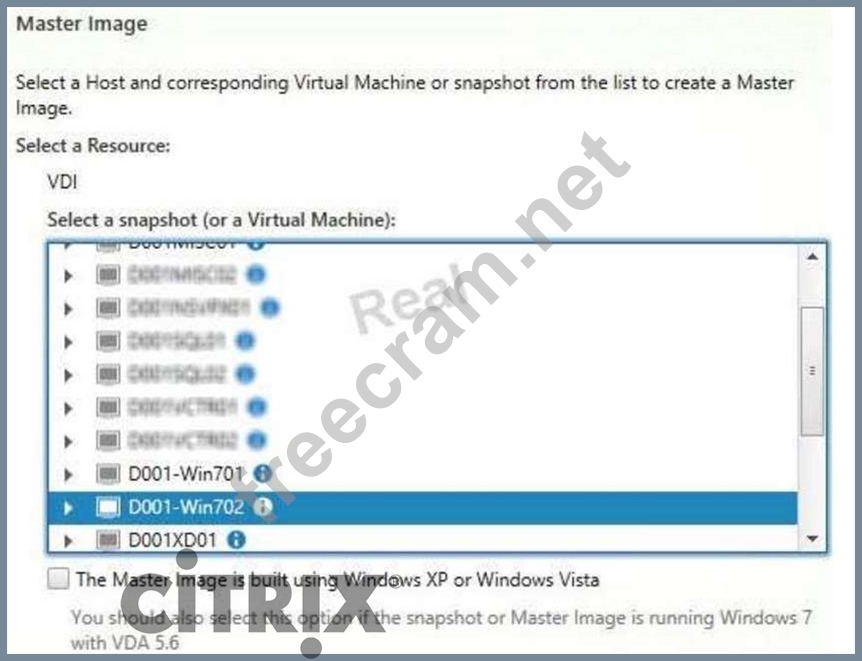
5. Choose the master image WDK_8_1 master image
6. A great feature of XenDesktop is the ability to customize the catalog hardware at provisioning time, so you can offer different tiers of VMs from the exact same master image. No need to build up templates with the same OS and software stack, just to customize the vCPUs and memory specs.
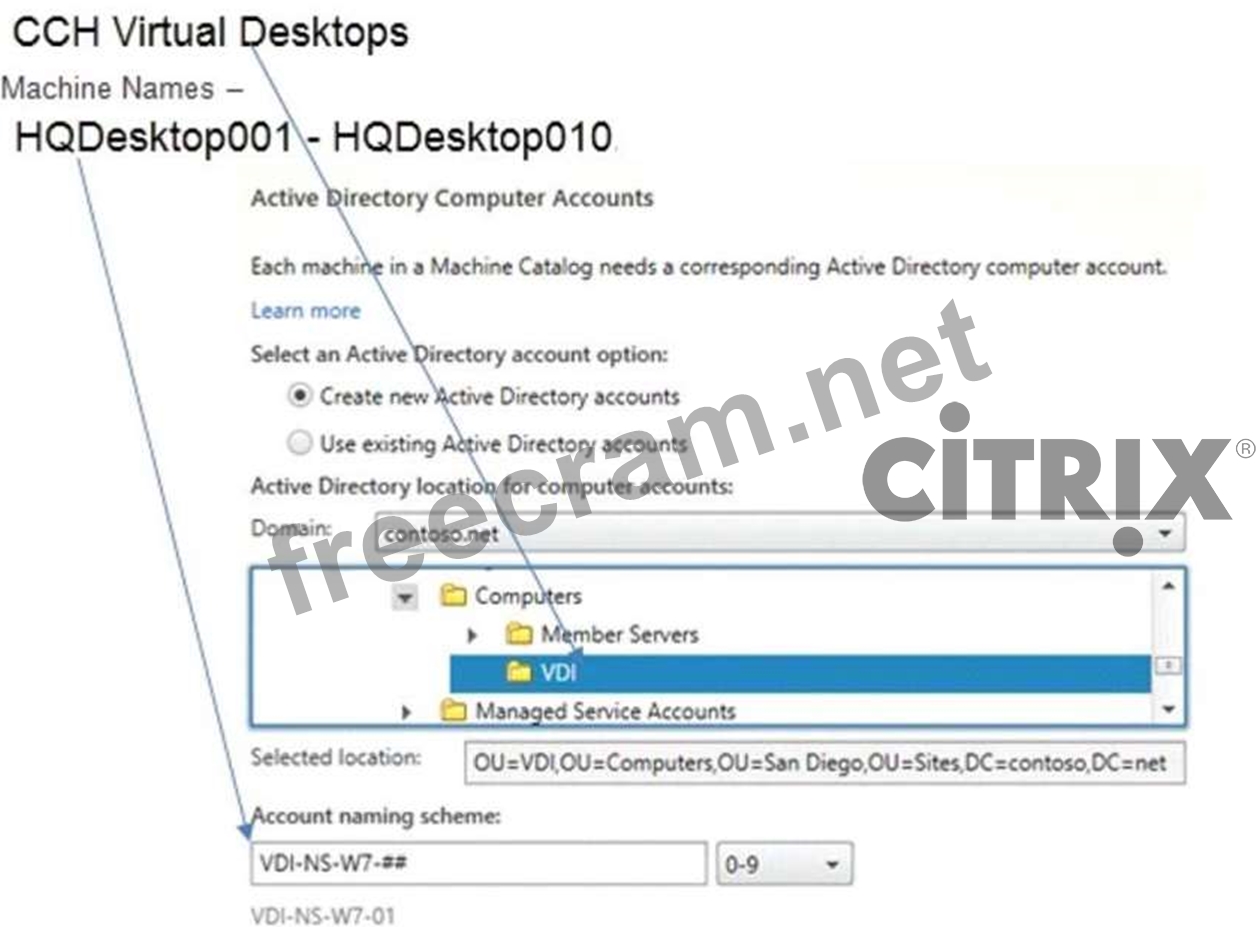
7. OU:
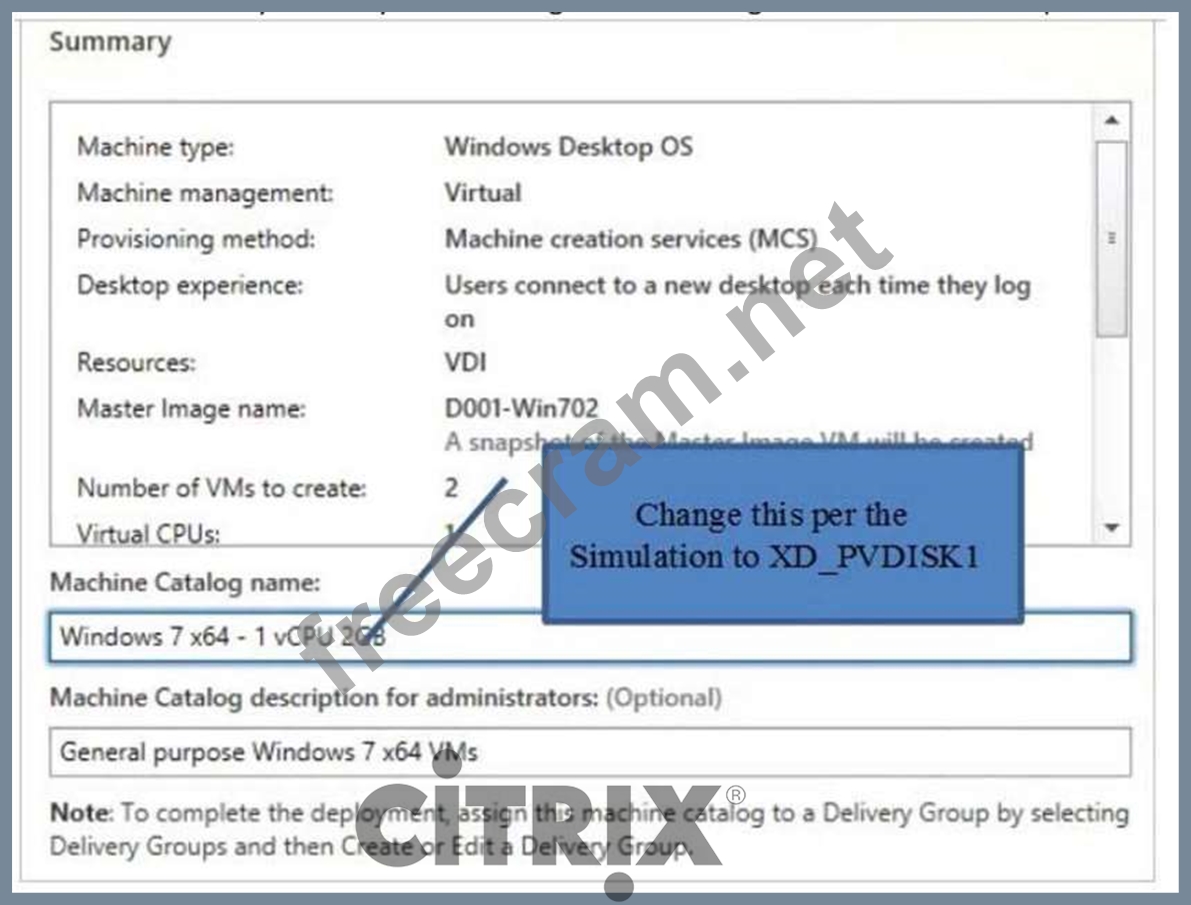
8. On the summary screen you need to give the catalog a name and a description.
9. After you kick off the provisioning process you get a nice status. MCS first makes a copy of your master VM, then does its magic to create copies

10. When the provisioning is completed you now have one machine catalog entry.
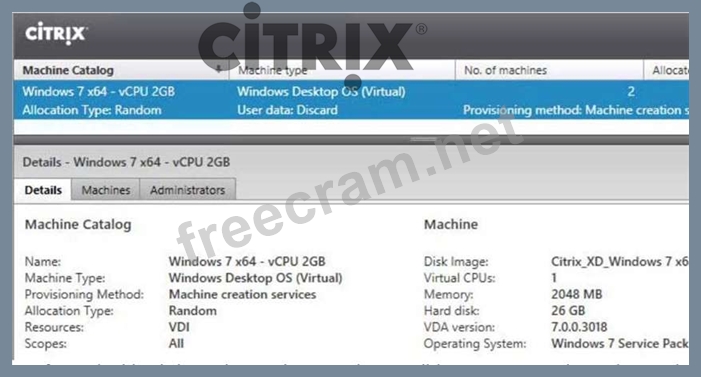
11. If you double click on the machine catalog it will bring up a search window with the individual VMs listed. You can now power them on and wait for them to show a "registered" status. If you click on an individual VM it will pull up even more details. If a user had an active session to the VM then you get a plethora more data.
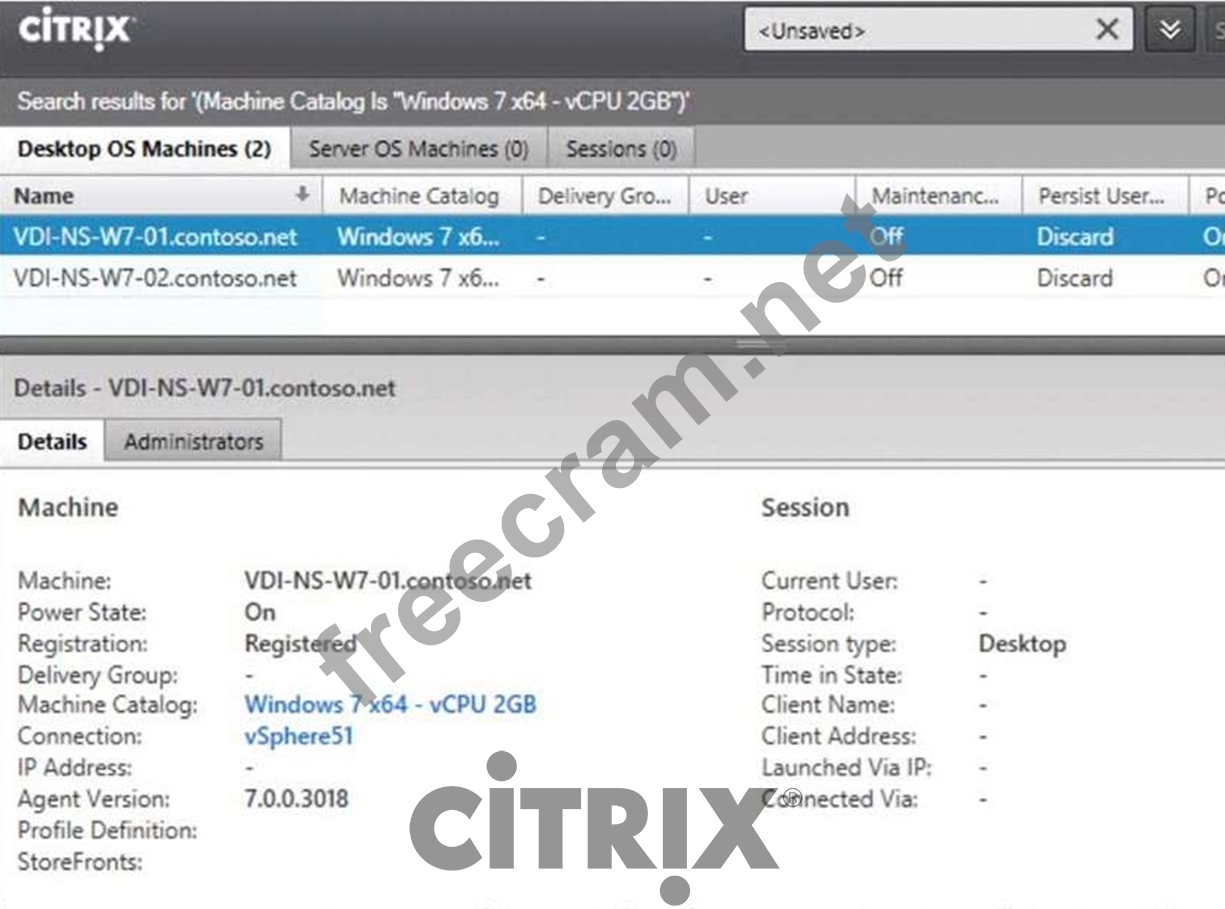
As you can see, creating a machine catalog from a master template is quick and easy. Within Desktop Studio you can view a tremendous amount of detail about the catalog and individual VMs.
Explanation/Reference:
XenDesktop 7 Machine Catalog
1. In Desktop Studio we want to create a VM catalog,
2. Choose the OS type
3. We will be using VMs and Citrix Machine Creation Services, so the defaults are fine.
4. Use the default:
5. Choose the master image WDK_8_1 master image
6. A great feature of XenDesktop is the ability to customize the catalog hardware at provisioning time, so you can offer different tiers of VMs from the exact same master image. No need to build up templates with the same OS and software stack, just to customize the vCPUs and memory specs.
7. OU:
8. On the summary screen you need to give the catalog a name and a description.
9. After you kick off the provisioning process you get a nice status. MCS first makes a copy of your master VM, then does its magic to create copies
10. When the provisioning is completed you now have one machine catalog entry.
11. If you double click on the machine catalog it will bring up a search window with the individual VMs listed. You can now power them on and wait for them to show a "registered" status. If you click on an individual VM it will pull up even more details. If a user had an active session to the VM then you get a plethora more data.
As you can see, creating a machine catalog from a master template is quick and easy. Within Desktop Studio you can view a tremendous amount of detail about the catalog and individual VMs.


- Question List (139q)
- Question 1: Scenario: A Citrix Engineer implemented applications and des...
- Question 2: SIMULATION Scenario: A Citrix Engineer must provide users at...
- Question 3: A Citrix Engineer notices that session lingering is NOT work...
- Question 4: The database for a XenDesktop environment is offline, but th...
- Question 5: Scenario: A Citrix Engineer created a Delivery Group contain...
- Question 6: A Citrix Engineer at CCH needs to use Universal Print Server...
- Question 7: Scenario: Users need to access hosted desktops or applicatio...
- Question 8: A Citrix Engineer needs to add more Delivery Controllers to ...
- Question 9: SIMULATION Scenario: A Citrix Engineer at CCH needs to provi...
- Question 10: Scenario: After configuring high availability for StoreFront...
- Question 11: Scenario: A Citrix Engineer has configured external access t...
- Question 12: A Citrix Engineer must configure a service account for commu...
- Question 13: Which type of XenServer storage repository supports thin pro...
- Question 14: Scenario: A Citrix Engineer needs to enable Active Directory...
- Question 15: Scenario: A Citrix Engineer tests access to applications thr...
- Question 16: Which PowerShell cmdlet should a Citrix Engineer use to auto...
- Question 17: Scenario: Citrix Profile Management is deployed in a XenDesk...
- Question 18: Scenario: A Citrix Engineer needs to implement HDX Flash Red...
- Question 19: Scenario: A Citrix Engineer set Desktop Composition Redirect...
- Question 20: SIMULATION Scenario: Provisioning Services has been installe...
- Question 21: How should a Citrix Engineer configure a hosted application ...
- Question 22: Scenario: A Citrix Engineer must use Provisioning Services t...
- Question 23: Scenario: A Citrix Engineer needs to deploy Citrix Receiver ...
- Question 24: Scenario: A Citrix Engineer needs to configure external acce...
- Question 25: Scenario: Users of a corporate StoreFront deployment subscri...
- Question 26: SIMULATION Scenario: A Citrix Engineer at CCH needs to creat...
- Question 27: Scenario: A Citrix Engineer needs to migrate a virtual deskt...
- Question 28: Which two Windows components can be selected using the Provi...
- Question 29: SIMULATION Scenario: Provisioning Services has been installe...
- Question 30: Scenario: A Citrix Engineer has configured and enabled Citri...
- Question 31: Which switch is required to install Citrix Receiver with pas...
- Question 32: A Citrix Engineer is in the process of setting up a remote a...
- Question 33: Which two steps should a Citrix Engineer take to ensure that...
- Question 34: A Citrix Engineer installed a new Delivery Controller on 192...
- Question 35: Scenario: A Citrix Engineer added a second Provisioning Serv...
- Question 36: Which statement accurately describes the purpose of StoreFro...
- Question 37: Which two other database server permissions are required in ...
- Question 38: Scenario: A Citrix Engineer needs to apply a policy-based co...
- Question 39: Which two settings could a Citrix Engineer configure on NetS...
- Question 40: Which two steps are required in order to set up the Universa...
- Question 41: Which file should a Citrix Engineer update when adding an ad...
- Question 42: Machine catalogs may __________. (Choose the correct phrase ...
- Question 43: The IT Help Desk Administrator at CCH needs to shadow a user...
- Question 44: What does a Citrix Engineer need to do to encrypt all commun...
- Question 45: Where should a Citrix Engineer set up a restart schedule for...
- Question 46: Scenario: A Citrix Engineer selected the Provisioning Servic...
- Question 47: Which XenDesktop feature will reduce the likelihood of appli...
- Question 48: How can a Citrix Engineer ensure that external users connect...
- Question 49: When deploying Provisioning Services without PXE services, w...
- Question 50: Which two steps does a Citrix Engineer need to take to enabl...
- Question 51: A Citrix Engineer could use __________ to enable high availa...
- Question 52: What would a Citrix Engineer need to configure in order to m...
- Question 53: Which set of components and services are specific to the Fle...
- Question 54: Scenario: A Citrix Engineer has updated the XenDesktop maste...
- Question 55: The SOAP Server user account needs to be a member of which s...
- Question 56: A Citrix Engineer needs to enable high availability on the X...
- Question 57: In a healthcare environment users log on to and log off from...
- Question 58: A Citrix Engineer needs to install a new Delivery Controller...
- Question 59: Which two elements are required in order for a Citrix Engine...
- Question 60: Scenario: CCH has two highly available Citrix StoreFront Sit...
- Question 61: SIMULATION Scenario: A Citrix Engineer at CCH needs to provi...
- Question 62: A Personal vDisk can be __________ and ____________. (Choose...
- Question 63: Which two components are required to run the Streamed VM Set...
- Question 64: Which step should a Citrix Engineer take to ensure that prof...
- Question 65: Scenario: NFS is implemented as the storage repository type ...
- Question 66: Scenario: A Citrix Engineer needs to configure iSCSI based s...
- Question 67: Which two of the listed elements does a Citrix Engineer need...
- Question 68: Scenario: A Citrix Engineer needs to shut down a virtual mac...
- Question 69: A Citrix Engineer needs to configure Citrix StoreFront load ...
- Question 70: Which two options would a Citrix Engineer select when using ...
- Question 71: Scenario: A Citrix Engineer needs to configure NetScaler to ...
- Question 72: What is required to enable session pre-launch and session li...
- Question 73: Which two pieces of information are required when using Citr...
- Question 74: A Citrix Engineer must use the XenDesktop Setup Wizard to pr...
- Question 75: Scenario: StoreFront is currently being used to access inter...
- Question 76: When using diskless VM with Provisioning Services, which two...
- Question 77: Scenario: A Citrix Engineer needs to deploy XenDesktop to de...
- Question 78: A Citrix Engineer needs to configure a XenDesktop site; howe...
- Question 79: Scenario: A Citrix Engineer is configuring email-based disco...
- Question 80: A Citrix Engineer must change the write cache method from 'C...
- Question 81: Scenario: A Citrix Engineer needs to create a device collect...
- Question 82: Scenario: A hosted application reverts to the default settin...
- Question 83: A Citrix Engineer should implement two SQL Servers in a XenD...
- Question 84: Which feature should a Citrix Engineer implement to ensure t...
- Question 85: A Citrix Engineer needs to restrict access to an application...
- Question 86: Which two ports should be used for communication between the...
- Question 87: Which Virtual Disk Storage type should a Citrix Engineer con...
- Question 88: Which PowerShell cmdlet will reset StoreFront to the initial...
- Question 89: Which two options are required to create a Windows 7 virtual...
- Question 90: Scenario: A Citrix Engineer needs to deploy the Virtual Deli...
- Question 91: When should a Citrix Engineer implement the Remote PC Access...
- Question 92: Scenario: A Citrix Engineer is provisioning several new desk...
- Question 93: Which mode should a database be configured for when using a ...
- Question 94: Scenario: A Citrix Engineer needs to configure load balancin...
- Question 95: In which two ways could a Citrix Engineer bind a certificate...
- Question 96: Which two statements are true regarding what is required whe...
- Question 97: What is required by NetScaler Gateway when enabling remote a...
- Question 98: Scenario: The current XenServer pool master needs to be reti...
- Question 99: Where should a Citrix Engineer import a self-signed hypervis...
- Question 100: Scenario: Users at a healthcare organization experience dela...
- Question 101: Scenario: A Citrix Engineer needs to set up printers for use...
- Question 102: Where could a Citrix Engineer check which virtual channels a...
- Question 103: Which two features should be disabled when configuring a des...
- Question 104: Which step can a Citrix Engineer take to reduce logon times ...
- Question 105: During the testing of a NetScaler high availability setup wh...
- Question 106: Scenario: A corporate security policy prohibits the creation...
- Question 107: How should a Citrix Engineer configure Citrix Director to su...
- Question 108: A Citrix Engineer creates a new Delivery Controller and need...
- Question 109: Scenario: Specialists at CCH are reporting that X-ray images...
- Question 110: Which built-in XenDesktop administrator role provides the mi...
- Question 111: CCH requires that every Change at Site configuration is docu...
- Question 112: Scenario: A Business Unit Manager requests Remote PC Access ...
- Question 113: Scenario: A Citrix Engineer needs to provide virtual desktop...
- Question 114: Which two items are required when creating a machine catalog...
- Question 115: A Citrix Engineer plans to give shadowing permission to a He...
- Question 116: Scenario: After using evaluation licensing to explore XenDes...
- Question 117: While testing a Delivery Group prior to roll out, a Citrix E...
- Question 118: SIMULATION Scenario: A Citrix Engineer must provide students...
- Question 119: Scenario: A XenDesktop deployment with 200 virtual desktops ...
- Question 120: Which policy option allows for advanced printer options for ...
- Question 121: A Citrix Engineer needs to restart the __________ after enab...
- Question 122: Which setting can be enabled to improve existing users' logo...
- Question 123: Which two pieces of information does a Citrix Engineer need ...
- Question 124: A Citrix Engineer must ensure that evaluation licenses are r...
- Question 125: To which certificate store should a Citrix Engineer import a...
- Question 126: Scenario: A Citrix Engineer needs to configure Citrix Receiv...
- Question 127: A Citrix Engineer is deploying a large, multi-site XenDeskto...
- Question 128: Scenario: The management staff at CCH require dedicated desk...
- Question 129: Which two statements are true about Remote PC Access? (Choos...
- Question 130: Scenario: A Citrix Engineer is in the process of deploying l...
- Question 131: A Citrix Engineer is preparing a Windows 7 master image for ...
- Question 132: Which three steps should a Citrix Engineer take to keep conn...
- Question 133: Scenario: A Citrix Engineer needs to create a device collect...
- Question 134: Scenario: A Citrix Engineer is using the XenApp Services Sup...
- Question 135: Which keyword should a Citrix Engineer use to launch the loc...
- Question 136: A Citrix Engineer needs to configure a XenDesktop Site; howe...
- Question 137: Scenario: A Citrix Engineer needs to make the Receiver for M...
- Question 138: Which Group Policy setting should a Citrix Engineer set duri...
- Question 139: Scenario: A Citrix Engineer executes the command below to co...
