<< Prev Question Next Question >>
Question 18/54
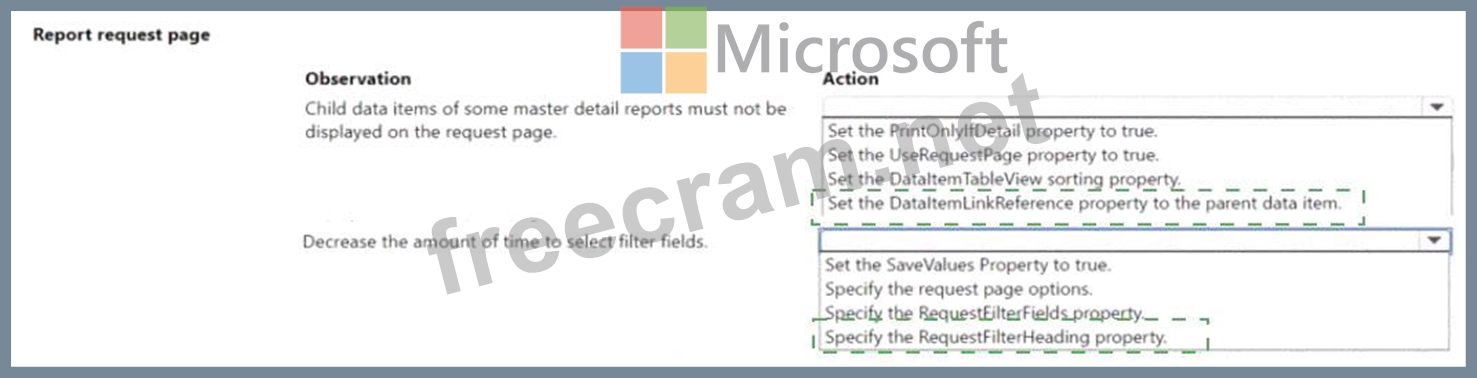
A company plans to customize its per tenant extension reports. The company has the following requirements for the customization:
* Child data items must not be displayed on the request page for some master detail reports.
* Selecting key filter fields takes users too much time. The customization must decrease the amount of time to select the fields.
You need to optimize the report request page.
Which actions should you configure? To answer, select the appropriate options in the answer area.
NOTE: Each correct selection is worth one point.
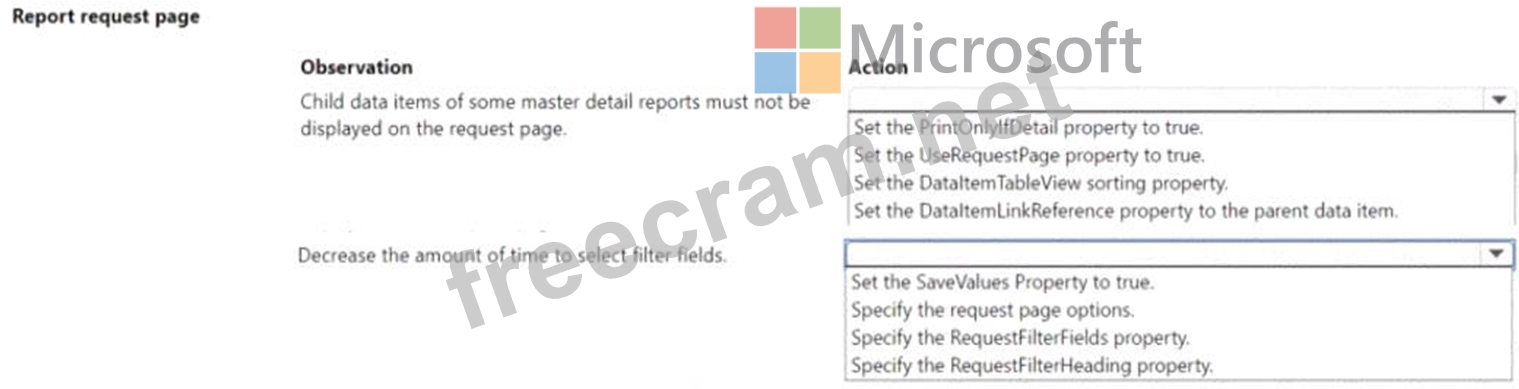
* Child data items must not be displayed on the request page for some master detail reports.
* Selecting key filter fields takes users too much time. The customization must decrease the amount of time to select the fields.
You need to optimize the report request page.
Which actions should you configure? To answer, select the appropriate options in the answer area.
NOTE: Each correct selection is worth one point.