- Home
- Microsoft
- Implementing Microsoft Azure Infrastructure Solutions
- Microsoft.70-533.v2019-04-29.q202
- Question 169
Valid 70-533 Dumps shared by ExamDiscuss.com for Helping Passing 70-533 Exam! ExamDiscuss.com now offer the newest 70-533 exam dumps, the ExamDiscuss.com 70-533 exam questions have been updated and answers have been corrected get the newest ExamDiscuss.com 70-533 dumps with Test Engine here:
Access 70-533 Dumps Premium Version
(412 Q&As Dumps, 35%OFF Special Discount Code: freecram)
<< Prev Question Next Question >>
Question 169/202
Your company plans to migrate from On-Premises Exchange to Office 365.
The existing directory has numerous service accounts in your On-Premises Windows Active Directory (AD), stored in separate AD Organizational Units (OU) for user accounts.
You need to prevent the service accounts in Windows AD from syncing with Azure AD.
What should you do?
The existing directory has numerous service accounts in your On-Premises Windows Active Directory (AD), stored in separate AD Organizational Units (OU) for user accounts.
You need to prevent the service accounts in Windows AD from syncing with Azure AD.
What should you do?
Correct Answer: B
Explanation/Reference:
Explanation:
One customer, who was looking for OU level filtering to import selected users from On-Premises active directory to Office365.
Configure OU level filtering for Office365 directory synchronization.
1. Logged in to your Domain controller
2. Created an OU (Organisational Unit) from your AD (Active Directory) a. In my case I named it "DirSync"
3. Move all those users you want to sync, to that DirSync OU.
4. From your DirSync Server navigate to <Drive>\Program Files\Microsoft Online Directory Sync
\SYNCBUS\Synchronization Service\UIShell
5. Double click on miisclient.exe
6. This opens a console something similar to the below screen capture
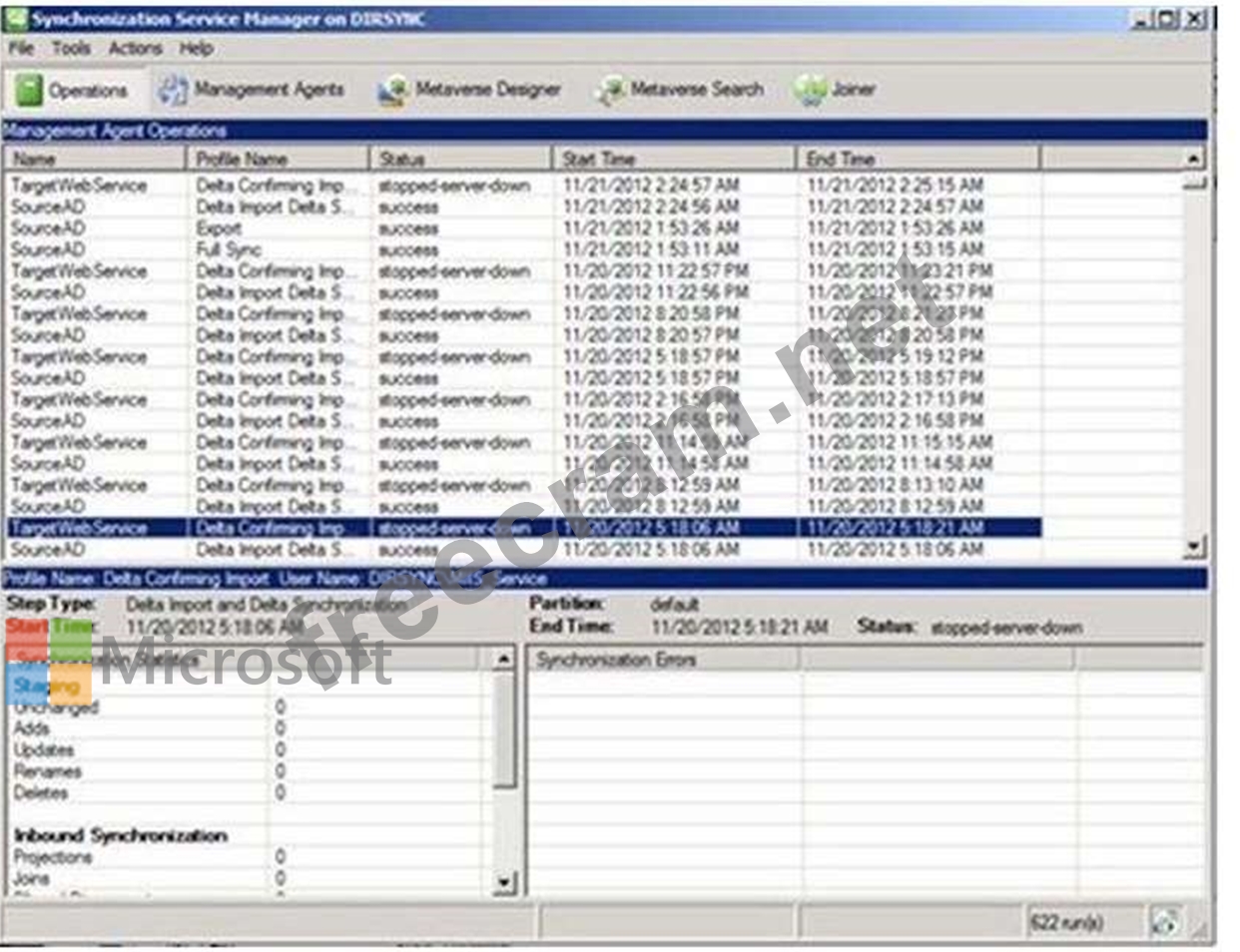
7. Identity Manager, click Management Agents, and then double-click SourceAD.
8. Click Configure Directory Partitions, and then click Containers, as shown in the below screen capture.
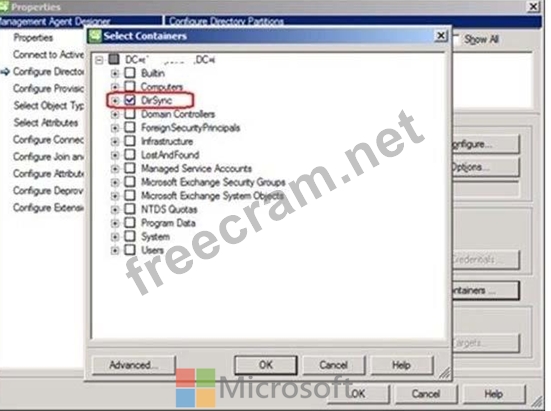
9. Click OK on the SourceAD Properties page.
10. Perform a full sync: on the Management Agent tab, right-click SourceAD, click Run, click Full Import Full Sync, and then click OK.
References: http://blogs.msdn.com/b/denotation/archive/2012/11/21/installing-and-configure-dirsync-with- ou-level-filtering-for-office365.aspx
Explanation:
One customer, who was looking for OU level filtering to import selected users from On-Premises active directory to Office365.
Configure OU level filtering for Office365 directory synchronization.
1. Logged in to your Domain controller
2. Created an OU (Organisational Unit) from your AD (Active Directory) a. In my case I named it "DirSync"
3. Move all those users you want to sync, to that DirSync OU.
4. From your DirSync Server navigate to <Drive>\Program Files\Microsoft Online Directory Sync
\SYNCBUS\Synchronization Service\UIShell
5. Double click on miisclient.exe
6. This opens a console something similar to the below screen capture
7. Identity Manager, click Management Agents, and then double-click SourceAD.
8. Click Configure Directory Partitions, and then click Containers, as shown in the below screen capture.
9. Click OK on the SourceAD Properties page.
10. Perform a full sync: on the Management Agent tab, right-click SourceAD, click Run, click Full Import Full Sync, and then click OK.
References: http://blogs.msdn.com/b/denotation/archive/2012/11/21/installing-and-configure-dirsync-with- ou-level-filtering-for-office365.aspx


- Question List (202q)
- Question 1: You administer a virtual machine (VM) that is deployed to Az...
- Question 2: You are migrating a local virtual machine (VM) to an Azure V...
- Question 3: You are the Azure administrator for your company. The compan...
- Question 4: Your company network includes an On-Premises Windows Active ...
- Question 5: You administer an Azure SQL Database that runs in the S0 ser...
- Question 6: You publish an application named MyApp to Azure Active Direc...
- Question 7: Note: This question is part of a series of questions that pr...
- Question 8: You are an administrator for your company's Azure environmen...
- Question 9: You manage a cloud service that utilizes data encryption. Yo...
- Question 10: You manage a web application published to Azure Cloud Servic...
- Question 11: You are designing a Windows Azure application that will stor...
- Question 12: Note: This question is part of a series of questions that pr...
- Question 13: Your company network includes users in multiple directories....
- Question 14: You administer an Azure virtual network named fabrikamVNet. ...
- Question 15: A Company has an Azure subscription and plans to deploy virt...
- Question 16: You are designing a Windows Azure application that will use ...
- Question 17: You administer an Access Control Service namespace named Con...
- Question 18: Which machines can be replicated to Azure using vmware vsphe...
- Question 19: You have an Azure subscription. You create an Azure Active D...
- Question 20: You manage a cloud service that supports features hosted by ...
- Question 21: A company uses Azure Resource Manager (ARM) templates to dep...
- Question 22: You manage a cloud service on two instances. The service nam...
- Question 23: You use Azure Backup to back up a System Center Data Protect...
- Question 24: You manage a virtual Windows Server 2012 web server that is ...
- Question 25: You are migrating an existing solution to Azure. The solutio...
- Question 26: An application uses Windows Azure Table storage. The applica...
- Question 27: A company has a hybrid environment. The public IP address of...
- Question 28: You need to deploy ubuntu machine to azure, what's the faste...
- Question 29: A company plans to deploy Linux virtual machines (VM) in Azu...
- Question 30: A company uses Azure to host virtual machines (VMs) and web ...
- Question 31: You have an application that uses SQL Server in an Azure vir...
- Question 32: You plan to use Azure Monitor with AutoScale Services. You c...
- Question 33: A company uses Azure Resource Manager (ARM) templates to cre...
- Question 34: Your company has a subscription to Azure. You plan to deploy...
- Question 35: You administer an Azure Active Directory (Azure AD) tenant t...
- Question 36: Note: This question is part of a series of questions that pr...
- Question 37: You deploy an Azure Web App named ContosoApp. ContosoApp run...
- Question 38: Your company has two physical locations configured in a geo-...
- Question 39: You administer an Azure Active Directory (Azure AD) tenant t...
- Question 40: Note: This question is part of a series of questions that pr...
- Question 41: You manage a cloud service that utilizes an Azure Service Bu...
- Question 42: Note: This question is part of a series of questions that pr...
- Question 43: You manage two datacenters in different geographic regions a...
- Question 44: You administer an Azure SQL Database that runs in the S0 ser...
- Question 45: A company plans to store data for the accounting and human r...
- Question 46: You are the architect for a software company that provides a...
- Question 47: Note: This question is part of a series of questions that pr...
- Question 48: A company plans to deploy Linux virtual machines (VM) in Azu...
- Question 49: Note: This question is part of a series of questions that pr...
- Question 50: Note: This question is part of a series of questions that pr...
- Question 51: A company has a hybrid environment. The public IP address of...
- Question 52: Note: This question is part of a series of questions that pr...
- Question 53: Note: This question is part of a series of questions that pr...
- Question 54: A company has an Azure subscription and plans to deploy virt...
- Question 55: You deploy an Azure web app named contosoApp. ContosoApp is ...
- Question 56: You are designing a Windows Azure web application. The appli...
- Question 57: You administer an Azure subscription for your company. You h...
- Question 58: You are developing a REST API service that provides data abo...
- Question 59: Note: This question is part of a series of questions that pr...
- Question 60: You have an Azure subscription that has a virtual machine na...
- Question 61: A company uses Azure AD Connect to synchronize on-premises a...
- Question 62: You administer a Windows Server virtual machine (VM). You up...
- Question 63: Your company is launching a public website that allows users...
- Question 64: A company has a hybrid environment. The public IP address of...
- Question 65: You manage a large datacenter that has limited physical spac...
- Question 66: Note: This question is part of a series of questions that pr...
- Question 67: You are designing an application that will use Windows Azure...
- Question 68: You manage Azure Web Apps for a company. You migrate an on-p...
- Question 69: Note: This question is part of a series of questions that pr...
- Question 70: You manage an Azure Web Site named contosoweb. Logging is en...
- Question 71: A company deploys Microsoft SQL Server on an Azure DS3_V2_ S...
- Question 72: Note: This question is part of a series of questions that pr...
- Question 73: Note: This question is part of a series of questions that pr...
- Question 74: You plan to use Password Sync on your DirSync Server with Az...
- Question 75: You deploy an Azure Web App named ContosoApp. ContosoApp run...
- Question 76: You develop a set of PowerShell scripts that will run when y...
- Question 77: Note: This question is part of a series of questions that pr...
- Question 78: You host an application on an Azure virtual machine (VM) tha...
- Question 79: You administer an Azure Storage account named contosostorage...
- Question 80: Note: This question is part of a series of questions that pr...
- Question 81: You have an Azure subscription that contains a backup vault ...
- Question 82: You manage a cloud service that has a web role named fabWeb....
- Question 83: Your company has an Azure subscription. You plan to deploy 1...
- Question 84: You manage the on-premises and cloud for a company. Employee...
- Question 85: Note: This question is part of a series of questions that pr...
- Question 86: You manage an Azure subscription with virtual machines (VMs)...
- Question 87: You manage an application deployed to virtual machines (VMs)...
- Question 88: You have an Azure subscription that has five virtual machine...
- Question 89: A company deploys Microsoft SQL Server on an Azure DS3_V2_ S...
- Question 90: You manage network routes in an Azure subscription. You have...
- Question 91: You develop a Windows Store application that has a web servi...
- Question 92: You are the administrator for your company's virtual environ...
- Question 93: You plan to implement Azure AD connect. You have an Active D...
- Question 94: Note: This question is part of a series of questions that pr...
- Question 95: You plan to use Azure Monitor with AutoScale Services. You c...
- Question 96: You have an Azure subscription. You create an Azure Active D...
- Question 97: Note: This question is part of a series of questions that pr...
- Question 98: You administer an Azure solution that uses a virtual network...
- Question 99: Your network environment includes remote employees. You need...
- Question 100: Note: This question is part of a series of questions that pr...
- Question 101: You administer an Azure Web Site named contoso. You create a...
- Question 102: Note: This question is part of a series of questions that pr...
- Question 103: A company uses Azure to host virtual machines (VMs) and web ...
- Question 104: You manage an Azure Active Directory (AD) tenant You plan to...
- Question 105: You have an Azure subscription. In Azure, you create two vir...
- Question 106: You manage Azure Web Apps for a company. You migrate an on-p...
- Question 107: You manage an Azure virtual network that hosts 15 virtual ma...
- Question 108: You administer a solution deployed to a virtual machine (VM)...
- Question 109: You administer an Azure Web Site named contosoweb that is us...
- Question 110: Your company has two cloud services named CS01 and CS02. You...
- Question 111: You manage a cloud service named fabrikamReports that is dep...
- Question 112: Your company has recently signed up for Azure. You plan to r...
- Question 113: Note: This question is part of a series of questions that pr...
- Question 114: Note: This question is part of a series of questions that pr...
- Question 115: Your company network includes two branch offices. Users at t...
- Question 116: You manage the on-premises and cloud network for a company. ...
- Question 117: You administer a cloud service. You plan to host two web app...
- Question 118: You manage an application that has a front-end tier, a middl...
- Question 119: Note: This question is part of a series of questions that pr...
- Question 120: Your company plans to migrate from On-Premises Exchange to E...
- Question 121: Note: This question is part of a series of questions that pr...
- Question 122: A company uses Linux virtual machines (VMs) in Azure. An adm...
- Question 123: You have an existing classic virtual network. You need to ex...
- Question 124: You plan to implement shared storage policies. You need to a...
- Question 125: You manage an on-premises monitoring platform. You plan to d...
- Question 126: You are deploying an ASP.NET application to an Azure virtual...
- Question 127: Your company network has two physical locations configured i...
- Question 128: You have an Azure subscription. You create an Azure Active D...
- Question 129: A company uses Azure to host virtual machines (VMs) and web ...
- Question 130: You administer a Microsoft Azure SQL Database data base in t...
- Question 131: You manage an Azure Web App. You must log detailed error mes...
- Question 132: You have an Azure subscription that contains a storage accou...
- Question 133: You are an administrator of the Azure subscription for your ...
- Question 134: You are developing a web application that connects to an exi...
- Question 135: Note: This question is part of a series of questions that pr...
- Question 136: A company has an Azure subscription with four virtual machin...
- Question 137: Note: This question is part of a series of questions that pr...
- Question 138: A company has an existing on-premises Active Directory envir...
- Question 139: You have an Azure subscription. In Azure, you create two vir...
- Question 140: You administer an Azure Active Directory (Azure AD) tenant w...
- Question 141: A company uses Azure to host virtual machines (VMs) and web ...
- Question 142: You plan to use an Azure PowerShell runbook to start a virtu...
- Question 143: For development purposes, you deploy several virtual machine...
- Question 144: Note: This question is part of a series of questions that pr...
- Question 145: You manage an application running on Azure web apps in a Sta...
- Question 146: A company has an Azure subscription and hosts a virtual netw...
- Question 147: You deploy an Azure web app named contosoApp. ContosoApp is ...
- Question 148: Note: This question is part of a series of questions that pr...
- Question 149: You manage an Azure Web Site that is running in Shared mode....
- Question 150: You have an Azure subscription that contains a backup vault ...
- Question 151: You deploy several virtual machines (VMs) to Azure by using ...
- Question 152: You are designing the network infrastructure between on-prem...
- Question 153: You administer an Azure Storage account with a blob containe...
- Question 154: You develop a set of PowerShell scripts that will run when y...
- Question 155: A company synchronizes on-premises Active Directory Domain S...
- Question 156: Note: This question is part of a series of questions that pr...
- Question 157: A company has an Azure subscription and plans to deploy virt...
- Question 158: A company has deployed multiple ExpressRoute circuits. The c...
- Question 159: Your company has a subscription to Azure. You configure your...
- Question 160: You are an administrator for your company's Azure environmen...
- Question 161: Note: This question is part of a series of questions that pr...
- Question 162: You are evaluating a Windows Azure application. The applicat...
- Question 163: A company is developing a new on-premises desktop applicatio...
- Question 164: You are designing a Windows Azure application. The applicati...
- Question 165: You are a developer for a company that produces bug tracking...
- Question 166: A company uses Azure to host virtual machines (VMs) and web ...
- Question 167: Note: This question is part of a series of questions that pr...
- Question 168: A company plans to use Azure Active Directory (Azure AD) wit...
- Question 169: Your company plans to migrate from On-Premises Exchange to O...
- Question 170: Note: This question is part of a series of questions that pr...
- Question 171: You manage an Azure Web App that is running in Shared plan. ...
- Question 172: You are designing a web app deployment in Azure. You need to...
- Question 173: You have an Azure subscription. You create an Azure Active D...
- Question 174: You are an administrator of an Azure subscription for your c...
- Question 175: A Windows Azure application stores data in a SQL Azure datab...
- Question 176: Note: This question is part of a series of questions that pr...
- Question 177: You manage several Azure virtual machines (VMs). You create ...
- Question 178: You are developing a Windows Azure application in which a we...
- Question 179: Note: This question is part of a series of questions that pr...
- Question 180: You deploy a web application to an Azure Cloud Service. The ...
- Question 181: You have an application that needs to use single sign-on (SS...
- Question 182: You have an Azure subscription. You create an Azure Active D...
- Question 183: You create an Azure Recovery Services vault and download the...
- Question 184: You are the administrator for your company's Azure subscript...
- Question 185: You administer a DirSync server configured with Azure Active...
- Question 186: You plan to use azure active directory connect health to mon...
- Question 187: You manage a cloud service that hosts a customer-facing appl...
- Question 188: Note: This question is part of a series of questions that pr...
- Question 189: You purchase an Azure subscription. You plan to deploy an ap...
- Question 190: You are designing a Windows Azure application that will use ...
- Question 191: Note: This question is part of a series of questions that pr...
- Question 192: You are the global administrator for a company's Azure subsc...
- Question 193: Note: This question is part of a series of questions that pr...
- Question 194: A company uses Azure to host virtual machines and web app. A...
- Question 195: You manage an Azure web app in standard service tier at the ...
- Question 196: Note: This question is part of a series of questions that pr...
- Question 197: Note: This question is part of a series of questions that pr...
- Question 198: Note: This question is part of a series of questions that pr...
- Question 199: You administer an Azure Web Site named contoso. The developm...
- Question 200: Note: This question is part of a series of questions that pr...
- Question 201: A Windows Azure application retrieves data from SQL Azure. Y...
- Question 202: You administer a set of virtual machine (VM) guests hosted i...
