- Home
- Microsoft
- Designing Business Intelligence Solutions with Microsoft SQL Server
- Microsoft.70-467.v2018-04-16.q105
- Question 73
Valid 70-467 Dumps shared by EduDump.com for Helping Passing 70-467 Exam! EduDump.com now offer the newest 70-467 exam dumps, the EduDump.com 70-467 exam questions have been updated and answers have been corrected get the newest EduDump.com 70-467 dumps with Test Engine here:
Access 70-467 Dumps Premium Version
(185 Q&As Dumps, 35%OFF Special Discount Code: freecram)
<< Prev Question Next Question >>
Question 73/105
DRAG DROP
You are designing a dataset for a SQL Server Reporting Services (SSRS) report.
The report includes the report items displayed in the following graphic.
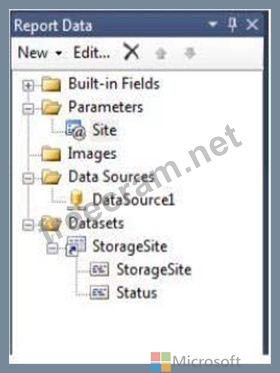
The dataset is sourced from a commonly used stored procedure in an inventory data mart hosted in a SQL Azure database.
It returns the status for all products across all storage sites. The report must display data for the storage site that is selected by the Site report parameter. You cannot change the stored procedure code.
You need to filter the dataset to use only data specific to the selected site.
How should you configure the filter?
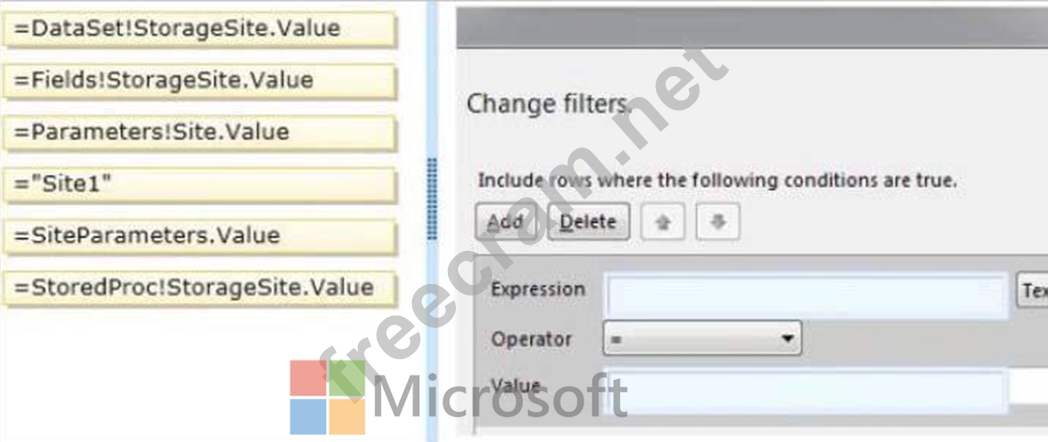
To answer, drag the appropriate expression or expressions to the correct location or locations in the answer area. (Answer choices may be used once, more than once, or not all.) Select and Place:
You are designing a dataset for a SQL Server Reporting Services (SSRS) report.
The report includes the report items displayed in the following graphic.
The dataset is sourced from a commonly used stored procedure in an inventory data mart hosted in a SQL Azure database.
It returns the status for all products across all storage sites. The report must display data for the storage site that is selected by the Site report parameter. You cannot change the stored procedure code.
You need to filter the dataset to use only data specific to the selected site.
How should you configure the filter?
To answer, drag the appropriate expression or expressions to the correct location or locations in the answer area. (Answer choices may be used once, more than once, or not all.) Select and Place:
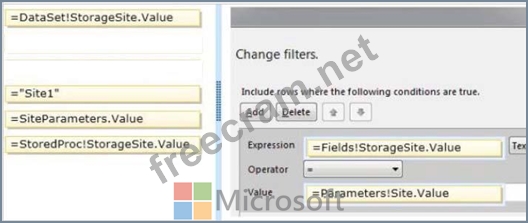
Correct Answer:
Explanation/Reference:
Note:
To set a filter on the dataset
1. Open a report in Design view.
2. Right-click a dataset in the Report Data pane and then click Dataset Properties. The Dataset Properties dialog box opens.
3. Click Filters. This displays the current list of filter equations. By default, the list is empty.
4. Click Add. A new blank filter equation appears.
5. In Expression, type or select the expression for the field to filter. To edit the expression, click the expression (fx) button.
Box 1: Here we use the Fields expression.
6. From the drop-down box, select the data type that matches the type of data in the expression you created in step 5.
7. In the Operatorbox, select the operator that you want the filter to use to compare the values in the Expressionbox and the Valuebox. The operator you choose determines the number of values that are used from the next step.
Box 2: we test for equality.
8. In the Valuebox, type the expression or value against which you want the filter to evaluate the value in Expression.
Box 3: we compare to the value of the Parameter named Site.
9. Click OK.
Reference: How to: Add a Filter (Reporting Services)


- Question List (105q)
- Question 1: DRAG DROP You are designing a SQL Server Reporting Services ...
- Question 2: You need to create the factCustomerContact table. Which type...
- Question 3: You need to identify changes in the financial database. What...
- Question 4: You are designing a partitioning strategy for a large fact t...
- Question 5: DRAG DROP You are creating a SQL Server Integration Services...
- Question 6: You need to deploy a solution for the planned self-service r...
- Question 7: You need to re-establish subscriptions on SSRS01. What shoul...
- Question 8: DRAG DROP You plan to deploy a SQL Server Integration Servic...
- Question 9: You are modifying a SQL Server Reporting Services (SSRS) rep...
- Question 10: You need to design the recovery strategy for SSRS01. What sh...
- Question 11: You need to ensure that the corporate logos appear in report...
- Question 12: You need to create the Package Activity report. What should ...
- Question 13: You need to ensure that you can monitor the usage data. What...
- Question 14: You need to configure permissions for the Customers dimensio...
- Question 15: You need to ensure that queries to the Sales Analysis cube d...
- Question 16: You need to fix the PowerPivot data refresh problem by using...
- Question 17: DRAG DROP You plan to deploy a SQL Server Integration Servic...
- Question 18: An existing cube dimension that has 30 attribute hierarchies...
- Question 19: You are designing a partitioning strategy for a large fact t...
- Question 20: You need to develop a BISM that meets the business requireme...
- Question 21: You need to update the Execute SQL task in the OnVariableVal...
- Question 22: You need to re-establish subscriptions on SSRS01. What shoul...
- Question 23: DRAG DROP You need to implement the requirements for the Sta...
- Question 24: You need to scale out SSAS. What should you do?...
- Question 25: DRAG DROP You are validating whether a SQL Server Integratio...
- Question 26: HOTSPOT A SQL Server Analysis Services (SSAS) cube contains ...
- Question 27: You need to implement the date dimension in the Operations d...
- Question 28: You need to restrict access to data in the tables in the dat...
- Question 29: DRAG DROP You need to configure the attribute relationship t...
- Question 30: You need to select the appropriate mode for the Sales databa...
- Question 31: You need to configure the Scenario attribute to ensure that ...
- Question 32: You are designing a strategy for an enterprise reporting sol...
- Question 33: You need to configure security for the SSRS instance on SSRS...
- Question 34: You need to configure a parameter for the database connectio...
- Question 35: You need to perform the pre-upgrade database backup operatio...
- Question 36: You need to design a cube partitioning strategy to be implem...
- Question 37: You need to implement the Customer Sales and Manufacturing d...
- Question 38: You need to implement security in the cube to limit the site...
- Question 39: DRAG DROP You are designing a SQL Server Integration Service...
- Question 40: DRAG DROP You need to recommend a solution to implement the ...
- Question 41: You need to select the appropriate storage settings for the ...
- Question 42: You are designing a subscription strategy for a SQL Server R...
- Question 43: You need to select and configure a tool for the monitoring s...
- Question 44: You are deploying the Research model. You need to ensure tha...
- Question 45: You need to use SQL Server Management Studio (SSMS) to make ...
- Question 46: You need to recommend a partitioning strategy that meets the...
- Question 47: DRAG DROP You are creating the Australian postal code query....
- Question 48: You need to ensure that managers can successfully run report...
- Question 49: DRAG DROP You are designing a SQL Server Reporting Services ...
- Question 50: DRAG DROP You need to develop the LoadFactSales package to w...
- Question 51: You are designing an extract, transform, load (ETL) process ...
- Question 52: You need to implement the security requirement for the sales...
- Question 53: You need to use Reporting Services Configuration Manager to ...
- Question 54: DRAG DROP You are creating the Australian states query. Whic...
- Question 55: You need to recommend a cube architecture for CUBE1. The sol...
- Question 56: DRAG DROP You are designing a self-service business intellig...
- Question 57: You need to configure SSRS to send the required notification...
- Question 58: You need to recommend a SQL Server Integration Services (SSI...
- Question 59: You need to implement the aggregation designs for the cube. ...
- Question 60: You execute the SalesbyCategory report and receive the follo...
- Question 61: You need to identify the reasons that data alert notificatio...
- Question 62: You are modifying a star schema data mart that feeds order d...
- Question 63: DRAG DROP You administer a SQL Server Analysis Services (SSA...
- Question 64: You need to implement a strategy for efficiently storing sal...
- Question 65: You need to ensure that the Sales measure in the Power View ...
- Question 66: You need to create the calculation for SalespersonName. What...
- Question 67: You need to select an appropriate tool for creating the Regi...
- Question 68: HOTSPOT You are developing a SQL Server Analysis Services (S...
- Question 69: You are designing a SQL Server Integration Services (SSIS) s...
- Question 70: You need to select an appropriate tool for creating the Regi...
- Question 71: You need to improve the performance of data warehouse querie...
- Question 72: You are developing the database schema for a SQL Server Anal...
- Question 73: DRAG DROP You are designing a dataset for a SQL Server Repor...
- Question 74: You need to choose the appropriate key to use when designing...
- Question 75: You need to configure data refresh for the Manufacturing Per...
- Question 76: You need to select the appropriate model type for the Financ...
- Question 77: You need to implement the SalesCommission model to support t...
- Question 78: You need to prepare the infrastructure for the planned imple...
- Question 79: You need to identify changes in the financial database. What...
- Question 80: You need to develop the tabular project to support the date ...
- Question 81: You are creating a Multidimensional Expressions (MDX) calcul...
- Question 82: You need to implement the aggregation designs for the cube. ...
- Question 83: You need to create the Sales Reporting shared SSRS data sour...
- Question 84: You are defining a named set by using Multidimensional Expre...
- Question 85: You need to configure package execution logging to meet the ...
- Question 86: You need to design the dimCustomers table. Which design appr...
- Question 87: You need to grant appropriate permissions to the SSISOwners ...
- Question 88: DRAG DROP You need to configure the LoadFactFreightCosts pac...
- Question 89: DRAG DROP You are administering a SQL Server Analysts Servic...
- Question 90: A SQL Server Analysis Services (SSAS) cube contains a large ...
- Question 91: You need to slice data by the CouponUsed, OnSale, and Closeo...
- Question 92: HOTSPOT You are configuring the partition storage settings f...
- Question 93: You need to define the trend calculation for the sales perfo...
- Question 94: You need to roll back the compatibility level of the Researc...
- Question 95: DRAG DROP You need to upgrade the SSASCluster. Which three a...
- Question 96: DRAG DROP You need to complete the following UPDATE statemen...
- Question 97: DRAG DROP You are validating whether a SQL Server Integratio...
- Question 98: You need to select a method of moving data from the staging ...
- Question 99: You administer a SQL Server Reporting Services (SSRS) instan...
- Question 100: HOTSPOT You are designing a SQL Server Integration Services ...
- Question 101: DRAG DROP You need to extend the schema design to store the ...
- Question 102: You need to ensure that the Sales Per Capita calculated meas...
- Question 103: You need to configure Library1 to support the planned self-s...
- Question 104: You need to implement the product dimension. What should you...
- Question 105: You are designing an extract, transform, load (ETL) process ...
