Valid N10-009 Dumps shared by ExamDiscuss.com for Helping Passing N10-009 Exam! ExamDiscuss.com now offer the newest N10-009 exam dumps, the ExamDiscuss.com N10-009 exam questions have been updated and answers have been corrected get the newest ExamDiscuss.com N10-009 dumps with Test Engine here:
Access N10-009 Dumps Premium Version
(608 Q&As Dumps, 35%OFF Special Discount Code: freecram)
<< Prev Question Next Question >>
Question 303/374
SIMULATION
A network engineer receives reports that PC 3 cannot connect to either the file server or web server. The technician pings the web server and the file server from PC 3, but the request times out. However, the technician is able to connect to the internet from PC 3.
INSTRUCTIONS
Click on Switch 1 and Switch 2 to configure and remediate the issue. Both devices are already in configuration mode. Type help to view a list of available commands.
Then, click on PC 3 to validate its connectivity between the file server and the web server. The only VLANs available are currently configured within show vlan.
If at any time you would like to bring back the initial state of the simulation, please click the Reset All button.

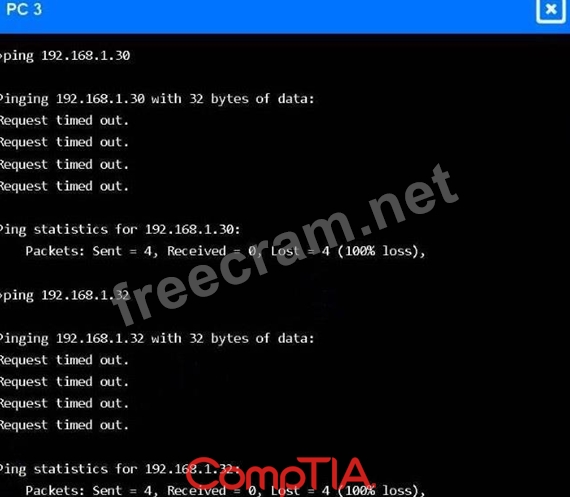
A network engineer receives reports that PC 3 cannot connect to either the file server or web server. The technician pings the web server and the file server from PC 3, but the request times out. However, the technician is able to connect to the internet from PC 3.
INSTRUCTIONS
Click on Switch 1 and Switch 2 to configure and remediate the issue. Both devices are already in configuration mode. Type help to view a list of available commands.
Then, click on PC 3 to validate its connectivity between the file server and the web server. The only VLANs available are currently configured within show vlan.
If at any time you would like to bring back the initial state of the simulation, please click the Reset All button.
Correct Answer:
PC 3 is in VLAN 10, and the servers (file, database, web) are in VLAN 20.
PC 3 can reach the internet, so its local VLAN is working.
PC 3 cannot reach VLAN 20 servers, meaning the trunk between Switch 1 and Switch 2 is not passing VLAN 20.
Configuration for Switch 1:
interface gi1
switchport mode trunk
switchport trunk allowed vlan 10,20
end
Configuration for Switch 2:
interface gi1
switchport mode trunk
switchport trunk allowed vlan 10,20
end
After entering these commands, return to PC 3 and validate connectivity. To validate connectivity from PC 3, you simply need to ping the servers again after applying the trunk configuration.
On PC 3, run:
ping 192.168.1.30
ping 192.168.1.32
Successful validation means:
- You receive reply messages instead of "Request timed out."
- Packet loss should be 0%.
If the trunk ports were configured correctly on both switches, both pings will succeed, confirming that:
PC 3 (VLAN 10) can now reach the servers (VLAN 20).
Inter-VLAN connectivity through the switch trunk is restored.
PC 3 can reach the internet, so its local VLAN is working.
PC 3 cannot reach VLAN 20 servers, meaning the trunk between Switch 1 and Switch 2 is not passing VLAN 20.
Configuration for Switch 1:
interface gi1
switchport mode trunk
switchport trunk allowed vlan 10,20
end
Configuration for Switch 2:
interface gi1
switchport mode trunk
switchport trunk allowed vlan 10,20
end
After entering these commands, return to PC 3 and validate connectivity. To validate connectivity from PC 3, you simply need to ping the servers again after applying the trunk configuration.
On PC 3, run:
ping 192.168.1.30
ping 192.168.1.32
Successful validation means:
- You receive reply messages instead of "Request timed out."
- Packet loss should be 0%.
If the trunk ports were configured correctly on both switches, both pings will succeed, confirming that:
PC 3 (VLAN 10) can now reach the servers (VLAN 20).
Inter-VLAN connectivity through the switch trunk is restored.


- Question List (374q)
- Question 1: A wireless administrator is setting up a small mesh network ...
- Question 2: Which of the following allows a user to connect to an isolat...
- Question 3: A systems administrator is resolving connectivity issues to ...
- Question 4: Which of the following can be implemented to add an addition...
- Question 5: A company recently implemented a videoconferencing system th...
- Question 6: Which of the following is the best outcome of documenting le...
- Question 7: A network administrator is looking for a single tool that wi...
- Question 8: Which of the following is the step that a troubleshooter sho...
- Question 9: Which of the following describes the best reason for using B...
- Question 10: Users are experiencing significant lag while connecting to a...
- Question 11: Which of the following internal routing protocols is best ch...
- Question 12: A network administrator needs to ensure all network ports us...
- Question 13: A network technician implements a switch with multiple VLANs...
- Question 14: Which of the following ICMP responses does a router send to ...
- Question 15: Which of the following should be used to obtain remote acces...
- Question 16: A customer is adding fiber connectivity between adjacent bui...
- Question 17: A device is experiencing disconnection from the wireless net...
- Question 18: Which of the following architecture types is most commonly a...
- Question 19: A network administrator is looking for a solution to extend ...
- Question 20: Which of the following fiber connectors uses a twist-on conn...
- Question 21: Which of the following would a network administrator most li...
- Question 22: Users at a small site in Zambia are getting disconnected fro...
- Question 23: Which of the following cables is the most appropriate to use...
- Question 24: Which of the following network traffic types is sent to all ...
- Question 25: A network technician needs to install patch cords from the U...
- Question 26: A network administrator needs to efficiently deploy 200 syst...
- Question 27: A network engineer wants to implement a new IDS between the ...
- Question 28: A support agent receives a report that a remote user's wired...
- Question 29: A network administrator is managing network traffic so that ...
- Question 30: A company is moving to a hybrid cloud model. As part of this...
- Question 31: Which of the following will most likely allow a network admi...
- Question 32: Which of the following layers in the OSI model is responsibl...
- Question 33: A network administrator has been monitoring the company's se...
- Question 34: An IT department asks a newly hired employee to use a person...
- Question 35: A user recently moved a workstation to a different part of t...
- Question 36: A technician is deploying new networking hardware for compan...
- Question 37: Which of the following is a type of NAC that uses a set of p...
- Question 38: Which of the following is the correct order of components in...
- Question 39: Which of the following is the next step to take after succes...
- Question 40: A network manager wants to implement a SIEM system to correl...
- Question 41: A network administrator deployed wireless networking in the ...
- Question 42: Users on the network are experiencing slow throughput. A tec...
- Question 43: A network administrator changed an external DNS to point cus...
- Question 44: SIMULATION A network technician was recently onboarded to a ...
- Question 45: Which of the following connection methods allows a network e...
- Question 46: A network technician needs to securely transfer files remote...
- Question 47: A network consultant needs to decide between running an Ethe...
- Question 48: Which of the following troubleshooting steps provides a chan...
- Question 49: A network administrator is extending a network beyond the pr...
- Question 50: A network technician is troubleshooting the connection to th...
- Question 51: SIMULATION After a recent power outage, users are reporting ...
- Question 52: A company discovers on video surveillance recordings that an...
- Question 53: A network administrator needs to establish a tunnel that can...
- Question 54: Which of the following remote connectivity methods is used w...
- Question 55: An office is experiencing intermittent connection issues. A ...
- Question 56: A technician is planning an equipement installation into a r...
- Question 57: Which of the following is most likely responsible for the se...
- Question 58: Which of the following is the best reason to create a golden...
- Question 59: Users report that they cannot print to a specific IPv4-enabl...
- Question 60: A network administrator receives complaints of intermittent ...
- Question 61: Which of the following encryption protocols is used to secur...
- Question 62: Which of the following is used to estimate the average life ...
- Question 63: of the following ports is a secure protocol...
- Question 64: Which of the following is the part of a disaster recovery (D...
- Question 65: A network administrator deploys several new desk phones and ...
- Question 66: Which of the following VPN types provides secure remote acce...
- Question 67: A technician is implementing a new SD-WAN device with a defa...
- Question 68: A network engineer receives a vendor alert regarding a vulne...
- Question 69: An employee has a new laptop and reports slow performance wh...
- Question 70: Which of the following connector types is most commonly asso...
- Question 71: Which of the following server types is responsible for IP ad...
- Question 72: After a recent security awareness phishing campaign, the cyb...
- Question 73: Which of the following connector types would most likely be ...
- Question 74: Which of the following fiber connector types is the most lik...
- Question 75: An employee connects to the company network from home using ...
- Question 76: Which of the following is an advantage of using an IDS over ...
- Question 77: A network administrator configured a router interface as 10....
- Question 78: A user's VoIP phone and workstation are connected through an...
- Question 79: After a recent building renovation, the number of tickets re...
- Question 80: An employee in a corporate office clicks on a link in an ema...
- Question 81: A network engineer runs ipconfigand notices that the default...
- Question 82: A network administrator installs a node that requires a medi...
- Question 83: An organization wants better network visibility. The organiz...
- Question 84: A network administrator prepares a VLAN for a new office whi...
- Question 85: Which of the following would allow a network administrator t...
- Question 86: A network technician is installing a new switch that does no...
- Question 87: During a VoIP call, a user notices inconsistent audio and lo...
- Question 88: A company recently rearranged some users' workspaces and mov...
- Question 89: Some newly installed wireless APs are not broadcasting. Whic...
- Question 90: A network administrator is reviewing a production web server...
- Question 91: Which of the following connectors allows a singular QSFP tra...
- Question 92: Which of the following protocols is commonly associated with...
- Question 93: Which of the following OSI model layers is responsible for a...
- Question 94: A network administrator upgraded the wireless access points ...
- Question 95: A detective is investigating an identity theft case in which...
- Question 96: Which of the following would describe a data recovery goal?...
- Question 97: A network engineer configures a new switch and connects it t...
- Question 98: While deploying a new fleet of computers on a DHCP network, ...
- Question 99: A company's Chief Information Security Officer requires that...
- Question 100: A network administrator is troubleshooting an issue with a u...
- Question 101: A network engineer is configuring network ports in a public ...
- Question 102: A network engineer is designing a secure communication link ...
- Question 103: A user reports being unable to connect to an on-premises cod...
- Question 104: Which of the following attacks is occurring when a person wa...
- Question 105: A network engineer is completing a wireless installation in ...
- Question 106: A technician needs to set up a wireless connection that util...
- Question 107: Which of the following ports is used to transfer data betwee...
- Question 108: An administrator is troubleshooting a Layer 3 communication ...
- Question 109: A network engineer is providing basic, public network connec...
- Question 110: A technician is troubleshooting a user's connectivity issues...
- Question 111: Which of the following is the best example of a networking a...
- Question 112: Which of the following methods is used to authenticate users...
- Question 113: A network administrator is unable to ping a remote server fr...
- Question 114: A network administrator installed a new VLAN to the network ...
- Question 115: A network administrator is migrating the existing phone syst...
- Question 116: A network administrator wants an automatic alert to be sent ...
- Question 117: Which of the following ports is commonly used for DHCPDISCOV...
- Question 118: Several unauthorized APs near the corporate headquarters are...
- Question 119: A company security policy requires all network traffic from ...
- Question 120: Which of the following are environmental factors that should...
- Question 121: Which of the following protocols has a default administrativ...
- Question 122: Which of the following would be used to indicate when unauth...
- Question 123: Which of the following most directly secures sensitive infor...
- Question 124: A systems administrator needs to connect two laptops to a pr...
- Question 125: Which of the following activities would have groups from dif...
- Question 126: Following a fire in a data center, an executive is concerned...
- Question 127: Which of the following is the most likely reason an insuranc...
- Question 128: Which of the following concepts describes the maximum durati...
- Question 129: A network administrator is trying to locate the switch inter...
- Question 130: A network engineer configures a NIC that has an IP address o...
- Question 131: Which of the following OSI model layers can utilize a connec...
- Question 132: After installing a series of Cat 8 keystones, a data center ...
- Question 133: A company is hosting a secure that requires all connections ...
- Question 134: A network engineer needs to correlate findings and receive a...
- Question 135: A user runs ifconfigon a PC and sees the following address i...
- Question 136: Which of the following is an attack where an attacker search...
- Question 137: Which of the following is used to segment a network and conn...
- Question 138: A company is migrating a data center from on premises to the...
- Question 139: A technician is designing a cloud service solution that will...
- Question 140: Which of the following is most commonly associated with many...
- Question 141: Which of the following can help prevent unauthorized modific...
- Question 142: A network administrator needs to create a way to redirect a ...
- Question 143: Which of the following appliances provides users with an ext...
- Question 144: A technician is alarmed after noticing more than 5,000 CRCs ...
- Question 145: Which of the following is the OSI model layer that uses a co...
- Question 146: A network administrator is creating a subnet that will inclu...
- Question 147: A virtual machine has the following configuration: - IPv4 ad...
- Question 148: A systems administrator needs to prevent users from accessin...
- Question 149: A few employees report issues with sessions disconnecting fr...
- Question 150: A technician is troubleshooting a user's laptop that is unab...
- Question 151: A network engineer needs to prioritize traffic over a link w...
- Question 152: Which of the following technologies is the best choice to li...
- Question 153: Two companies successfully merged. Following the merger, a n...
- Question 154: A network administrator is planning to host a company applic...
- Question 155: A security administrator wants to discover zero-day attacks ...
- Question 156: A small coffee shop wants to set up multiple 2.4GHz wireless...
- Question 157: Which of the following is a use case for a PaaS environment?...
- Question 158: Which of the following terms describes the capability in a p...
- Question 159: An organization wants to ensure that incoming emails were se...
- Question 160: During a recent security assessment, an assessor attempts to...
- Question 161: A laptop user gets an error when trying to access the compan...
- Question 162: A network administrator performed upgrades on a server and i...
- Question 163: A company installs new printers and prefers that IP addresse...
- Question 164: Which of the following attacks utilizes a network packet tha...
- Question 165: Which of the following types of attacks is most likely to oc...
- Question 166: Which of the following is associated with avoidance, accepta...
- Question 167: Several users report poor performance when accessing shared ...
- Question 168: A network administrator is setting up a firewall to protect ...
- Question 169: A network administrator manages multiple computers and notic...
- Question 170: A company's servers experience a malware attack, which cause...
- Question 171: Which of the following technologies uses a VIP to provide ga...
- Question 172: A network engineer must configure core switches that: - Effi...
- Question 173: Which of the following is the best VPN to use for reducing d...
- Question 174: A network administrator determines that some switch ports ha...
- Question 175: A network administrator needs to fail over services to an of...
- Question 176: Which of the following SD-WAN features allows a router to be...
- Question 177: A company reports that their facsimile machine no longer has...
- Question 178: A network administrator is proposing a new wireless implemen...
- Question 179: A network administrator is trying to troubleshoot an issue w...
- Question 180: Which of the following should a company implement in order t...
- Question 181: A security administrator is looking for rogue servers on the...
- Question 182: Which of the following network access methods is used to sec...
- Question 183: Following the troubleshooting methodology, a technician impl...
- Question 184: A government entity wants to implement technology that can b...
- Question 185: A network administrator is establishing Layer 3 connectivity...
- Question 186: Before using a guest network, an administrator requires user...
- Question 187: As part of a recovery strategy, a network administrator need...
- Question 188: An administrator requests a certificate for the company's do...
- Question 189: A network requirement calls for the network traffic of a spe...
- Question 190: A network engineer needs to change, update, and control APs ...
- Question 191: Which of the following is a cost-effective advantage of a sp...
- Question 192: Which of the following should a network administrator config...
- Question 193: A network administrator is conducting an assessment and find...
- Question 194: An organization is struggling to get effective coverage usin...
- Question 195: An organization recently connected a new computer to the LAN...
- Question 196: A network technician is requesting a fiber patch cord with a...
- Question 197: A company's network is experiencing high latency and packet ...
- Question 198: A network administrator needs to monitor data from recently ...
- Question 199: A network administrator is redesigning a wireless network in...
- Question 200: Which of the following kinds of targeted attacks uses multip...
- Question 201: A network security administrator needs to monitor the conten...
- Question 202: A company is concerned that the public can use network wall ...
- Question 203: Which of the following routing technologies allows all users...
- Question 204: Which of the following routing protocols is most commonly us...
- Question 205: A systems administrator is looking for operating system info...
- Question 206: A network administrator needs to set up a file server to all...
- Question 207: A network administrator needs to secure SNMP access with aut...
- Question 208: Which of the following OSI model layers is responsible for a...
- Question 209: A router is learning routes using various methods. Which of ...
- Question 210: A network technician needs to connect a new user to the comp...
- Question 211: Which of the following is the best device to use to provide ...
- Question 212: Which of the following allows an organization to map multipl...
- Question 213: A network administrator is implementing security zones for e...
- Question 214: Which of the following types of network architecture typical...
- Question 215: An IT technician is configuring a switch in a large office e...
- Question 216: Which of the following protocols is used to route traffic on...
- Question 217: A university is implementing a new campus wireless network. ...
- Question 218: A company's marketing team created a new application and wou...
- Question 219: Which of the following connectors provides console access to...
- Question 220: Which of the following is the most likely benefit of install...
- Question 221: Which of the following diagrams would most likely include sp...
- Question 222: A network engineer implements a 192.168.100.0/25 subnet for ...
- Question 223: Which of the following should an installer orient a port-sid...
- Question 224: Which of the following concepts describes the idea of housin...
- Question 225: A network administrator needs to implement routing capabilit...
- Question 226: Which of the following factors is most important to take int...
- Question 227: Which of the following describes a malicious application tha...
- Question 228: Which of the following allows for the fastest recovery durin...
- Question 229: A user cannot access an external server for a client after c...
- Question 230: Which of the following technologies is most appropriate for ...
- Question 231: Which of the following routing protocols needs to have an au...
- Question 232: A user tries to visit www.abc.com, but the website that disp...
- Question 233: A network administrator is expanding a network and wants to ...
- Question 234: A network technician needs to use a private Class A RFC1918 ...
- Question 235: A network manager wants to view network traffic for devices ...
- Question 236: A systems administrator is configuring a new device to be ad...
- Question 237: A network administrator is migrating a domain to a different...
- Question 238: A Linux server is running a log collector that needs to be h...
- Question 239: Which of the following will allow secure, remote access to i...
- Question 240: Which of the following cloud deployment models is most commo...
- Question 241: Which of the following is a location where a plenum cable is...
- Question 242: Which of the following is the most closely associated with s...
- Question 243: In an environment with one router, which of the following wi...
- Question 244: A network engineer is concerned about VLAN hopping happening...
- Question 245: Which of the following types of attacks is most likely to oc...
- Question 246: A cloud administrator must ensure that all access to social ...
- Question 247: Which of the following must be implemented to securely conne...
- Question 248: A company has multiple branch offices that need to be connec...
- Question 249: Which of the following routing technologies uses unequal cos...
- Question 250: After a company installs a new IPS, the network experiences ...
- Question 251: A network administrator is troubleshooting a connection betw...
- Question 252: A network administrator is configuring a new switch and want...
- Question 253: Which of the following is most closely associated with havin...
- Question 254: Which of the following does OSPF use to communicate routing ...
- Question 255: SIMULATION A network technician receives a ticket from an em...
- Question 256: Which of the following would most likely be used to implemen...
- Question 257: Users are reporting issues with mobile phone connectivity af...
- Question 258: Which of the following, in addition to a password, can be as...
- Question 259: A new backup system takes too long to copy files to the new ...
- Question 260: Which of the following best describes the purpose of a UPS a...
- Question 261: A network engineer is troubleshooting connectivity for a new...
- Question 262: Users in one building on the campus network report very slow...
- Question 263: A company running OSPF adds a static route to the routing ta...
- Question 264: A network administrator needs to set up a multicast network ...
- Question 265: A group of users cannot connect to network resources. The te...
- Question 266: Which of the following allows a remote user to connect to th...
- Question 267: Which of the following offers the ability to manage access a...
- Question 268: A network administrator needs to divide 192.168.1.0/24 into ...
- Question 269: Which of the following does a full-tunnel VPN provide?...
- Question 270: A network engineer is implementing a solution by which on-pr...
- Question 271: Which of the following explains what happens if a packet is ...
- Question 272: Which of the following cloud service models best allows cust...
- Question 273: A network technician is adding a security camera with an enh...
- Question 274: A network engineer queries a hostname using dig, and a valid...
- Question 275: A network administrator thinks a change was made to mail ser...
- Question 276: Which of the following protocols should a technician use to ...
- Question 277: Which of the following is most closely associated with a ded...
- Question 278: Which of the following helps a network administrator underst...
- Question 279: A network technician is examining the configuration on an ac...
- Question 280: A server administrator deploys a new web server with an IP a...
- Question 281: Which of the following would be violated if an employee acci...
- Question 282: Which of the following would most likely be utilized to impl...
- Question 283: A user reports having intermittent connectivity issues to th...
- Question 284: A network administrator logs on to a router and sees an inte...
- Question 285: A network engineer adds a tunnel for a new branch network. W...
- Question 286: SIMULATION A network administrator receives a ticket stating...
- Question 287: A network administrator needs to improve network monitoring....
- Question 288: A network technician is working on a PC with a faulty NIC. T...
- Question 289: Which of the following will a router prioritize first in the...
- Question 290: Which of the following is an XML-based security concept that...
- Question 291: A small company has the following IP addressing strategy: Us...
- Question 292: Three new employees report that they are unable to access co...
- Question 293: A network engineer is troubleshooting an issue with a VoIP n...
- Question 294: An administrator wants to find the top destination for traff...
- Question 295: A secure communication link needs to be configured between d...
- Question 296: Which of the following routing technologies uses an attribut...
- Question 297: A network administrator needs to divide a Class B network in...
- Question 298: Which of the following is used most often when implementing ...
- Question 299: Developers want to create a mobile application that requires...
- Question 300: A network technician is attempting to map networking devices...
- Question 301: Which of the following describes the capability of a cloud s...
- Question 302: Whenever a user emails the help desk, a system is needed tha...
- Question 303: SIMULATION A network engineer receives reports that PC 3 can...
- Question 304: Which of the following actions should be taken as part of th...
- Question 305: An ongoing mail server migration is in progress. The current...
- Question 306: Internet applications are timing out for users in the financ...
- Question 307: A network administrator needs to disable all inbound and out...
- Question 308: A network administrator is implementing dynamic routing prot...
- Question 309: Which of the following best represents north-south traffic?...
- Question 310: A network administrator is planning to implement device moni...
- Question 311: Which of the following best explains the role of confidentia...
- Question 312: Which of the following is the most appropriate solution to v...
- Question 313: A network administrator needs to deploy a new wireless solut...
- Question 314: An attacker gained access to the hosts file on an endpoint a...
- Question 315: Early in the morning, an administrator installs a new DHCP s...
- Question 316: A user is unable to navigate to a website because the provid...
- Question 317: The network engineering team needs to implement a wireless n...
- Question 318: Some of the 20 employees who use the wireless network report...
- Question 319: A new server is deployed in a trusted zone and is validated ...
- Question 320: Which of the following are the best device-hardening techniq...
- Question 321: The leadership team is updated on the results of an approved...
- Question 322: Which of the following focuses on application delivery?...
- Question 323: A network administrator needs a solution to isolate and pote...
- Question 324: A network administrator's device is experiencing severe Wi-F...
- Question 325: An administrator is configuring a switch that will be placed...
- Question 326: Which of the following would most likely be used as a replac...
- Question 327: A network engineer is implementing a new connection between ...
- Question 328: Which of the following best describes the amount of time bet...
- Question 329: A security analyst wants to control internet access based on...
- Question 330: A customer needs six usable IP addresses. Which of the follo...
- Question 331: A network engineer needs to virtualize network services, inc...
- Question 332: A network engineer receives a new router to use for WAN conn...
- Question 333: Which of the following is an example of a split-tunnel VPN?...
- Question 334: Three access points have Ethernet that runs through the ceil...
- Question 335: Which of the following is the best use case of a site-to-sit...
- Question 336: After running a Cat 8 cable using passthrough plugs, an elec...
- Question 337: Which of the following OSI model layers is responsible for d...
- Question 338: Which of the following is the best use case for PAT?...
- Question 339: Which of the following does a hash provide?...
- Question 340: After a recent merger, a large number of alerts are coming i...
- Question 341: A company recently experienced outages of one of its critica...
- Question 342: A research facility is expecting to see an exponential incre...
- Question 343: Which of the following is a link-state routing protocol?...
- Question 344: A network technician is designing a LAN for a new facility. ...
- Question 345: A network engineer is installing new PoE wireless APs. The f...
- Question 346: Which of the following social engineering types involves onl...
- Question 347: Which of the following should be included in an SLA?...
- Question 348: Which of the following steps in the troubleshooting methodol...
- Question 349: A customer wants to segment the local network into eight sec...
- Question 350: A systems administrator is investigating why users cannot re...
- Question 351: Which of the following traffic types does a DHCP Discover re...
- Question 352: A company is upgrading its wireless network. Currently, each...
- Question 353: A technician needs to identify a computer on the network tha...
- Question 354: A small business is deploying new phones, and some of the ph...
- Question 355: Which of the following most likely requires the use of subin...
- Question 356: A technician is troubleshooting a computer issue for a user ...
- Question 357: A systems administrator installs multiple web servers and in...
- Question 358: An attacker follows an employee through a badge-secured door...
- Question 359: A network architect is implementing a VPN solution for remot...
- Question 360: A network engineer wants to implement a secure solution that...
- Question 361: A technician is plugging an Ethernet cable into a switch to ...
- Question 362: A systems administrator is resolving connectivity issues to ...
- Question 363: Which of the following is the administrative distance for in...
- Question 364: During a security audit, a consulting firm notices inconsist...
- Question 365: A firewall administrator is mapping a server's internal IP a...
- Question 366: A user cannot access an external server for a client after c...
- Question 367: SIMULATION A network technician needs to resolve some issues...
- Question 368: A network administrator is creating a copy of network traffi...
- Question 369: Which of the following is used to stage copies of a website ...
- Question 370: Which of the following provides an opportunity for an on-pat...
- Question 371: Which of the following is the final step in the ticket manag...
- Question 372: After a company installed a new IPS, the network is experien...
- Question 373: Which of the following is a difference between EOL and EOS?...
- Question 374: A network administrator needs to limit devices that can conn...
