Valid 300-209 Dumps shared by ExamDiscuss.com for Helping Passing 300-209 Exam! ExamDiscuss.com now offer the newest 300-209 exam dumps, the ExamDiscuss.com 300-209 exam questions have been updated and answers have been corrected get the newest ExamDiscuss.com 300-209 dumps with Test Engine here:
Access 300-209 Dumps Premium Version
(180 Q&As Dumps, 35%OFF Special Discount Code: freecram)
<< Prev Question Next Question >>
Question 130/188
SIMULATION
Scenario
You are the network security administrator for your organization. Your company is growing and a remote branch office is being created. You are tasked with configuring your headquarters Cisco ASA to create a site-to-site IPsec VPN connection to the branch office Cisco ISR. The branch office ISR has already been deployed and configured and you need to complete the IPsec connectivity configurations on the HQ ASA to bring the new office online.
Use the following parameters to complete your configuration using ASDM. For this exercise, not all ASDM screens are active.
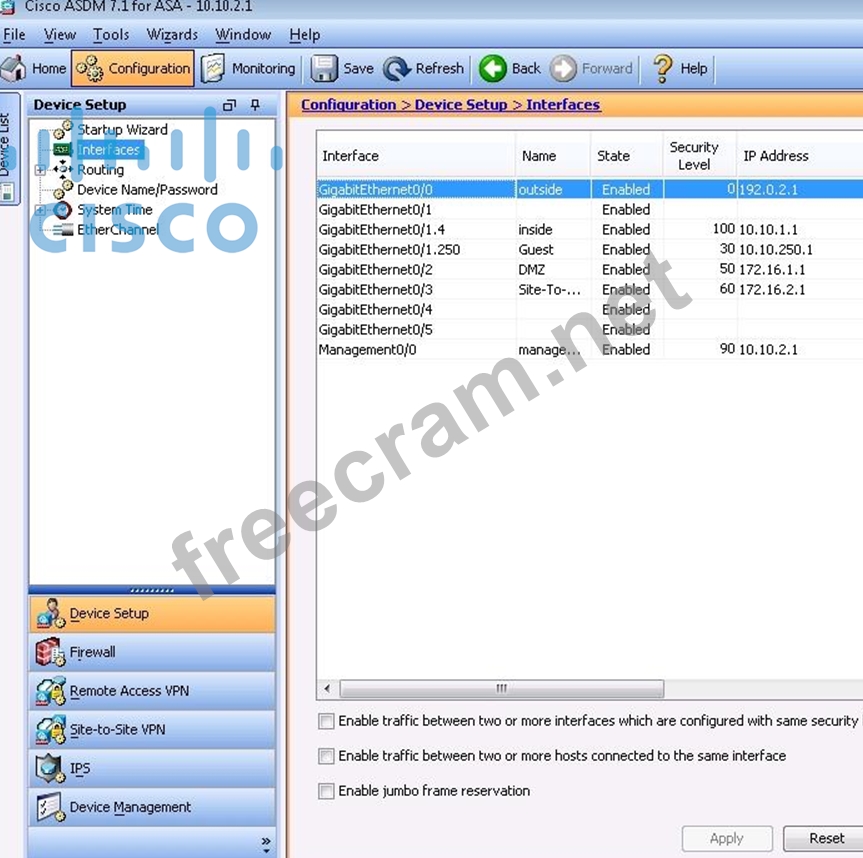
Enable IKEv1 on outside I/F for Site-to-site VPN

Add a Connection Profile with the following parameters:
- Peer IP: 203.0.113.1
- Connection name: 203.0.113.1
- Local protected network: 10.10.9.0/24
- Remote protected network: 10.11.11.0/24
- Group Policy Name: use the default policy name supplied
- Preshared key: cisco
- Disable IKEv2
- Encryption Algorithms: use the ASA defaults
Disable pre-configured NAT for testing of the IPsec tunnel
- Disable the outside NAT pool rule
Establish the IPsec tunnel by sending ICMP pings from the Employee PC to the Branch Server at IP
address 10.11.11.20
Verify tunnel establishment in ASDM VPN Statistics> Sessions window pane
You have completed this exercise when you have successfully configured, established, and verified site-to- site IPsec connectivity between the ASA and the Branch ISR.
Topology
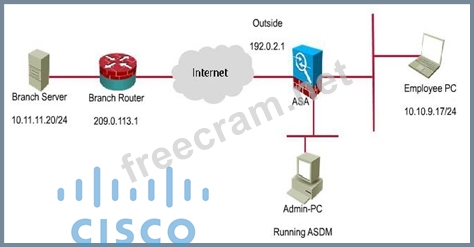
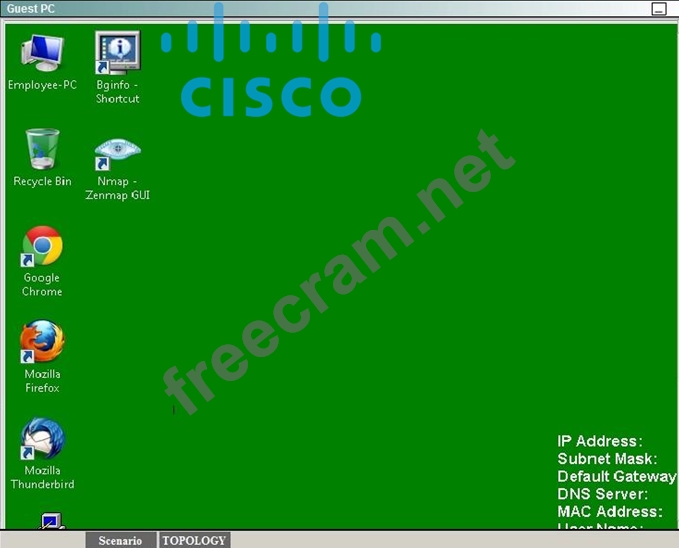





Scenario
You are the network security administrator for your organization. Your company is growing and a remote branch office is being created. You are tasked with configuring your headquarters Cisco ASA to create a site-to-site IPsec VPN connection to the branch office Cisco ISR. The branch office ISR has already been deployed and configured and you need to complete the IPsec connectivity configurations on the HQ ASA to bring the new office online.
Use the following parameters to complete your configuration using ASDM. For this exercise, not all ASDM screens are active.
Enable IKEv1 on outside I/F for Site-to-site VPN
Add a Connection Profile with the following parameters:
- Peer IP: 203.0.113.1
- Connection name: 203.0.113.1
- Local protected network: 10.10.9.0/24
- Remote protected network: 10.11.11.0/24
- Group Policy Name: use the default policy name supplied
- Preshared key: cisco
- Disable IKEv2
- Encryption Algorithms: use the ASA defaults
Disable pre-configured NAT for testing of the IPsec tunnel
- Disable the outside NAT pool rule
Establish the IPsec tunnel by sending ICMP pings from the Employee PC to the Branch Server at IP
address 10.11.11.20
Verify tunnel establishment in ASDM VPN Statistics> Sessions window pane
You have completed this exercise when you have successfully configured, established, and verified site-to- site IPsec connectivity between the ASA and the Branch ISR.
Topology
Correct Answer:
Review the explanation for detailed answer steps.
Explanation/Reference:
Explanation:
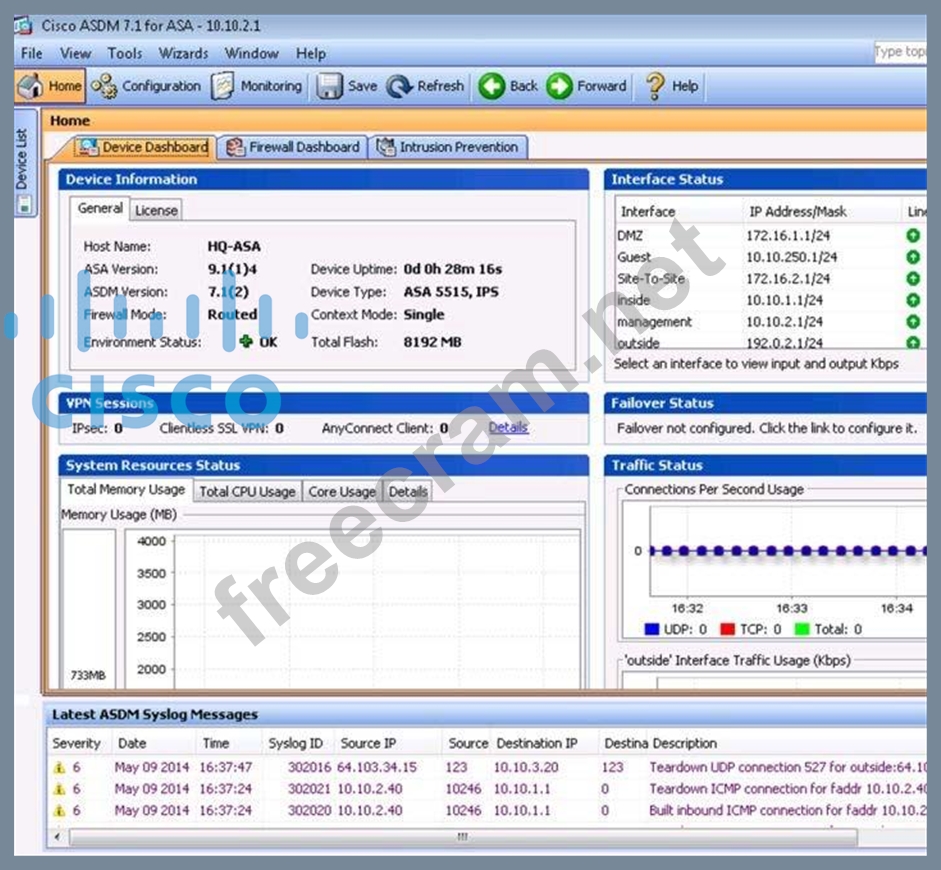
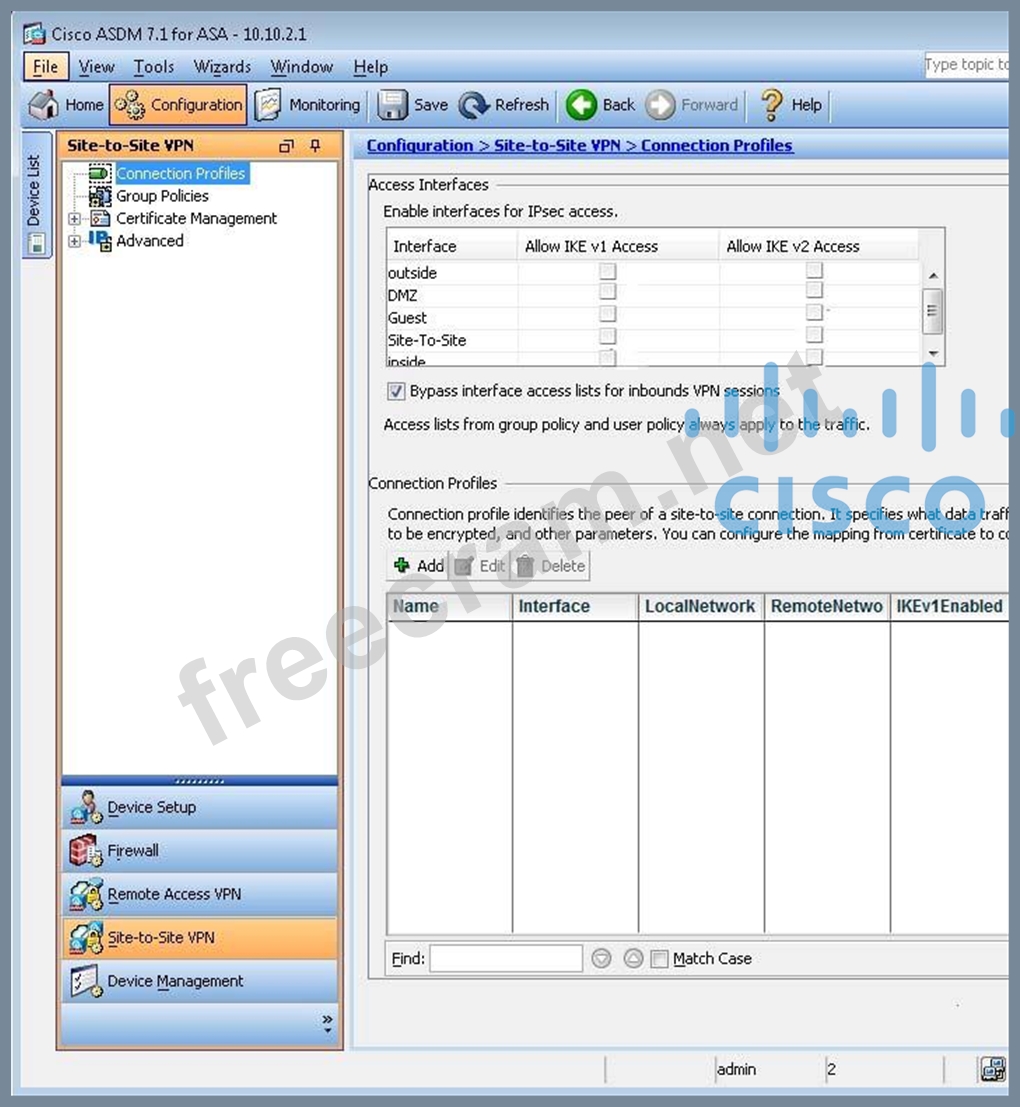
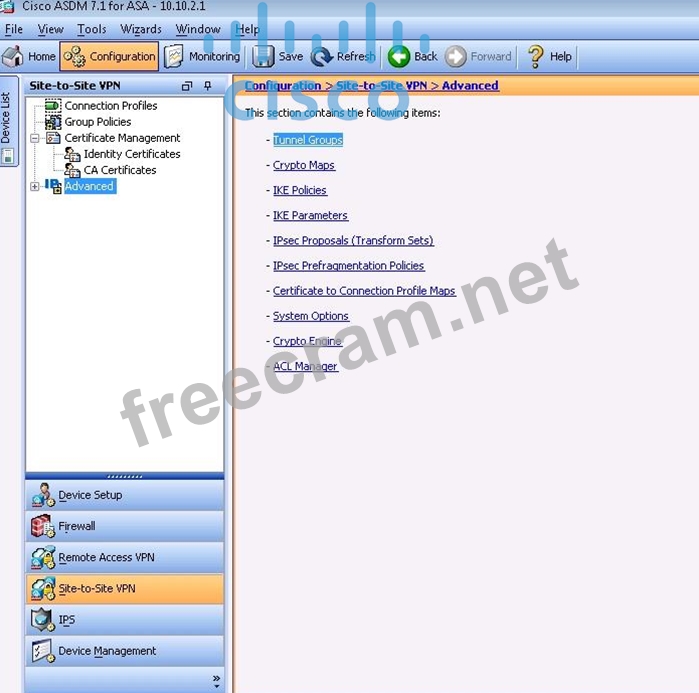
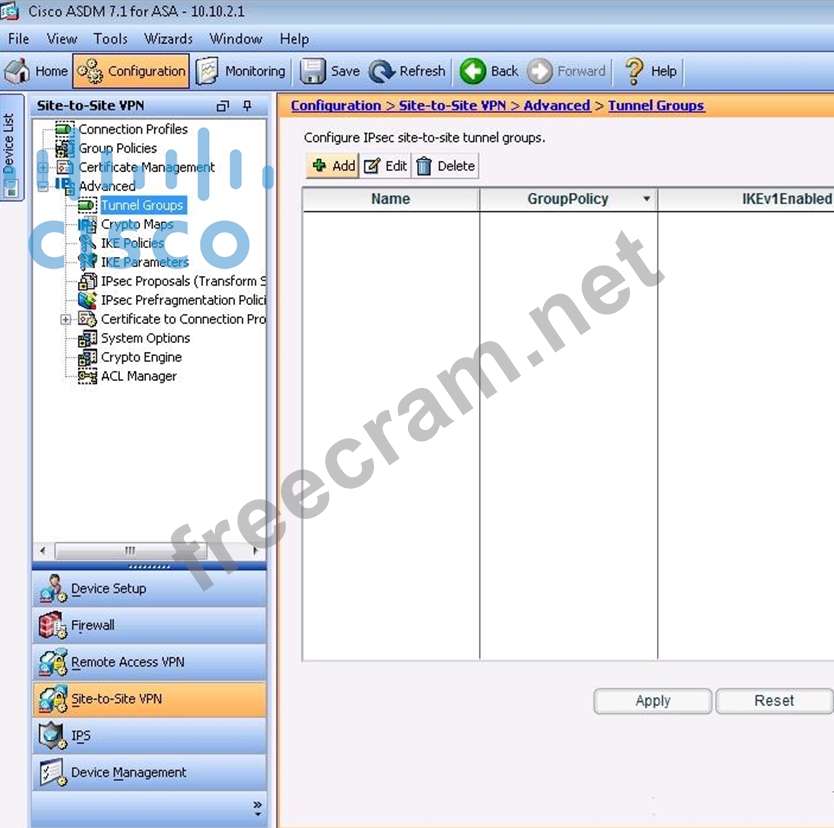
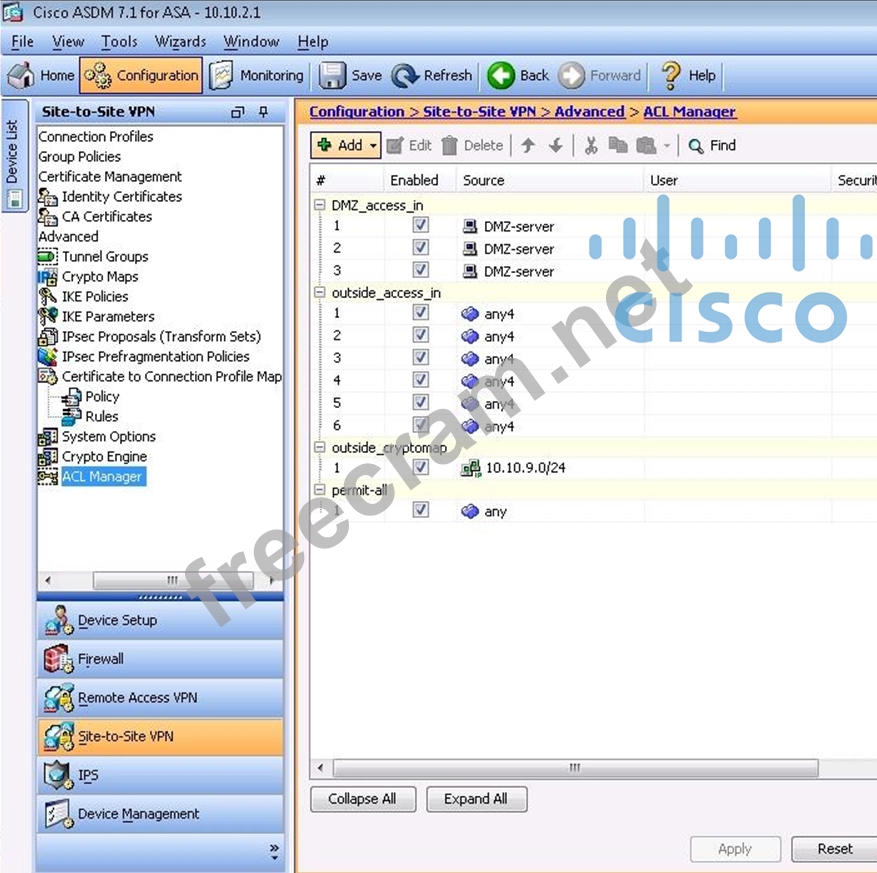
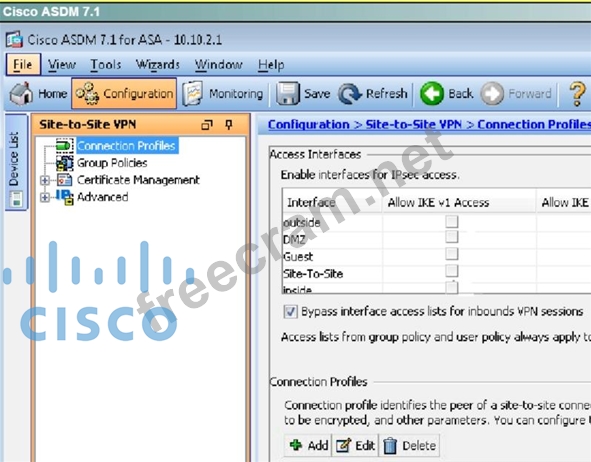
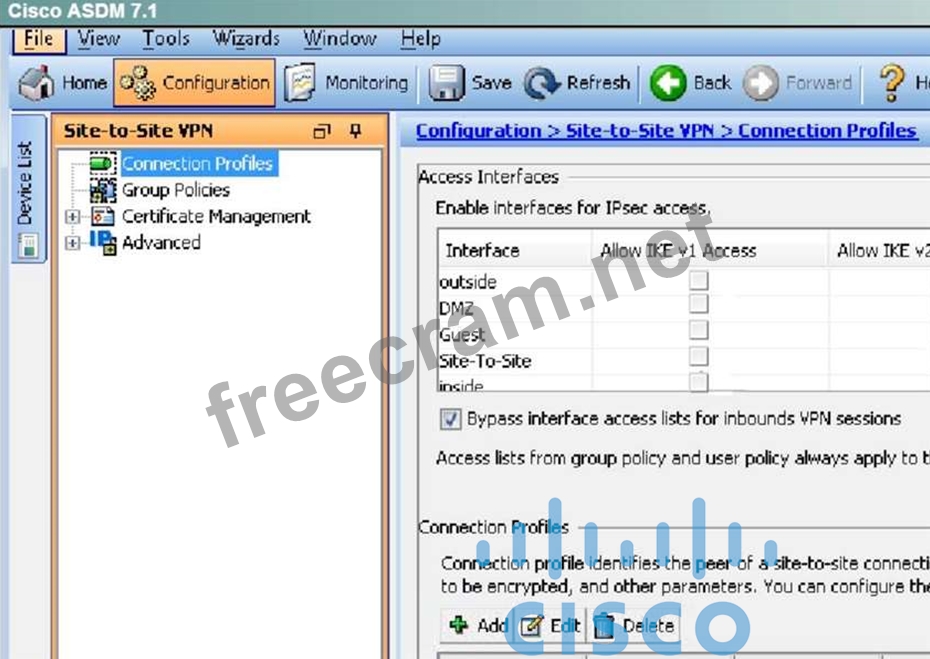
First, click on Configuration ->Site-to-Site VPN to bring up this screen:
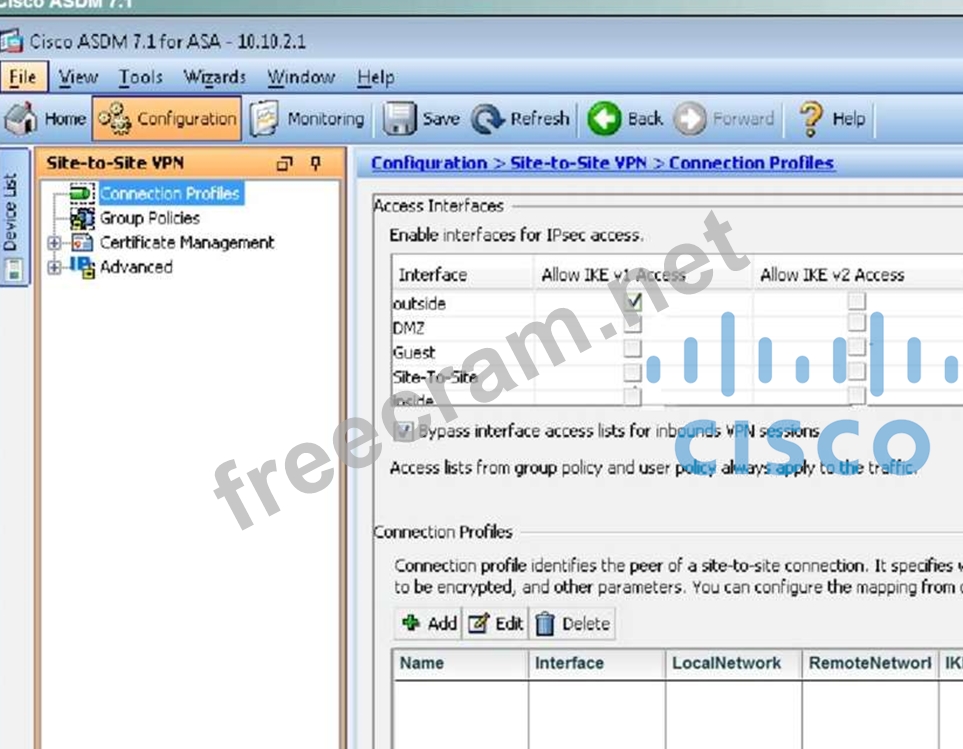
Click on "allow IKE v1 Access" for the outside per the instructions as shown below:
Then click apply at the bottom of the page. This will bring up the following pop up message:

Click on Send.
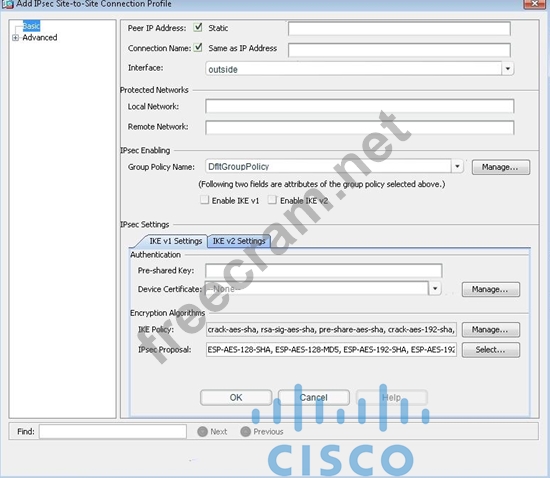
Next, we need to set up the connection profile. From the connection profile tab, click on "Add"
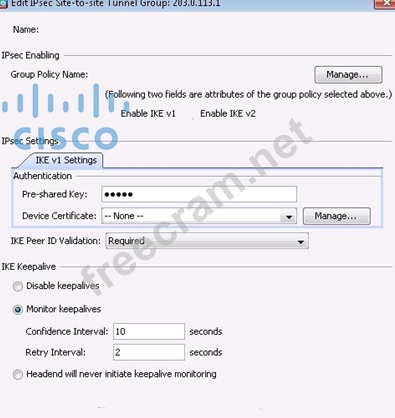
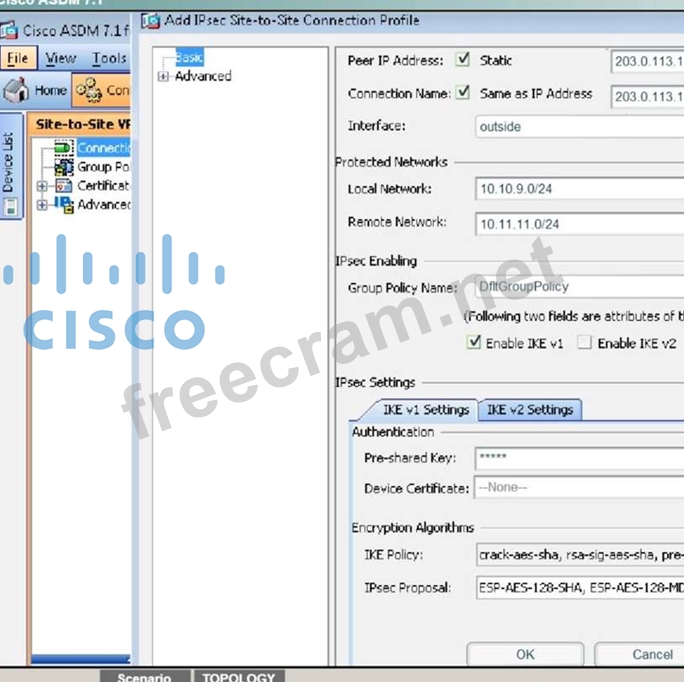
Then, fill in the information per the instructions as shown below:
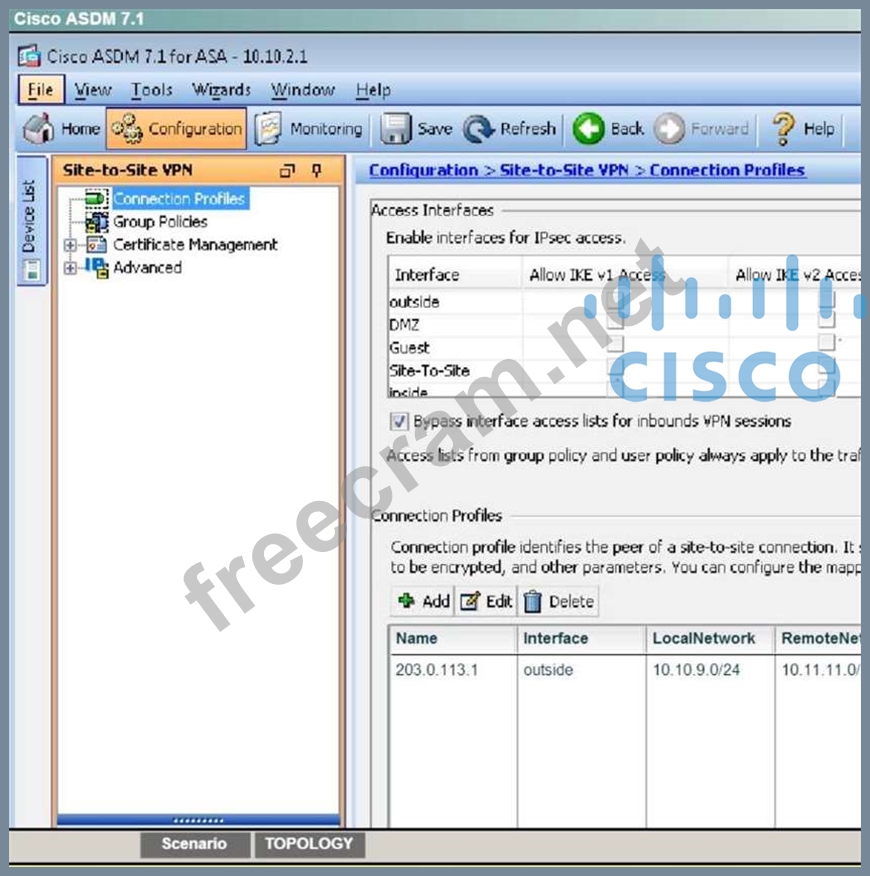
Hit OK and you should see this:
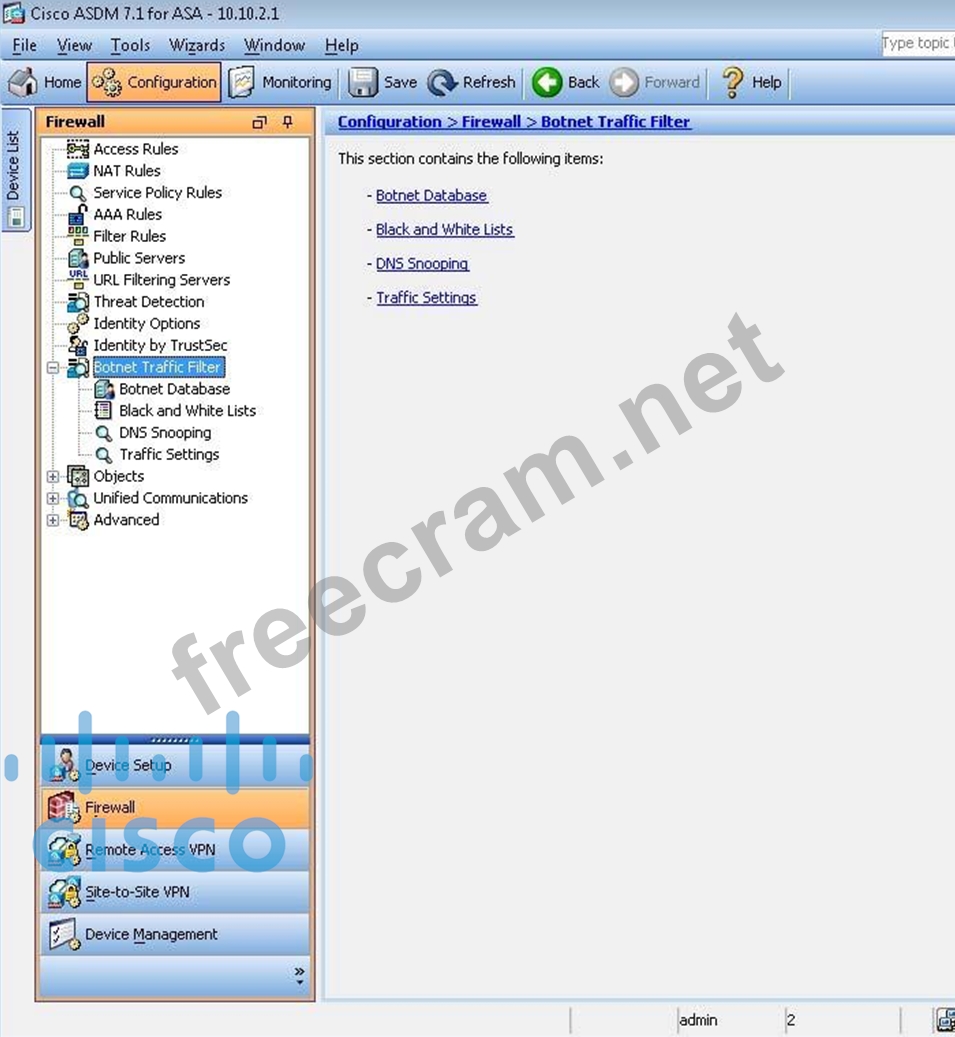
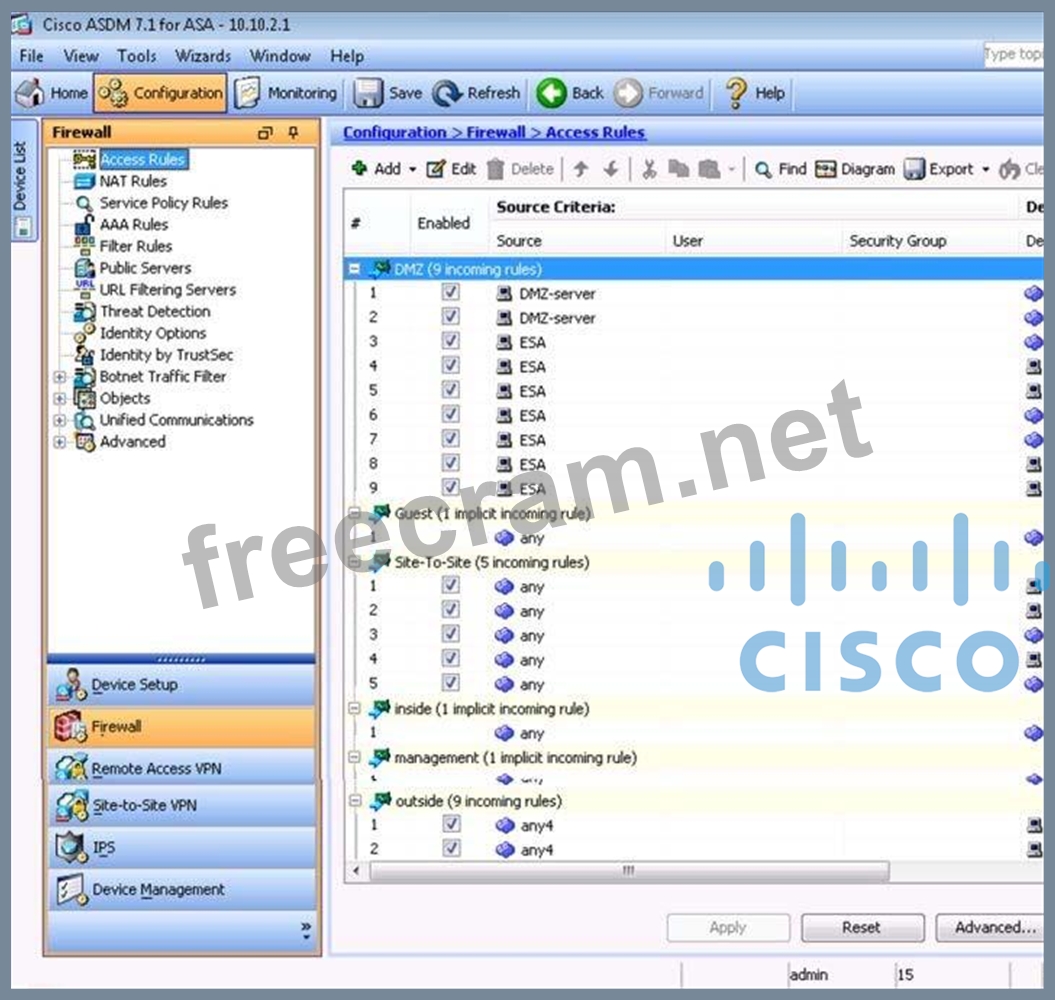
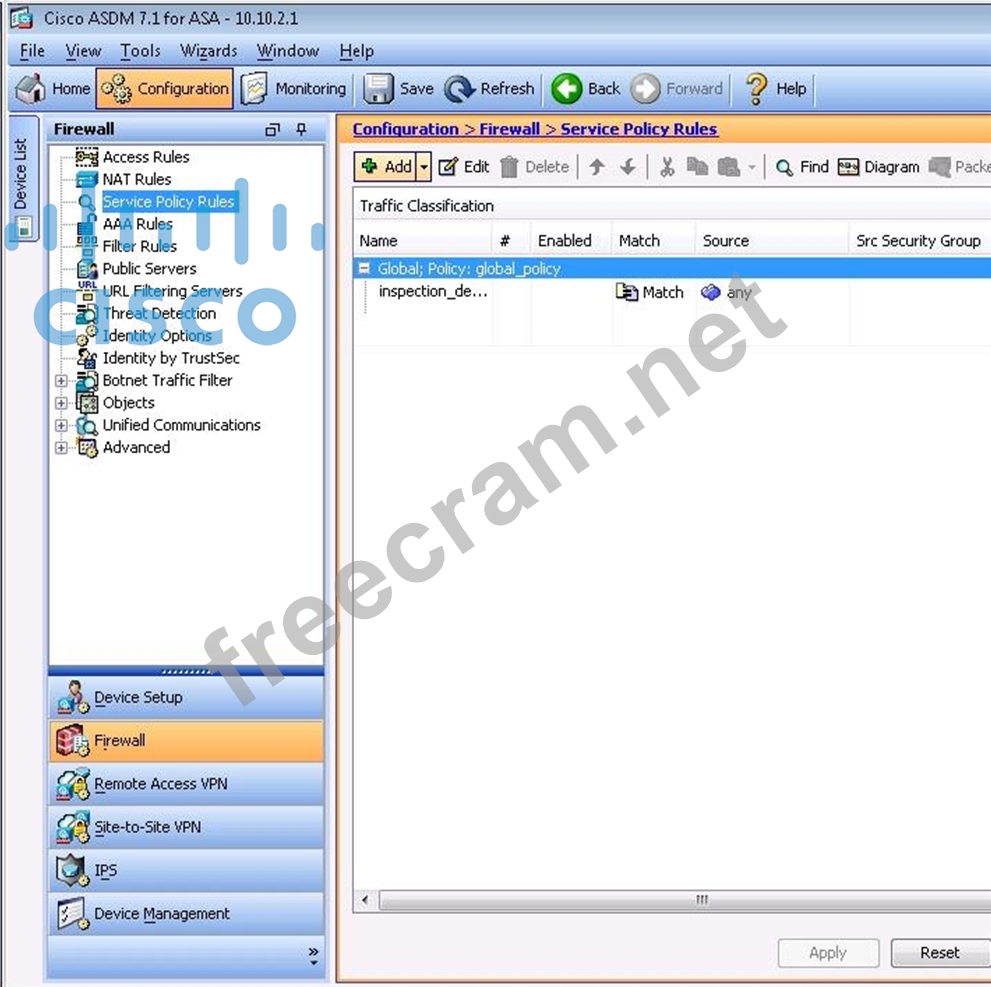
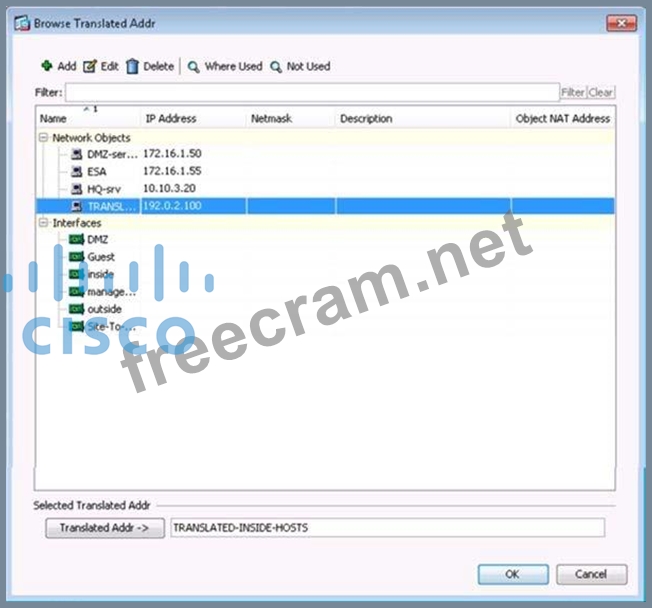
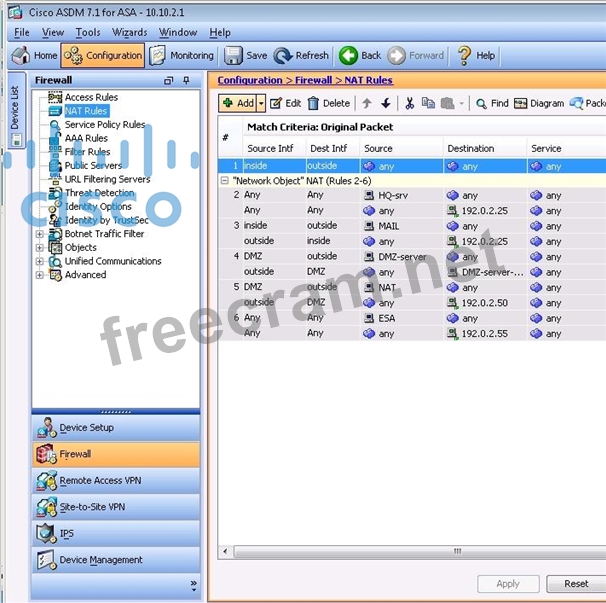
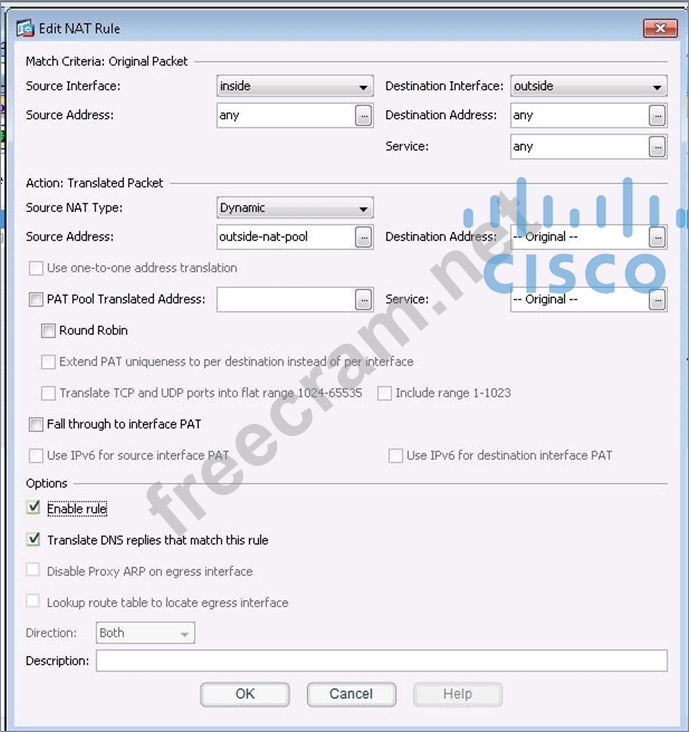
To test this, we need to disable NAT. Go to Configuration -> Firewall -> NAT rules and you should see this:
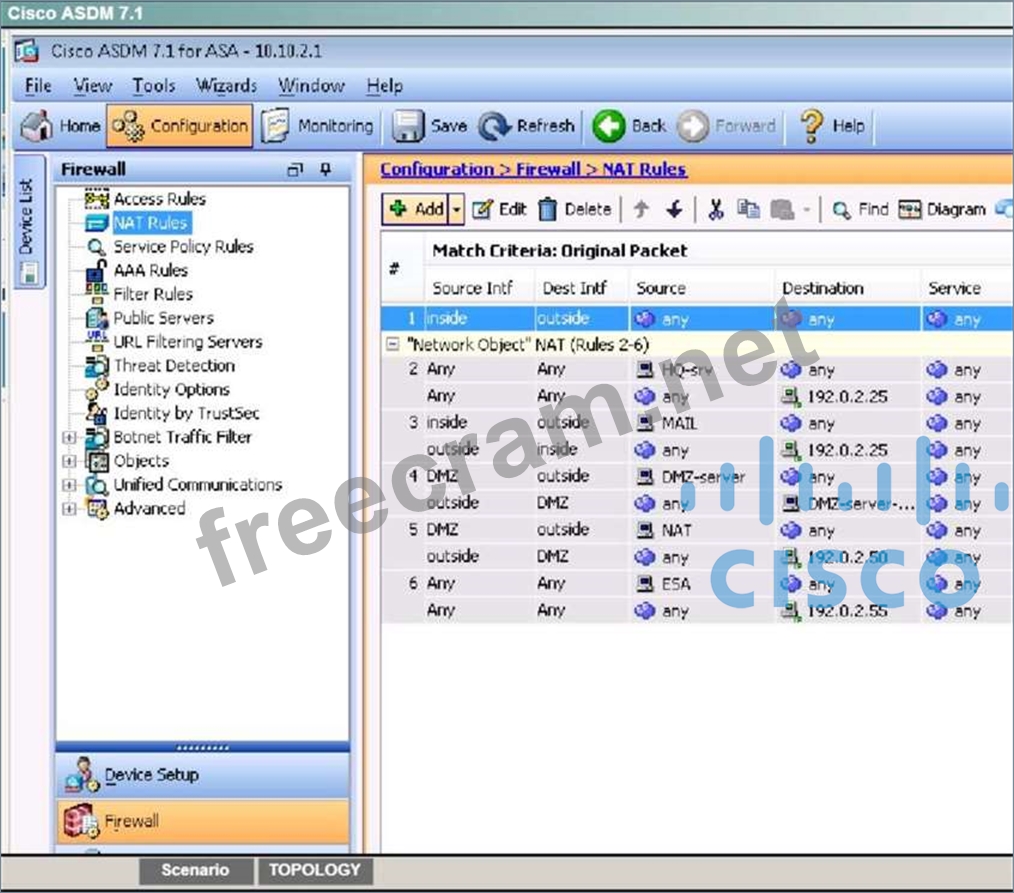
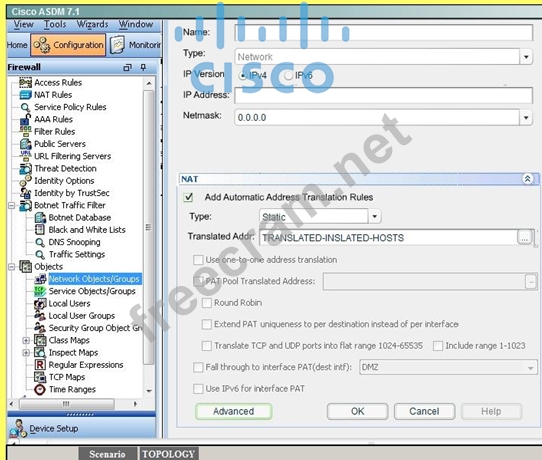
Click on Rule 1 to get the details and you will see this:
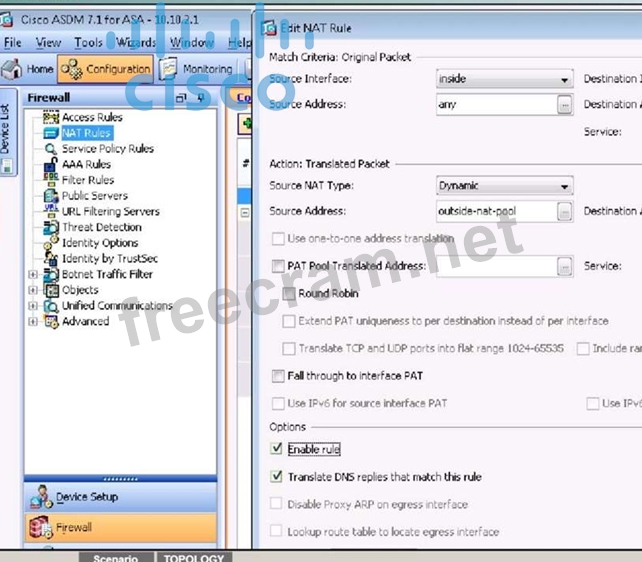
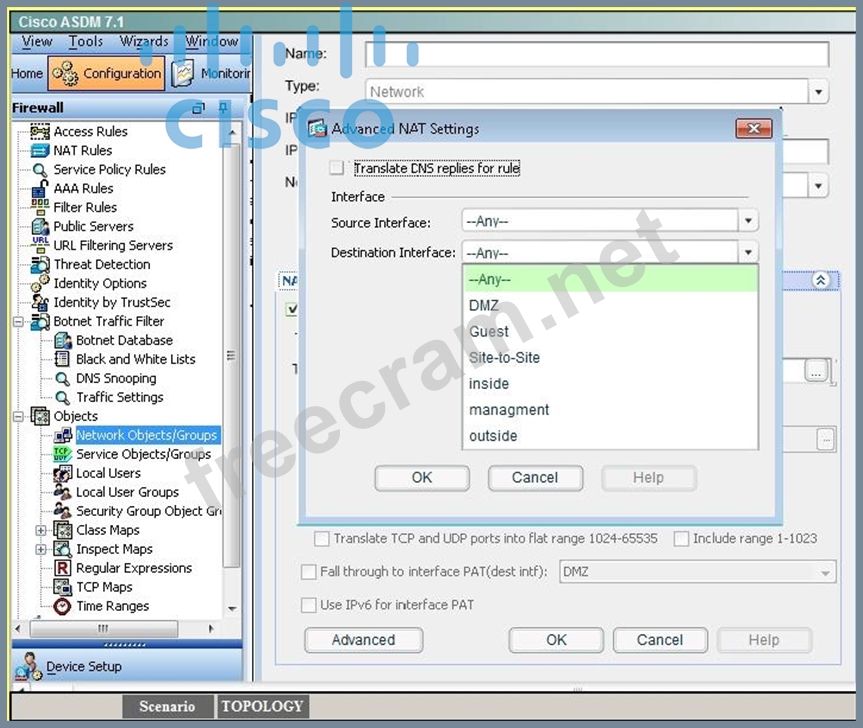
We need to uncheck the "Enable rule" button on the bottom. It might also be a good idea to uncheck the
"Translate DNS replies that match the rule" but it should not be needed.
Then, go back to the topology:
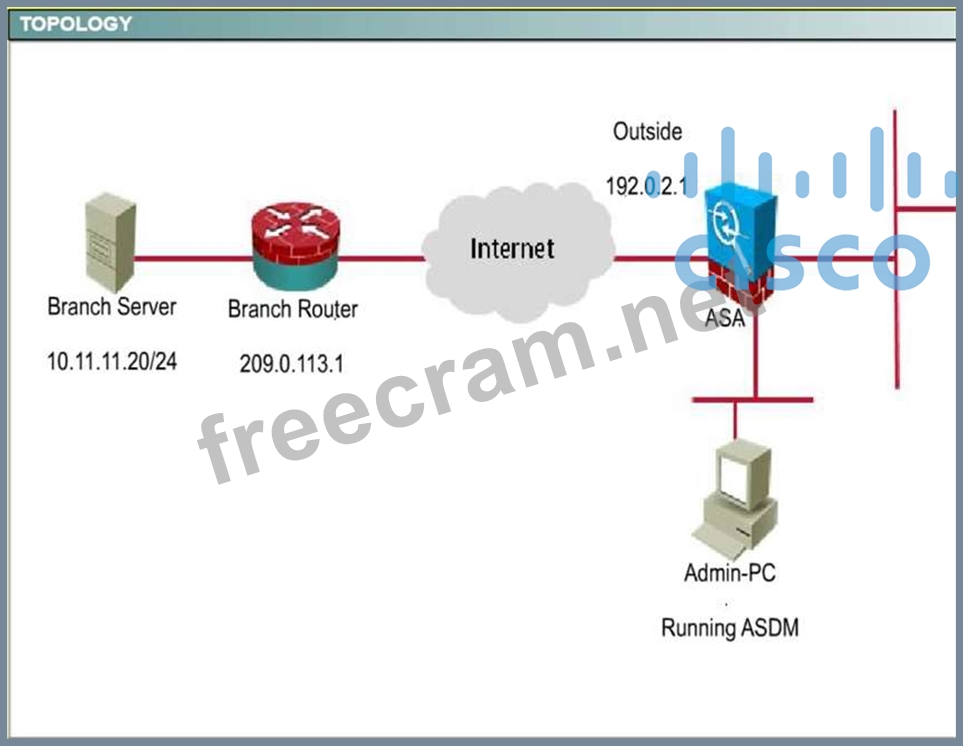
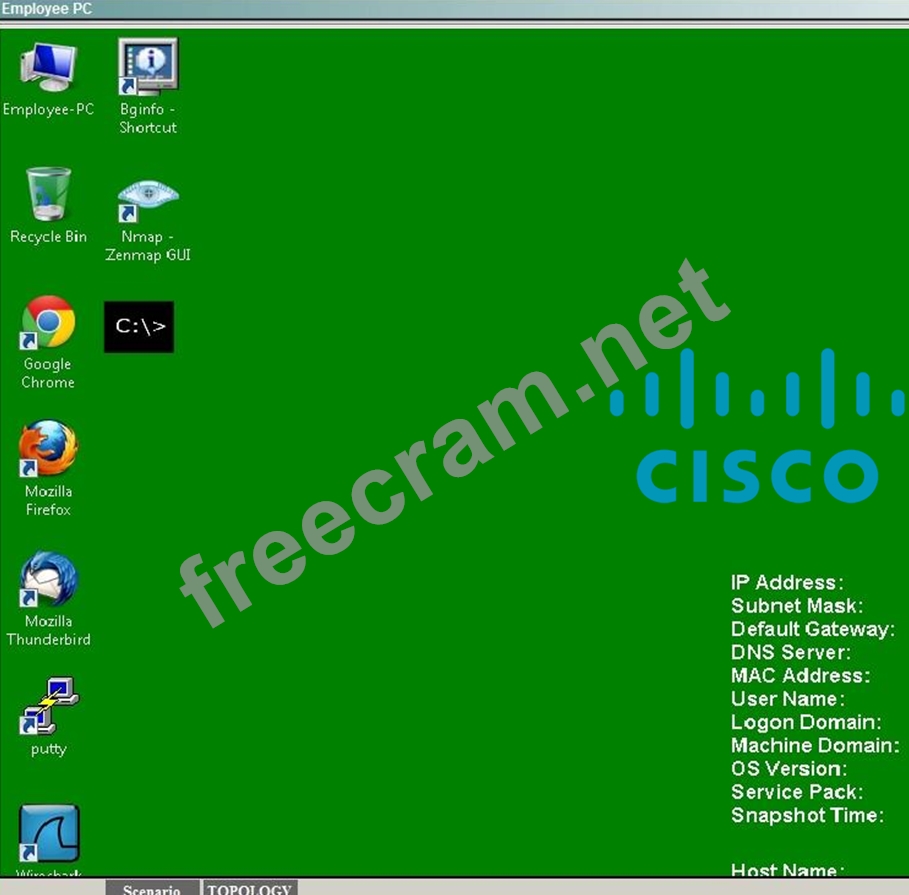
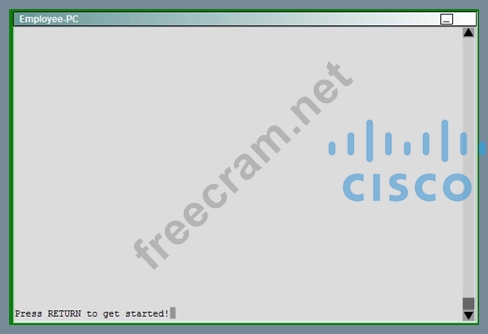
Click on Employee PC, and you will see a desktop with a command prompt shortcut. Use this to ping the IP address of 10.11.11.20 and you should see replies:

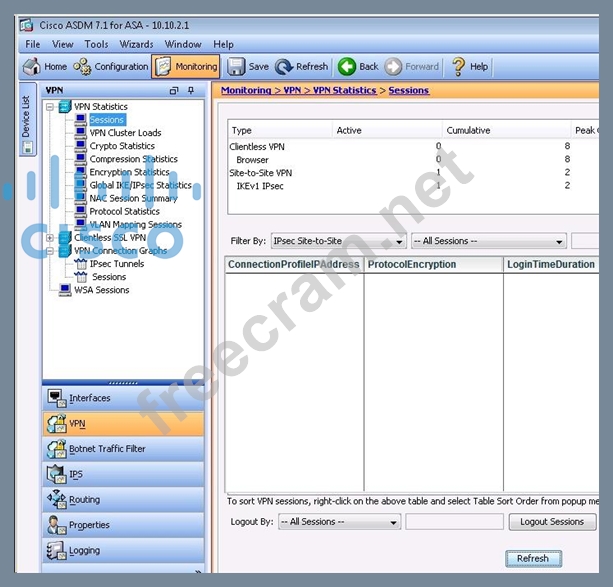
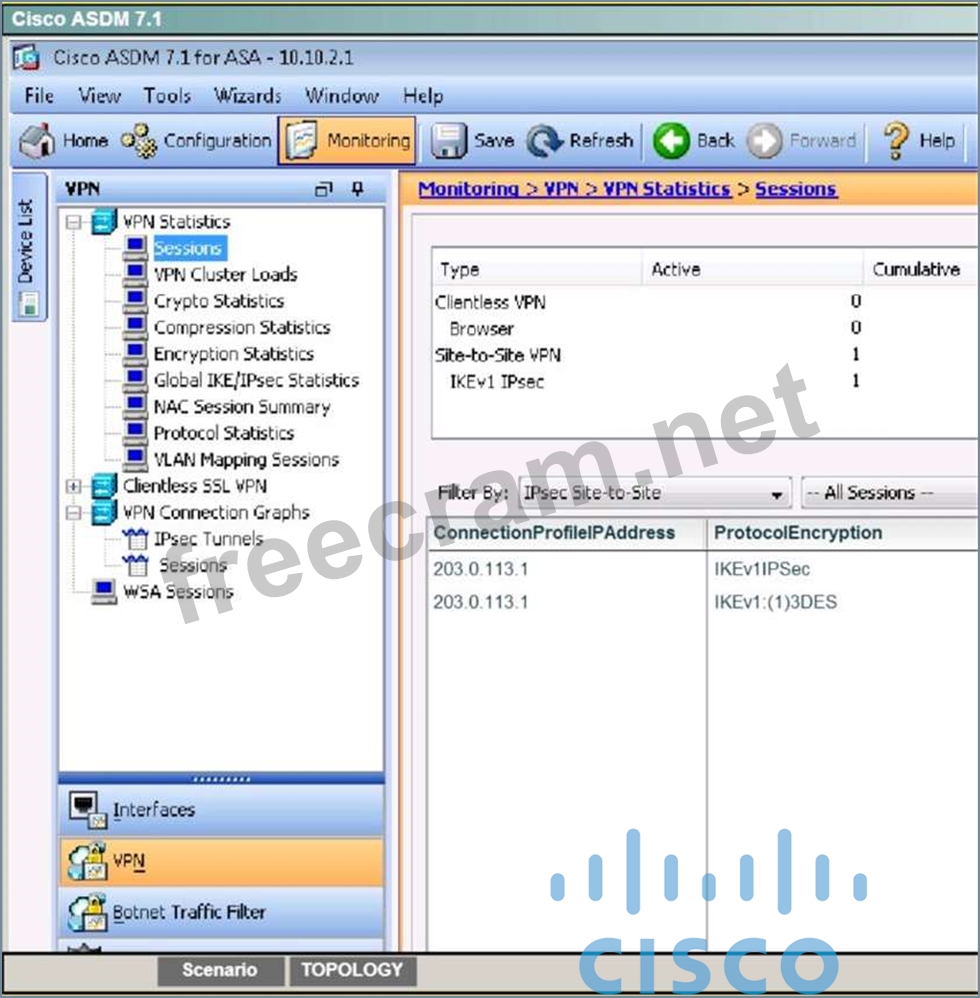
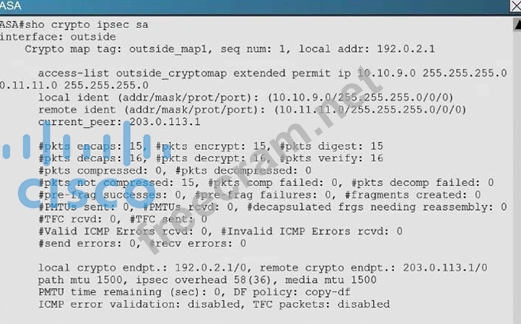
We can also verify by viewing the VPN Statistics -> Sessions and see the bytes in/out incrementing as shown below:
Explanation/Reference:
Explanation:
First, click on Configuration ->Site-to-Site VPN to bring up this screen:
Click on "allow IKE v1 Access" for the outside per the instructions as shown below:
Then click apply at the bottom of the page. This will bring up the following pop up message:
Click on Send.
Next, we need to set up the connection profile. From the connection profile tab, click on "Add"
Then, fill in the information per the instructions as shown below:
Hit OK and you should see this:
To test this, we need to disable NAT. Go to Configuration -> Firewall -> NAT rules and you should see this:
Click on Rule 1 to get the details and you will see this:
We need to uncheck the "Enable rule" button on the bottom. It might also be a good idea to uncheck the
"Translate DNS replies that match the rule" but it should not be needed.
Then, go back to the topology:
Click on Employee PC, and you will see a desktop with a command prompt shortcut. Use this to ping the IP address of 10.11.11.20 and you should see replies:
We can also verify by viewing the VPN Statistics -> Sessions and see the bytes in/out incrementing as shown below:


- Question List (188q)
- Question 1: A user is unable to establish an AnyConnect VPN connection t...
- Question 2: Refer to the exhibit. (Exhibit) Which action is demonstrated...
- Question 3: Which are two main use cases for Clientless SSL VPN? (Choose...
- Question 4: Scenario Your organization has just implemented a Cisco AnyC...
- Question 5: Refer to the exhibit. (Exhibit) Which technology is represen...
- Question 6: Which technology must be installed on the client computer to...
- Question 7: When troubleshooting established clientless SSL VPN issues, ...
- Question 8: Which group-policy subcommand installs the Diagnostic AnyCon...
- Question 9: Which adaptive security appliance command can be used to see...
- Question 10: A custom desktop application needs to access an internal ser...
- Question 11: What must be enabled in the web browser of the client comput...
- Question 12: Refer to the exhibit. Given the partial configuration shown,...
- Question 13: Which three commands are included in the command show dmvpn ...
- Question 14: Which Cisco ASDM option configures forwarding syslog message...
- Question 15: (Exhibit) After implementing the IKEv2 tunnel, it was observ...
- Question 16: Which feature enforces the corporate policy for Internet acc...
- Question 17: Where is split-tunneling defined for remote access clients o...
- Question 18: In a spoke-to-spoke DMVPN topology, which type of interface ...
- Question 19: An administrator desires that when work laptops are not conn...
- Question 20: Which Cisco firewall platform supports Cisco NGE?...
- Question 21: A private wan connection is suspected of intermittently corr...
- Question 22: In DMVPN phase 2, which two EIGRP features need to be disabl...
- Question 23: Which technology does a multipoint GRE interface require to ...
- Question 24: In FlexVPN, what command can an administrator use to create ...
- Question 25: Which option is one component of a Public Key Infrastructure...
- Question 26: You are troubleshooting a DMVPN NHRP registration failure. W...
- Question 27: Which two cryptographic technologies are recommended for use...
- Question 28: Scenario Your organization has just implemented a Cisco AnyC...
- Question 29: In the Diffie-Hellman protocol, which type of key is the sha...
- Question 30: Which feature is enabled by the use of NHRP in a DMVPN netwo...
- Question 31: Which statement is true when implementing a router with a dy...
- Question 32: What is the default storage location of user-level bookmarks...
- Question 33: The Cisco AnyConnect client is unable to download an updated...
- Question 34: You are configuring a Cisco IOS SSL VPN gateway to operate w...
- Question 35: Which two features are required when configuring a DMVPN net...
- Question 36: Which NGE IKE Diffie-Hellman group identifier has the strong...
- Question 37: Scenario: You are the senior network security administrator ...
- Question 38: Which command enables the router to form EIGRP neighbor adja...
- Question 39: (Exhibit) Which option shows the correct traffic selectors f...
- Question 40: Which other match command is used with the match flow ip des...
- Question 41: Scenario: You are the senior network security administrator ...
- Question 42: A network administrator is configuring AES encryption for th...
- Question 43: In the Cisco ASDM interface, where do you enable the DTLS pr...
- Question 44: Which VPN solution is best for a collection of branch office...
- Question 45: Which VPN feature allows remote access clients to print docu...
- Question 46: Which two types of authentication are supported when you use...
- Question 47: Which is used by GETVPN, FlexVPN and DMVPN?...
- Question 48: Which encryption and authentication algorithms does Cisco re...
- Question 49: What does NHRP stand for?
- Question 50: Which command configures IKEv2 symmetric identity authentica...
- Question 51: Which two technologies are considered to be Suite B cryptogr...
- Question 52: Which Cisco adaptive security appliance command can be used ...
- Question 53: Which two troubleshooting steps should be taken when Cisco A...
- Question 54: What is the Cisco recommended TCP maximum segment on a DMVPN...
- Question 55: Refer to the exhibit. (Exhibit) The network administrator is...
- Question 56: Which option describes the purpose of the shared argument in...
- Question 57: SIMULATION (Exhibit)
- Question 58: Refer to the exhibit. (Exhibit) An administrator is adding I...
- Question 59: (Exhibit) If the IKEv2 tunnel were to establish successfully...
- Question 60: Which protocol does DTLS use for its transport?...
- Question 61: When you are configuring a DMVPN network, which tunnel mode ...
- Question 62: Refer to the exhibit. (Exhibit) Which VPN solution does this...
- Question 63: An internet-based VPN solution is being considered to replac...
- Question 64: Which cryptographic algorithms are approved to protect Top S...
- Question 65: Which transform set is contained in the IKEv2 default propos...
- Question 66: Refer to the exhibit. (Exhibit) You have implemented an SSL ...
- Question 67: In which situation would you enable the Smart Tunnel option ...
- Question 68: After completing a site-to-site VPN setup between two router...
- Question 69: Which command specifies the path to the Host Scan package in...
- Question 70: Which VPN type can be used to provide secure remote access f...
- Question 71: Scenario Your organization has just implemented a Cisco AnyC...
- Question 72: Which command simplifies the task of converting an SSL VPN t...
- Question 73: What is the default topology type for a GET VPN?...
- Question 74: What are the three primary components of a GET VPN network? ...
- Question 75: What are two forms of SSL VPN? (Choose two.)...
- Question 76: Which application does the Application Access feature of Cli...
- Question 77: Which two statements are true when designing a SSL VPN solut...
- Question 78: Which of the following could be used to configure remote acc...
- Question 79: Which command will prevent a group policy from inheriting a ...
- Question 80: Refer to the exhibit. (Exhibit) Which VPN solution does this...
- Question 81: Refer to the exhibit. (Exhibit) You executed the show crypto...
- Question 82: A company has decided to migrate an existing IKEv1 VPN tunne...
- Question 83: Refer to the exhibit. (Exhibit) Which VPN solution does this...
- Question 84: Which three plugins are available for clientless SSL VPN? (C...
- Question 85: Refer to the exhibit. (Exhibit) The IKEv2 tunnel between Rou...
- Question 86: Which three parameters are specified in the isakmp (IKEv1) p...
- Question 87: An IOS SSL VPN is configured to forward TCP ports. A remote ...
- Question 88: An administrator wishes to limit the networks reachable over...
- Question 89: Which cryptographic algorithms are a part of the Cisco NGE s...
- Question 90: Which of these are the two types of keys used when implement...
- Question 91: What are two variables for configuring clientless SSL VPN si...
- Question 92: With Cisco ASA active/standby failover, by default, how many...
- Question 93: What are two benefits of DMVPN Phase 3? (Choose two.)...
- Question 94: You are troubleshooting a site-to-site VPN issue where the t...
- Question 95: When implementing GET VPN, which of these is a characteristi...
- Question 96: A company needs to provide secure access to its remote workf...
- Question 97: Remote users want to access internal servers behind an ASA u...
- Question 98: Which command enables IOS SSL VPN Smart Tunnel support for P...
- Question 99: Refer to the exhibit. (Exhibit) An administrator had the abo...
- Question 100: Which hash algorithm is required to protect classified infor...
- Question 101: Which technology supports tunnel interfaces while remaining ...
- Question 102: Which two parameters are configured within an IKEv2 proposal...
- Question 103: A Cisco router may have a fan issue that could increase its ...
- Question 104: Scenario: You are the senior network security administrator ...
- Question 105: Where do you configure AnyConnect certificate-based authenti...
- Question 106: Which two qualify as Next Generation Encryption integrity al...
- Question 107: Which statement about the hub in a DMVPN configuration with ...
- Question 108: Which two GDOI encryption keys are used within a GET VPN net...
- Question 109: Regarding licensing, which option will allow IKEv2 connectio...
- Question 110: When an IPsec SVTI is configured, which technology processes...
- Question 111: Which of these is true regarding tunnel configuration when d...
- Question 112: When you troubleshoot Cisco AnyConnect, which step does Cisc...
- Question 113: A user with IP address 10.10.10.10 is unable to access a HTT...
- Question 114: In a GET VPN solution, which two ways can the key server dis...
- Question 115: Which two examples of transform sets are contained in the IK...
- Question 116: Which two statements describe effects of the DoNothing optio...
- Question 117: Refer to the exhibit. Based on the partial configuration sho...
- Question 118: A Cisco IOS SSL VPN gateway is configured to operate in clie...
- Question 119: Which Cisco ASDM option configures WebVPN access on a Cisco ...
- Question 120: Which option is an example of an asymmetric algorithm?...
- Question 121: What action does the hub take when it receives a NHRP resolu...
- Question 122: A user is trying to connect to a Cisco IOS device using clie...
- Question 123: Which two statements about the running configuration of the ...
- Question 124: A spoke has two Internet connections for failover. How can y...
- Question 125: When you configure IPsec VPN High Availability Enhancements,...
- Question 126: On which Cisco platform are dynamic virtual template interfa...
- Question 127: Which protocols does the Cisco AnyConnect client use to buil...
- Question 128: Which four activities does the Key Server perform in a GETVP...
- Question 129: Which option lists the main tasks in the correct order to co...
- Question 130: SIMULATION Scenario You are the network security administrat...
- Question 131: You are troubleshooting a site-to-site VPN issue where the t...
- Question 132: Which option is most effective at preventing a remote access...
- Question 133: Which three settings are required for crypto map configurati...
- Question 134: Which protocol supports high availability in a Cisco IOS SSL...
- Question 135: Refer to the exhibit. (Exhibit) After the configuration is p...
- Question 136: To change the title panel on the logon page of the Cisco IOS...
- Question 137: Refer to the exhibit. (Exhibit) What technology does the giv...
- Question 138: Which command can you use to monitor the phase 1 establishme...
- Question 139: What are three benefits of deploying a GET VPN? (Choose thre...
- Question 140: Refer to the exhibit. (Exhibit) Which statement about the gi...
- Question 141: Refer to the exhibit. (Exhibit) What is the purpose of the g...
- Question 142: What URL do you use to download a packet capture file in a f...
- Question 143: Which algorithm is replaced by elliptic curve cryptography i...
- Question 144: Which command clears all crypto configuration from a Cisco A...
- Question 145: Which three remote access VPN methods in an ASA appliance pr...
- Question 146: Which Cisco IOS VPN feature simplifies IPsec VPN configurati...
- Question 147: A network is configured to allow clientless access to resour...
- Question 148: Which two IKEv1 policy options must match on each peer when ...
- Question 149: Refer to the exhibit. (Exhibit) Which VPN solution does this...
- Question 150: Which functionality is provided by L2TPv3 over FlexVPN?...
- Question 151: The following configuration steps have been completeD. WebVP...
- Question 152: Consider this scenario. When users attempt to connect via a ...
- Question 153: Which interface is managed by the VPN Access Interface field...
- Question 154: Which Cisco IOS feature provides secure, on-demand meshed co...
- Question 155: Which command clears all Cisco AnyConnect VPN sessions?...
- Question 156: When Cisco ASA applies VPN permissions, what is the first se...
- Question 157: Refer to the exhibit. (Exhibit) An IPsec peer is exchanging ...
- Question 158: Which feature do you include in a highly available system to...
- Question 159: Which technology can rate-limit the number of tunnels on a D...
- Question 160: Which type of communication in a FlexVPN implementation uses...
- Question 161: Which option describes what address preservation with IPsec ...
- Question 162: Refer to the exhibit. (Exhibit) Which two statements about t...
- Question 163: Scenario: You are the senior network security administrator ...
- Question 164: If Web VPN bookmarks are grayed out on the home screen, whic...
- Question 165: The Cisco AnyConnect client fails to connect via IKEv2 but w...
- Question 166: Which option describes the purpose of the command show deriv...
- Question 167: Which technology can provide high availability for an SSL VP...
- Question 168: Which option is a required element of Secure Device Provisio...
- Question 169: Which two RADIUS attributes are needed for a VRF-aware FlexV...
- Question 170: A rogue static route is installed in the routing table of a ...
- Question 171: Which command is used to determine how many GMs have registe...
- Question 172: By default, how does a Cisco ASA appliance process IP fragme...
- Question 173: You have deployed new Cisco AnyConnect start before logon mo...
- Question 174: Which two are characteristics of GETVPN? (Choose two.)...
- Question 175: Which technology is FlexVPN based on?...
- Question 176: Which IKEv2 feature minimizes the configuration of a FlexVPN...
- Question 177: Scenario Your organization has just implemented a Cisco AnyC...
- Question 178: Refer to the exhibit. (Exhibit) Which authentication method ...
- Question 179: Which option is a possible solution if you cannot access a U...
- Question 180: Which feature is available in IKEv1 but not IKEv2?...
- Question 181: Refer to the exhibit. (Exhibit) Which exchange does this deb...
- Question 182: Which statement describes a prerequisite for single-sign-on ...
- Question 183: (Exhibit) When a tunnel is initiated by the headquarter ASA,...
- Question 184: Which Cisco adaptive security appliance command can be used ...
- Question 185: In FlexVPN, what is the role of a NHRP resolution request?...
- Question 186: (Exhibit) Based on the provided ASDM configuration for the r...
- Question 187: SIMULATION Scenario: You are the network security manager fo...
- Question 188: Which technology can you implement to reduce latency issues ...
