- Home
- Cisco
- Implementing Cisco Video Network Devices (CIVND)
- Cisco.210-065.v2019-09-05.q241
- Question 224
Valid 210-065 Dumps shared by ExamDiscuss.com for Helping Passing 210-065 Exam! ExamDiscuss.com now offer the newest 210-065 exam dumps, the ExamDiscuss.com 210-065 exam questions have been updated and answers have been corrected get the newest ExamDiscuss.com 210-065 dumps with Test Engine here:
Access 210-065 Dumps Premium Version
(210 Q&As Dumps, 35%OFF Special Discount Code: freecram)
<< Prev Question Next Question >>
Question 224/241
Refer to the exhibit.
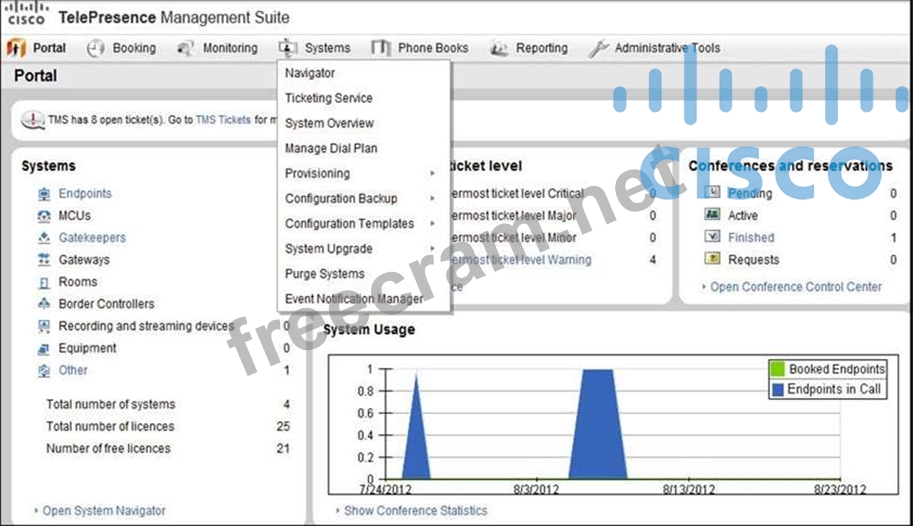
Which system tab can be used to add video infrastructure devices and endpoints?
Which system tab can be used to add video infrastructure devices and endpoints?
Correct Answer: A
Explanation/Reference:
Explanation:
Section 1 - Basic Endpoint configuration
Step 1 - Prior to setting up the traversal zone you will need to get all of your endpoints registered to your video network. There are several ways to do this for simplicity we will walk you through just one option.
a. On your lab laptop open a web browser and navigate to your Telepresence Management Suite (TMS) instance at: http://tms.collab.com/tms b. Login as

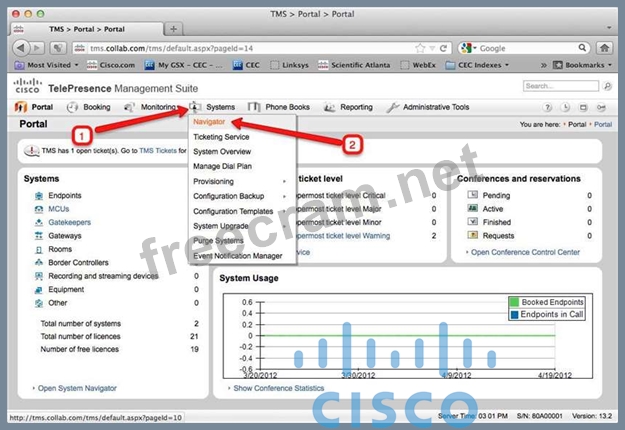
Figure 1 TMS Login
Step 2 -Navigate to Systems * Navigator (Figure 1)
Step 3 - Click the "Endpoints" folder on the left side of the window and click "add systems" as depicted below in Figure 2
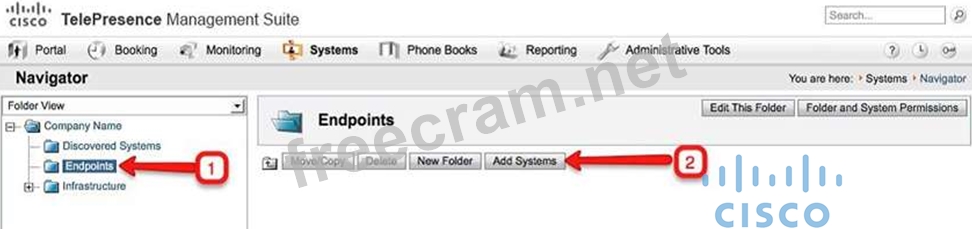
Figure 2 Adding Endpoints
Step 4 - Enter the IP address of your C60, and the EX60 that is not registered to CUCM into the Specify Systems text field, separating each with a comma as depicted in Figure 3below.
- Make sure that you: Leave the ISDN and IP zones "Collab Demo"
- Ensure that the time zone is set to "Eastern"
- You can find the IP address of your EX60s via the system information screen on the touch panel.
- For the C60 press the home key then the far right smart button to bring up your System information screen.
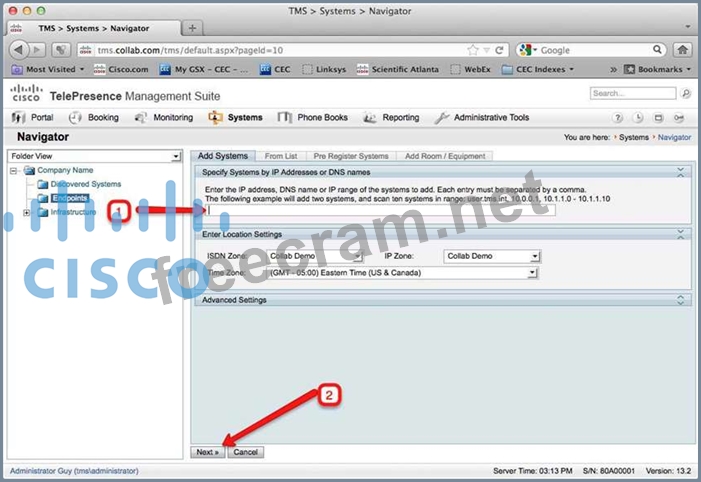
Figure 3 Adding Endpoints to TMS
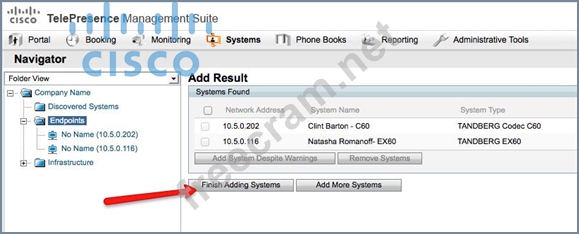
Step 5 - Click next, a progress window will appear as TMS reaches out to each endpoint. Once completed you see the "Add Result" screen showing that the endpoints were successfully discovered.
Step 6 - Finally click "Finish Adding Systems" as depicted in Figure 4.
NOTE: If your endpoints throw warnings click the check box next to them to view and correct the warnings or click "Add system despite Warnings" if available
Reference: http://ciscovideolab.com/mediawiki/index.php?title=Lab1
http://www.cisco.com/c/dam/en/us/td/docs/telepresence/infrastructure/tms/admin_guide/Cisco- TMS-Admin-Guide-14-6.pdf
Explanation:
Section 1 - Basic Endpoint configuration
Step 1 - Prior to setting up the traversal zone you will need to get all of your endpoints registered to your video network. There are several ways to do this for simplicity we will walk you through just one option.
a. On your lab laptop open a web browser and navigate to your Telepresence Management Suite (TMS) instance at: http://tms.collab.com/tms b. Login as
Figure 1 TMS Login
Step 2 -Navigate to Systems * Navigator (Figure 1)
Step 3 - Click the "Endpoints" folder on the left side of the window and click "add systems" as depicted below in Figure 2
Figure 2 Adding Endpoints
Step 4 - Enter the IP address of your C60, and the EX60 that is not registered to CUCM into the Specify Systems text field, separating each with a comma as depicted in Figure 3below.
- Make sure that you: Leave the ISDN and IP zones "Collab Demo"
- Ensure that the time zone is set to "Eastern"
- You can find the IP address of your EX60s via the system information screen on the touch panel.
- For the C60 press the home key then the far right smart button to bring up your System information screen.
Figure 3 Adding Endpoints to TMS
Step 5 - Click next, a progress window will appear as TMS reaches out to each endpoint. Once completed you see the "Add Result" screen showing that the endpoints were successfully discovered.
Step 6 - Finally click "Finish Adding Systems" as depicted in Figure 4.
NOTE: If your endpoints throw warnings click the check box next to them to view and correct the warnings or click "Add system despite Warnings" if available
Reference: http://ciscovideolab.com/mediawiki/index.php?title=Lab1
http://www.cisco.com/c/dam/en/us/td/docs/telepresence/infrastructure/tms/admin_guide/Cisco- TMS-Admin-Guide-14-6.pdf


- Question List (241q)
- Question 1: When you add third party call what button you should press?...
- Question 2: Which component of the Cisco TelePresence multipoint media i...
- Question 3: In order to perform a password recovery for the admin user o...
- Question 4: A large company wants to procure video conference devices th...
- Question 5: Which two UDP services are available on an MCU? (Choose two....
- Question 6: Refer to the exhibit. (Exhibit) Which CLI command should be ...
- Question 7: Your customer reports that new A/V equipment that plays movi...
- Question 8: Components of Digital Media Suite for created playlists:...
- Question 9: Cisco Video Surveillance Video Encoder cards perform which f...
- Question 10: A network engineer is installing a Cisco TelePresence MX200 ...
- Question 11: Which Cisco Video Surveillance product contains the Cisco Vi...
- Question 12: Cisco inline power was replaced by which IEEE standard?...
- Question 13: Which level of AES encryption does Cisco Unified Presence an...
- Question 14: An engineer must change the network settings for SIP on a TC...
- Question 15: An engineer is receiving several Cisco TMS email alerts for ...
- Question 16: Which two of these are required in order to complete the pas...
- Question 17: Refer to the exhibit. (Exhibit) The customer recently connec...
- Question 18: Which of the following first provided centralized call contr...
- Question 19: An engineer is using a cascading feature with Cisco TelePres...
- Question 20: Which protocol does the Cisco TelePresence Content Server us...
- Question 21: An engineer is configuring a Cisco TelePresence System endpo...
- Question 22: An engineer needs to prepare a room for a Cisco TelePresence...
- Question 23: How would an administrator reset a Cisco VCS Control applian...
- Question 24: Which personal Cisco TelePresence unit can be used as a repl...
- Question 25: The command xCommand Security FIPSMode Activate is issued to...
- Question 26: I release a value of acoustic 25 db at a distance of 1 foot....
- Question 27: A technician enters the diag system normal command for a Cis...
- Question 28: Which path should you follow to initiate a Cisco Telepresenc...
- Question 29: Refer to the exhibit. (Exhibit) For Cisco TelePresence endpo...
- Question 30: A customer is unable to receive calls on the EX90 endpoint, ...
- Question 31: Refer to the exhibit. An engineer is configuring a Cisco Tel...
- Question 32: Refer to the exhibit. Which option enables you to create a s...
- Question 33: Which feature does Cisco VCS use to escalate a point-to-poin...
- Question 34: Video conference bridges accomplish their conferencing funct...
- Question 35: Which two standards are supported for streaming live video o...
- Question 36: An engineer must create a solution for 15 analog cameras. Wh...
- Question 37: What is the correct order of steps to schedule a One Button ...
- Question 38: When scheduling a multipoint conference, which three devices...
- Question 39: During the initial setup of the Cisco TelePresence System 50...
- Question 40: An engineer needs to configure a mobile device that register...
- Question 41: Which four features are supported by Cisco TelePresence Serv...
- Question 42: Which bridge solution requires Cisco TelePresence Conductor?...
- Question 43: Which two Cisco TelePresence protocols are supported for con...
- Question 44: Refer to the exhibit. Under which tab can the log file for t...
- Question 45: Which Cisco DX series endpoint supports PoE?...
- Question 46: Which two options are characteristics of Cisco Jabber? (Choo...
- Question 47: When a user attempts to sign in with a Jabber Video for Cisc...
- Question 48: A user is dialed into an auto-attendant on a Cisco 4500 Seri...
- Question 49: Refer to the exhibit. Which multipoint feature can be config...
- Question 50: Which four characteristics are associated with video? (Choos...
- Question 51: Which light is recommended by cisco?...
- Question 52: Which three options can initiate scheduled or rendezvous mee...
- Question 53: Refer to the exhibit. (Exhibit) Acoustic measurements for am...
- Question 54: Users are reporting that when they receive a second video ca...
- Question 55: An engineer wants to manually assign the IP address on a Cis...
- Question 56: An engineer sees the message "WARNING: NTP status" on a Cisc...
- Question 57: Which two types of signaling do Cisco TelePresence MCU platf...
- Question 58: An engineer needs to connect an external display to a Cisco ...
- Question 59: Which endpoint use for multiparty with presentation capabili...
- Question 60: Which two statements about PoE support on Cisco Video Survei...
- Question 61: Which two Cisco TelePresence endpoints are considered immers...
- Question 62: Refer to the exhibit. (Exhibit) Which tab can be used in ord...
- Question 63: An engineer is recovering the password for an admin that has...
- Question 64: Which two parameters of the license management set log level...
- Question 65: If you use MSE 8710 how many ports by using 720p and softwar...
- Question 66: A user wants to use the One Button to Push feature on a Cisc...
- Question 67: What is the maximum number of servers that a Cisco TelePrese...
- Question 68: Which description of medianet is true?...
- Question 69: A customer is looking for a Cisco TelePresence Immersive Sys...
- Question 70: An executive in XYZ Corporation wants to purchase a desktop ...
- Question 71: An engineer wants to configure third-party video conferencin...
- Question 72: Refer to the exhibit. Which SIP URI should be dialed in orde...
- Question 73: Which optional feature is available for some video endpoints...
- Question 74: Which CTS software-based endpoint is an ideal solution for a...
- Question 75: Which two tools can be used to extract traces from a Cisco U...
- Question 76: Which MCU supports the use of a lobby screen?...
- Question 77: Which profile must be added to the end user profile when ena...
- Question 78: In a Cisco TelePresence conference that is hosted on a Cisco...
- Question 79: Which option describes how to configure SNMP settings on a C...
- Question 80: Customer collaboration refers primarily to which of the foll...
- Question 81: A customer wants to enable existing remote Cisco Jabber user...
- Question 82: What is the optimum distance for a person sitting using the ...
- Question 83: Which Cisco Video Surveillance device is responsible for pro...
- Question 84: A company wants to set up a video conference meeting where a...
- Question 85: An engineer must pull logs from a Cisco EX90 Codec for a Cal...
- Question 86: Which type of lighting is recommended for Cisco TelePresence...
- Question 87: On the Cisco VCS-E, what is the default port number for the ...
- Question 88: Which video-bridging solution supports single-screen units a...
- Question 89: Threat monitoring in physical access security can be based u...
- Question 90: Refer to the exhibit. Which system does this web user interf...
- Question 91: Which three of these are valid ways to initially configure a...
- Question 92: An engineer wants to know if there is a way to determine the...
- Question 93: An engineer is backing up a VCS configuration. Which two met...
- Question 94: An engineer wants to stream Cisco TelePresence high-definiti...
- Question 95: An engineer is troubleshooting call quality issues between t...
- Question 96: Which two actions must take place for proper operation when ...
- Question 97: Management wants to modify Cisco TMS to allow users to confi...
- Question 98: Which video-room solution supports internal and external mic...
- Question 99: An end user is in Cisco TelePresence session with a remote p...
- Question 100: Which statement is true about the Cisco TelePresence System ...
- Question 101: An engineer sees a video camera icon on the Cisco IP phone s...
- Question 102: An engineer is deploying Cisco Digital Media Players through...
- Question 103: A network engineer wants to check the local system call ID o...
- Question 104: You are checking a DHCP server configuration for video endpo...
- Question 105: An engineer is consistently seeing tickets in the Cisco TMS ...
- Question 106: Which three items should be considered when restoring a back...
- Question 107: A new Cisco DX650 is not registering in the Cisco Communicat...
- Question 108: Which three features does Cisco VCS provide? (Choose three.)...
- Question 109: Which protocol is used to monitor active voice call quality?...
- Question 110: When dialing, in a format that is consistent for all users o...
- Question 111: A customer requests a configuration that enables users to ea...
- Question 112: The firmware for the primary codec of a Cisco TelePresence S...
- Question 113: Which function does FECC provide?...
- Question 114: Which two of these can cause registration problems for a Cis...
- Question 115: In which section of the user template is CoS configured in C...
- Question 116: Refer to the exhibit. You are troubleshooting an issue invol...
- Question 117: Which application should be selected in the navigation pane ...
- Question 118: A voice engineer is setting up a Cisco 4431 Integrated Servi...
- Question 119: XConfigurator Cameras Camera 1 Brightness Level 1 command ha...
- Question 120: Which CLI command must be used to configure the network sett...
- Question 121: Refer to the exhibit. When the Cisco Jabber Video for TelePr...
- Question 122: An engineer is configuring a live stream from a multiparty c...
- Question 123: Which two components are Cisco video-surveillance storage te...
- Question 124: In this item, you will need to use all information presented...
- Question 125: When you register the Cisco TelePresence System 500-32 video...
- Question 126: When the Cisco Jabber user tries to call extension 3501, Cis...
- Question 127: What is the min distance for 52" monitor?...
- Question 128: An end user reports that the video they are receiving from a...
- Question 129: A customer has a data and VoIP converged network and would l...
- Question 130: When placing a call from Cisco Jabber Video for TelePresence...
- Question 131: Which standard will support call forwarding?...
- Question 132: What is the proper procedure to manually reset a password on...
- Question 133: Which of the following will allow you to add a multipoint ca...
- Question 134: What are two characteristics of room acoustics regarding Cis...
- Question 135: What is the importance of defining option 150 in the DHCP se...
- Question 136: Refer to the exhibit. (Exhibit) An H.323 endpoint that is re...
- Question 137: Which type of conference must be booked through Cisco TMS wi...
- Question 138: In this item, you will need to use all information presented...
- Question 139: Jabber fail login with logs. What DNS SRV record need to res...
- Question 140: When an administrator schedules a conference, which three de...
- Question 141: Which kind of cable is used to daisy chain one PrecisionHD c...
- Question 142: A network engineer wants to automate the monitoring of Cisco...
- Question 143: After making an IP address change the VCS system, an admin i...
- Question 144: Endpoint for immersive telepresence:...
- Question 145: Refer to the exhibit. (Exhibit) Which configuration item sho...
- Question 146: Refer to the exhibit. (Exhibit) Management would like to fin...
- Question 147: Which Cisco video endpoints run on the Android operating sys...
- Question 148: A video conference user that is connected via a Cisco TelePr...
- Question 149: Refer to the exhibit. (Exhibit) Which Cisco Prime Collaborat...
- Question 150: An engineer is configuring Cisco TCS to record video confere...
- Question 151: When you sign in at jabber what is the SIP message are used?...
- Question 152: A voice engineer installed and configured Cisco TMSXE in a W...
- Question 153: A customer requires scheduled Cisco TelePresence video confe...
- Question 154: Refer to the exhibit. (Exhibit) A network engineer is attemp...
- Question 155: A Cisco TelePresence Server is operating in locally managed ...
- Question 156: A company is investigating the purchase of desktop video end...
- Question 157: Which two feature keys are valid for both Cisco TelePresence...
- Question 158: Which two issues does utilizing an IP network storage soluti...
- Question 159: What do you call the process when one bridge calls into anot...
- Question 160: Which two systems would be an appropriate solution for a tra...
- Question 161: Which Cisco DMS component is used for content recording?...
- Question 162: Which Cisco MCU feature allows a video participant to dial i...
- Question 163: A network administrator is troubleshooting a video issue fro...
- Question 164: A network engineer must install a video conferencing solutio...
- Question 165: What is the Cisco recommended background noise level in a Ci...
- Question 166: When a call is placed from a Cisco VCS registered SIP-only e...
- Question 167: Which command captures network packets on the Ethernet inter...
- Question 168: Which encoder is best suited for professional, studio-qualit...
- Question 169: You want to output SIP messaging to the console of a Cisco T...
- Question 170: A user is unable to make a video call from an endpoint that ...
- Question 171: Your customer has an EX60 at a home-office that is doing dir...
- Question 172: An engineer is deploying a Cisco TelePresence Content Server...
- Question 173: An engineer needs to configure cascading to support addition...
- Question 174: A Cisco TelePresence VCS displays this alarm: "Root password...
- Question 175: Which Cisco feature upscales SD and low-bandwidth video part...
- Question 176: Which DHCP option is used by video endpoints to locate the C...
- Question 177: When placing a Multiway call through a Cisco TelePresence Co...
- Question 178: A video engineer needs to locate the running version of the ...
- Question 179: A video engineer wants to provide Cisco Jabber for remote us...
- Question 180: Refer to the exhibit. Users in a Cisco TelePresence room rep...
- Question 181: Which of these devices require configuration in order for an...
- Question 182: You are troubleshooting an issue and you need to connect to ...
- Question 183: To which Ethernet port on a Cisco TelePresence System (500/1...
- Question 184: Which two methods can you use to update the configuration au...
- Question 185: A new customer requests an upgrade to its current TelePresen...
- Question 186: Which two Cisco TelePresence endpoints support hosting embed...
- Question 187: What CLI command will enable access to the presentation devi...
- Question 188: XYZ Corporation has more than 1000 Cisco video endpoints and...
- Question 189: A video engineer wants to see the event logs of a Cisco VCS ...
- Question 190: Which Cisco TelePresence Multipoint Control Unit Layout view...
- Question 191: Which three features are supported by the Cisco Video Survei...
- Question 192: An immersive video room requires acoustic remediation becaus...
- Question 193: Which two fields must be configured for a Cisco TelePresence...
- Question 194: Refer to the exhibit. When a user cannot log into the Cisco ...
- Question 195: A Cisco TelePresence EX90 endpoint is not registering succes...
- Question 196: Illumination for immersive telepresence:...
- Question 197: A user is scheduling a conference in Cisco TMS and needs to ...
- Question 198: Refer to the exhibit. (Exhibit) A technician is reviewing th...
- Question 199: Which option involves combining visual elements from separat...
- Question 200: In locally managed mode, what is the maximum number of 720p ...
- Question 201: Refer to the exhibit. When the administrator clicks the tick...
- Question 202: An engineer is deploying a Cisco Media Experience Engine 350...
- Question 203: A Cisco SX20 is registered to Cisco Unified Communications M...
- Question 204: While performing a password recovery on a Cisco TelePresence...
- Question 205: Refer to the exhibit. (Exhibit) Which option performs a fact...
- Question 206: Which of these devices supports POE 802.1af?...
- Question 207: Refer to the exhibit. When this alarm is seen, what is the m...
- Question 208: Which codec is most suitable for a video streaming solution?...
- Question 209: A Cisco EX60 is connected to the network, but users cannot m...
- Question 210: An engineer is configuring an endpoint to register to the Ci...
- Question 211: Which option is the Cisco recommended minimum viewing distan...
- Question 212: Which of these needs to be enabled in Cisco Unified Communic...
- Question 213: A company acquired immersive Cisco TelePresence devices and ...
- Question 214: In an ISR Cisco Video Management and Storage System, what is...
- Question 215: Which three features are supported by Cisco TMSPE? (Choose t...
- Question 216: A company wants to enable employees to join corporate video ...
- Question 217: A customer owns three Codian 5300 MCUs with several video en...
- Question 218: Which type of packet-oriented network has the characteristic...
- Question 219: When you are on a call that is hosted on a Cisco TelePresenc...
- Question 220: Which option is an immersive endpoint?...
- Question 221: Cisco TelePresence Video Communication Servers can be cluste...
- Question 222: An engineer is configuring VIP mode for a Cisco TelePresence...
- Question 223: Which two methods can be used to set the default call protoc...
- Question 224: Refer to the exhibit. (Exhibit) Which system tab can be used...
- Question 225: Which two video endpoints can you set back to factory reset ...
- Question 226: In a Cisco TelePresence MX300 G2, what is the minimum bandwi...
- Question 227: An engineer has implemented the pwrec command in a Cisco app...
- Question 228: A technician is trying to pair a Touch 8 with a Cisco TelePr...
- Question 229: What is the main difference between Cisco Jabber and Cisco J...
- Question 230: Refer to the exhibit. (Exhibit) Which two of these can cause...
- Question 231: A customer wants to know the options that are available when...
- Question 232: In the web interface for a Cisco VCS or Expressway running X...
- Question 233: Which scheduling and management application can be installed...
- Question 234: Which two Cisco TelePresence collaboration endpoints can imp...
- Question 235: An end user using C series codec wants to change the partici...
- Question 236: A network administrator is asked to configure a video confer...
- Question 237: Which call control device does the Cisco DX650 use?...
- Question 238: Which three Cisco TelePresence endpoints are considered imme...
- Question 239: In which two locations can you find registration information...
- Question 240: A customer wants a Cisco TelePresence MCU solution that supp...
- Question 241: Refer to the exhibit. (Exhibit) Which kind of profile is sho...
